Key Takeaways
- SSL certificate inspection means examining its internal fields, including the issuer, validity period, Subject Alternative Names (SANs) and chain of trust, to verify that a server’s identity is genuine and the certificate is current.
- Browser tools, OpenSSL and online SSL checkers let you inspect certificate details. Focus on the SAN, validity dates, issuer, certificate chain and revocation status when troubleshooting TLS issues.
- JoinNow Dynamic PKI automates certificate issuance, renewal and revocation across managed devices, removing most manual certificate work.
The site security indicator (previously the padlock in Chrome, now the tune icon) in a browser’s address bar tells you a connection is encrypted, but it doesn’t tell you whether the certificate is trusted, expired or issued for the correct domain.
Inspecting an SSL certificate reveals those details and helps you quickly verify a server’s identity.
This guide covers three practical methods for checking certificate details, explains the fields that matter most and shows what to look for when something looks wrong.
What Does It Mean to Inspect an SSL Certificate?
Inspecting a Secure Sockets Layer (SSL) or Transport Layer Security (TLS) certificate means reading the structured data embedded in the certificate to verify a server’s identity.
Although SSL and TLS are often used interchangeably, TLS replaced SSL and is the protocol used on modern servers.
Every public-facing web certificate is an X.509 certificate, a format profiled for internet use in RFC 5280 that specifies how a certificate binds a public key to an identity.
The certificate is issued and digitally signed by a certificate authority (CA), a trusted third party whose own certificate is pre-installed in your operating system or browser trust store.
Note: Inspecting a certificate is different from SSL inspection (also called deep packet inspection or DPI), which involves a middlebox decrypting and re-encrypting network traffic. This article covers reading a certificate’s metadata fields, not intercepting network sessions.
What Fields Are Inside an SSL Certificate?
An X.509 certificate is a structured data file. Every field serves a defined purpose, and most security problems trace back to one field being wrong or expired.
Subject and Common Name
The subject field identifies the entity the certificate was issued to. For a web server certificate, this includes the Common Name (CN), which historically held the domain. Modern clients no longer rely on the CN alone.
Subject Alternative Names
The Subject Alternative Name (SAN) lists every hostname, IP address or email address the certificate is authorized to cover.
If the SAN contains a DNS name, browsers must use it for identity matching and ignore the CN entirely. This is the field to check first when a browser reports a name mismatch error.
A wildcard SAN such as *.example.com covers one subdomain level. It does not cover sub.sub.example.com or example.com itself.
If you expect a certificate to cover multiple top-level domains, look for multiple SAN entries.
Validity Period
The validity period has two dates:
Not Before (the activation date)
Not After (the expiration date)
The CA/Browser Forum’s Ballot SC-081 created a phased reduction of TLS certificate lifetimes: the current maximum is 200 days (effective March 15, 2026), followed by a reduction to 100 days (effective March 15, 2027). Finally, the TLS certificate maximum lifetimes will drop to 47 days from March 15, 2029.
Shorter lifetimes mean organizations need automated renewal processes. An expired certificate triggers browser warnings and blocks access.
Issuer
The issuer field names the certificate authority (CA) that signed the certificate. For publicly trusted certificates, the issuer is typically an intermediate CA, not a root CA. The root CA signs the intermediate, and the intermediate signs end-entity certificates.
Reading the issuer tells you which CA chain to trust and whether the certificate came from a recognized authority.
Certificate Chain
A complete TLS handshake requires a valid chain of trust from the end-entity certificate up to a trusted root.
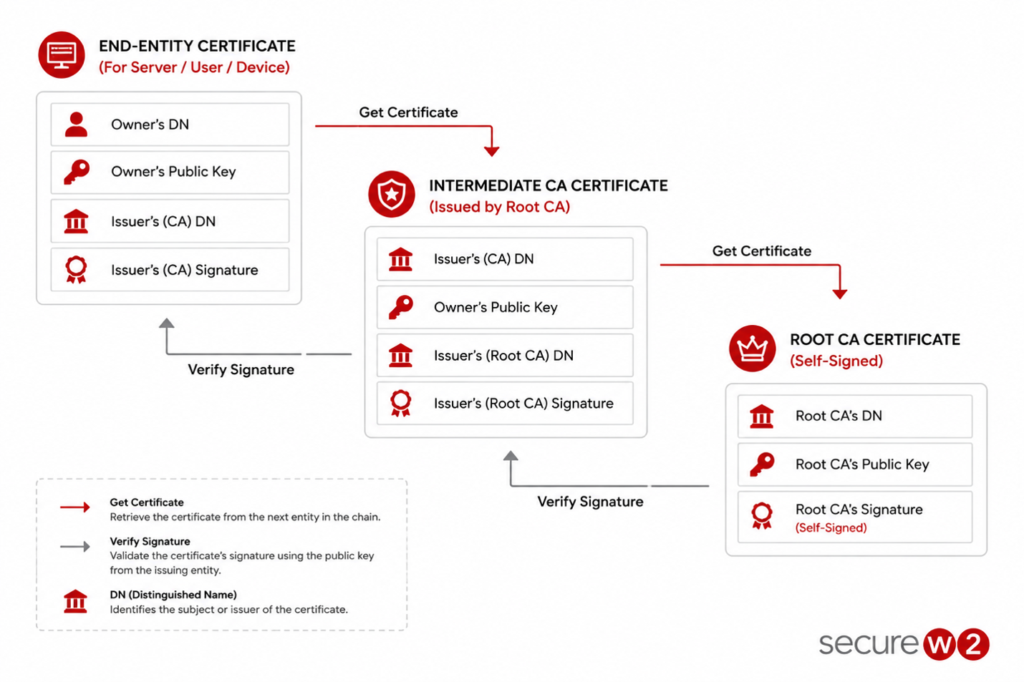
Servers are expected to send the full chain (including intermediates) so the client can verify each link.
A missing intermediate is a common misconfiguration that causes failures on mobile browsers and some corporate proxies even when the certificate itself is valid.
Key Usage and Extended Key Usage
The key usage extension restricts what a certificate’s key pair may do.
A server authentication certificate should list serverAuth in the extended key usage (EKU) field. A certificate meant for client authentication should list clientAuth.
Mismatched EKU values are a frequent source of TLS handshake errors in enterprise environments.
Signature Algorithm
The signature algorithm field names the algorithm the CA used to sign the certificate.
RSA with SHA-256 (sha256WithRSAEncryption) and ECDSA with SHA-256 (ecdsa-with-SHA256) are the two most common in production today.
SHA-1 signatures are no longer accepted by major browsers.
Revocation Endpoints
Certificates can be revoked before expiry when a private key is compromised or the certificate is misissued.
The certificate revocation list (CRL) distribution point and authority information access (AIA) extensions inside the certificate list the URLs where revocation data is published.
The online certificate status protocol (OCSP) endpoint in the AIA extension allows clients to get a real-time revocation answer for a single certificate rather than downloading an entire CRL.
It’s worth noting that CAs are now required to generate and publish CRLs, while OCSP services are now optional, so some certificates may have a CRL distribution point but lack an OCSP URI. Additionally, Let’s Encrypt ended OCSP support in 2025.
How to Inspect an SSL Certificate in Your Browser
Browsers give you the fastest path to a certificate’s core fields. Steps differ slightly across browsers but follow the same pattern.
Chrome (Desktop)
- Navigate to the HTTPS site you want to inspect.
- Click the tune icon (two sliders) to the left of the address. (Alternatively, click the “Not Secure” warning.)
- Click Connection is secure.
- Click Certificate is valid to open the certificate viewer.
- The Details tab will display fields such as Subject, Issuer, Validity, Subject Alternative Names and Key Usage.
The Certificate Hierarchy panel at the top of the Details tab shows the full chain from root to end-entity. Click each layer to inspect intermediate CA details.
Firefox (Desktop)
- Click the shield icon to the left of the address bar.
- The Unified Trust panel will open. Click Connection secure.
- Another panel will open. Next, click More site information.
- A window titled Page Info will open. Click View Certificate.
- Firefox will open the about:certificate page, which will display information about the certificate for the current website.
Edge (Desktop)
- Click the padlock icon in the address bar.
- Click Connection is secure, then Certificate is valid.
- The Certificate Viewer UI is the same as in Chrome.
Mobile Browsers
In Safari on iOS, iPadOS or visionOS 18.4 and later, you can read certificate details without leaving the browser: open the Page Menu, tap More, then tap Connection Security Details.
In Google Chrome on Android OS, you can view certificate details by tapping the tune button on the left side of the address bar. Tap Connection is secure, then tap Certificate information to access the Certificate viewer. Keep in mind that the desktop version displays more certificate details than its mobile counterpart.
To inspect a certificate on devices or browsers without a built-in certificate view, use an online checker (see the next section) or connect to the server from a desktop.
How to Inspect an SSL Certificate With OpenSSL
OpenSSL is the command-line standard for certificate work. Two subcommands cover the most common inspection tasks:
- openssl s_client to retrieve a certificate from a live server
- openssl x509 to parse a certificate file
Retrieve and Display a Certificate From a Live Server
To pull the certificate from a remote server and print its full decoded content, run:
openssl s_client -connect example.com:443 -servername example.com </dev/null | openssl x509 -text -noout
The -servername flag sends a server name indication (SNI) extension so servers hosting multiple virtual hosts return the correct certificate.
On Windows, replace </dev/null with < nul.
Parse a Local Certificate File
If you have a certificate saved as a PEM file, inspect it directly:
openssl x509 -in certificate.crt -text -noout
The -text flag outputs every field in human-readable form. The -noout flag suppresses the raw PEM output so you see only the decoded data.
Check Expiry Dates Only
To quickly get just the validity window without the rest of the fields:
openssl x509 -in certificate.crt -noout -dates
This prints notBefore and notAfter timestamps.
To check whether a certificate will expire within the next 30 days (2,592,000 seconds):
openssl x509 -in certificate.crt -noout -checkend 2592000
OpenSSL exits with code 0 if the certificate is still valid for that window, or code 1 if it would expire.
Inspect the Full Certificate Chain on a Remote Server
openssl s_client -connect example.com:443 -servername example.com -showcerts </dev/null
The -showcerts flag prints every certificate the server sends, including intermediates, as PEM blocks.
Copy each block into a separate file and run openssl x509 -text -noout on each to read the individual chain links.
Verify a Certificate Against a CA Bundle
openssl verify -CAfile ca-bundle.crt certificate.crt
This checks that the certificate chains to the supplied CA bundle.
A return of certificate.crt: OK confirms the chain is intact.
How to Check an SSL Certificate With Online Tools
Online SSL checkers are useful when you need a quick result without a terminal, or when you want a readable report that includes chain validation, revocation checks and protocol support in one view.
These tools work by connecting to your server from their own infrastructure and reporting what they see. They are read-only and do not require any access to your private key.
Common fields that online checkers report:
- Common Name and SANs: Whether the certificate covers the domain you entered.
- Issuer and chain: Whether the full chain to a trusted root is present and each link is valid.
- Expiration: How many days remain before the certificate expires.
- Revocation status: Whether the CA has marked the certificate as revoked via OCSP or CRL.
- Protocol and cipher support: What TLS versions and cipher suites the server accepts.
Online checkers are limited to publicly reachable servers. For internal hostnames or development environments, use the browser UI or OpenSSL instead.
What to Look for When Inspecting a Certificate
Not every field requires scrutiny on every inspection. Focus on these areas depending on what you are trying to confirm.
Verifying a Certificate Is Legitimate
Check the issuer against the list of CAs trusted by major browsers. If the issuer is unknown or a self-signed root, browsers will display a warning.
Also verify the SAN matches the domain you requested.
Warning: A valid certificate issued by a known CA but for a different domain is a sign of a misconfiguration or, in adversarial scenarios, a man-in-the-middle attack.
Confirming the Certificate Is Current
Read the Not After date. Compare it to today’s date. If the certificate expires within 30 days, flag it for renewal.
As the CA/Browser Forum’s phased validity-period reductions take effect, automated monitoring and renewal become increasingly important for operations teams.
Checking Whether the Certificate Has Been Revoked
A certificate can be revoked at any time if its private key is compromised. CAs publish revocation data in two ways: certificate revocation lists (CRLs) and OCSP.
CRL
SSL certificates contain a URL to the CA’s revocation list. To check the status, connect via the URL and download the CRLs. Afterward, search for the certificate’s serial number to confirm whether it has been revoked.
OCSP
Online SSL checkers run an OCSP query automatically when you enter a domain. From the command line:
openssl ocsp -issuer issuer.crt -cert certificate.crt -url <ocsp-url> -resp_text
The OCSP URL is listed in the certificate’s AIA extension. You can extract it with:
openssl x509 -in certificate.crt -noout -ocsp_uri
Auditing Key Usage and Certificate Purpose
In an enterprise environment, mismatched key usage is a routine cause of TLS errors.
A certificate issued for email signing will fail if installed on a web server because its EKU does not include serverAuth.
Look at the EKU extension and confirm it matches the intended use: serverAuth for HTTPS, clientAuth for device or user authentication, emailProtection for S/MIME.
Certificate-based client authentication is the foundation of secure Wi-Fi and VPN access.
X.509 certificates used for 802.1X network access must have clientAuth in their EKU.
Why Automated Certificate Management Matters
Manual certificate inspection works for one-off checks. It does not scale when you manage hundreds or thousands of certificates across servers, network devices and user endpoints.
Missed expirations cause outages, while undetected revocations leave security gaps, making a strong case for automated certificate management.
Note: A managed public key infrastructure (PKI) platform automates issuance, renewal and revocation tracking so certificates are current and in scope.
It also provides visibility into every certificate in your environment, from the issuing CA down to the individual endpoint.
How SecureW2 Simplifies Certificate Lifecycle at Scale
Inspecting an individual certificate is straightforward. Operating a fleet of certificates across Wi-Fi clients, VPN endpoints and web servers is a different problem.
Certificates expire, CAs change and compliance requirements evolve. Without automation, an operations team spends time manually checking certificates instead of addressing real security issues.
JoinNow Dynamic PKI provides a managed certificate authority that issues, renews and revokes certificates automatically. Certificates are tied to user and device identity through native integrations with identity providers including Microsoft Entra ID and Okta.
Every certificate issued carries the right EKU for its intended purpose, and revocation is handled server-side without manual intervention.
For organizations using certificate-based authentication on Wi-Fi or VPN, SecureW2 also provides JoinNow Cloud RADIUS, which enforces policy at authentication time using real-time identity lookup. Revoked certificates are denied access at the next authentication attempt before the CRL is published.
Schedule a demo to see how SecureW2 manages the certificate lifecycle from issuance to revocation across your entire environment.
Frequently Asked Questions
How do I inspect an SSL certificate on a remote server from the command line?
Run: openssl s_client -connect example.com:443 -servername example.com </dev/null | openssl x509 -text -noout
The command connects to the server, retrieves the certificate, and prints every field in human-readable format.
Add -showcerts to openssl s_client if you want to see the full certificate chain, including intermediates.
What is the difference between inspecting an SSL certificate and SSL inspection?
Inspecting an SSL certificate means reading the metadata fields inside a certificate file, such as the issuer, validity dates and SANs, to confirm a server’s identity.
SSL inspection (also called TLS inspection or deep packet inspection) is a network security technique where a middlebox decrypts, examines and re-encrypts live traffic.
The two operations are entirely separate.
How do I check if an SSL certificate has been revoked?
Read the CRL distribution point out of the certificate and check its status.
For certificates that still publish an OCSP URI, look at the certificate’s authority information access (AIA) extension to find the OCSP URL, then query it with openssl ocsp -issuer issuer.crt -cert certificate.crt -url <ocsp-url> -resp_text.
An empty –ocsp_uri output indicates the certificate has no OCSP endpoint. As the extension field is increasingly absent, this is a possibility.
Online SSL checker tools also run revocation checks automatically when you enter a domain. A response of good means the certificate is not revoked; revoked means it has been invalidated.
What is the Subject Alternative Name field and why does it matter?
The Subject Alternative Name (SAN) is an X.509 extension that lists every hostname, IP address, or email address a certificate is authorized for.
Modern browsers use the SAN exclusively for domain verification and ignore the Common Name field. If the domain you are connecting to does not appear in the SAN list, the browser will reject the certificate regardless of what the CN says.
How often should I inspect SSL certificates?
Monitor expiration dates continuously rather than on a fixed schedule. As certificate validity periods shorten under the CA/Browser Forum’s phased reductions, the margin for late notices shrinks.
For production web servers, set alerts at 30 days and 14 days before expiry. For internal certificates used in enterprise authentication, automated renewal through a managed PKI removes the need for manual inspection cycles.
What certificate fields indicate the validation level?
The subject field and the certificate policies extension indicate the validation level.
An extended validation (EV) certificate includes the organization name, country and locality in the subject. An organization validation (OV) certificate includes the organization name. A domain validation (DV) certificate includes only the domain.
The certificate policies extension contains an object identifier (OID) that maps to the CA’s certificate policy document and identifies the validation class.
