SecureW2 TPM-based key attestation can be integrated with the certificate enrollment workflow to ensure that private keys are securely generated, stored, and validated within trusted hardware.
When an IoT device submits a Certificate Signing Request (CSR), the server cannot determine whether the private key is hardware-protected or software-generated. A TPM attestation validation server ensures that (1) the key is hardware-bound and non-exportable, and (2) the TPM is genuine and vendor-trusted. This guarantees that the issued certificate is cryptographically bound to a specific physical device and cannot be used without its TPM.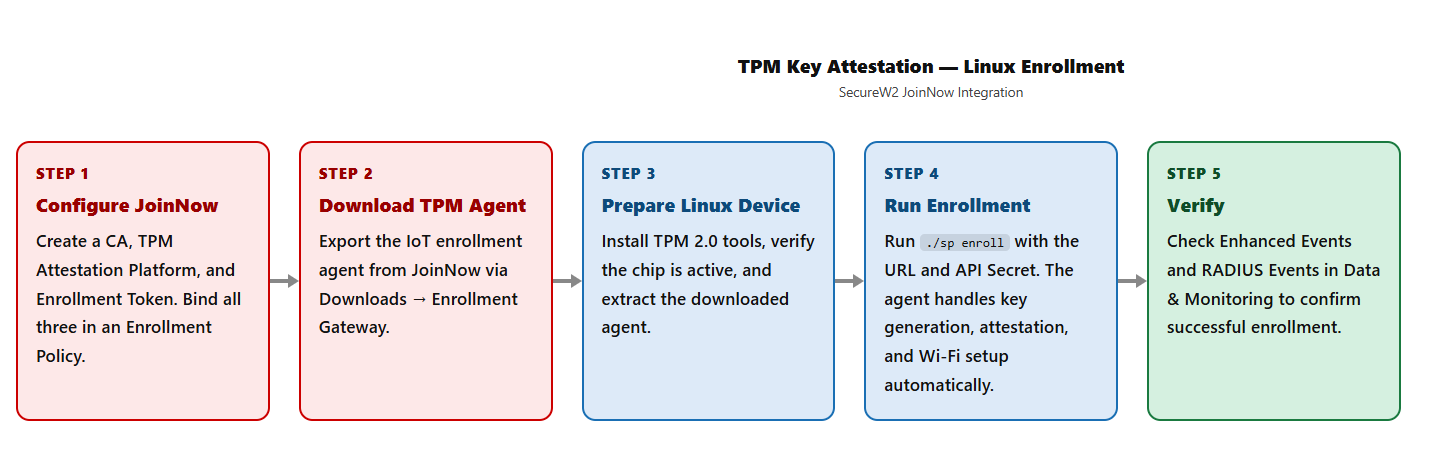
The following guide provides step-by-step instructions on setting up TPM Key Attestation for certificate enrollment.
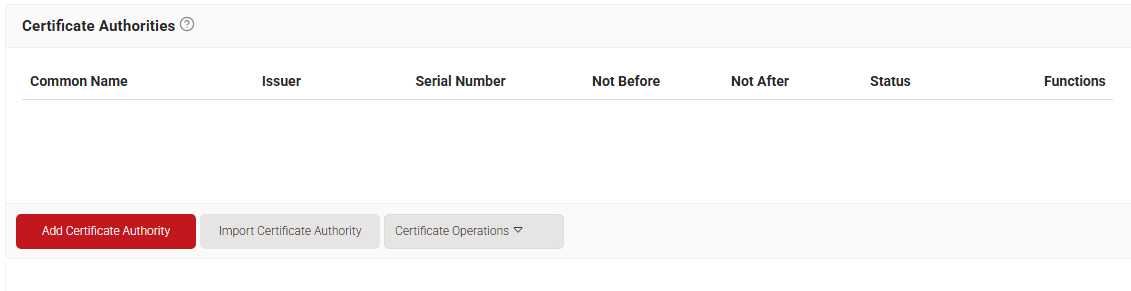
As a best practice, SecureW2 recommends having a new intermediate CA for TPM-based attestation.
To create a new intermediate CA:
- Log in to the JoinNow Management Portal.
- Navigate to Dynamic PKI > Certificate Authorities.
- Click Add Certificate Authority.

- In the Basic section, select the Device and User Authentication option from the Generate CA For drop-down list to authenticate devices and users.
- From the Type drop-down list, select Intermediate CA.
- From the Certificate Authority drop-down list, select the default Root CA for your organization.
- In the Common Name field, enter a common name for the CA certificate.
- From the Key Size drop-down list, select 2048 for the CA certificate key pair.
- From the Signature Algorithm drop-down list, select the signature algorithm for the certificate signing request. The option available is SHA-256.
- In the Validity Period (in years) field, enter the validity period of the CA certificate.

- Click Save. The new intermediate CA is generated.
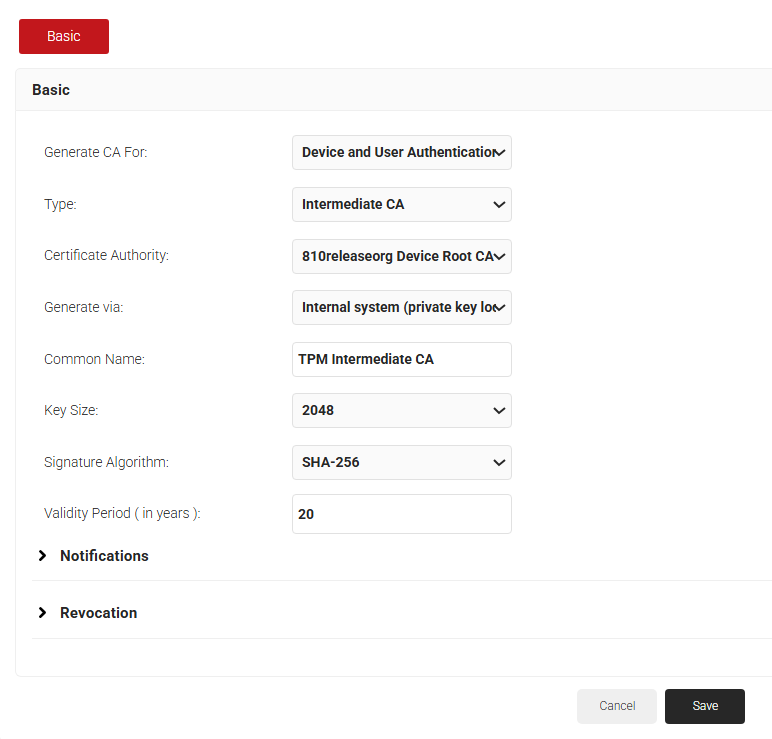
The Simple Device Enrollment Token is a static API key used to authenticate devices during enrollment. It was previously part of the TPM Attestation Provider configuration and could be created only during TPM attestation setup, but it is now a standalone token.
To create a Simple Device Enrollment Token, perform the following steps:
- Navigate to Integration Hub > Device Management Platforms.
- Click Add.
- In the Name field, enter a name for the token.
- In the Description box, enter a description for the token.
- From the Type list, select Simple Device Enrollment Token. With this token type, you can authenticate devices during enrollment without configuring TPM attestation.

- Click Save. A .csv file containing the API Key ID, API Secret, and Enrollment URL is downloaded.
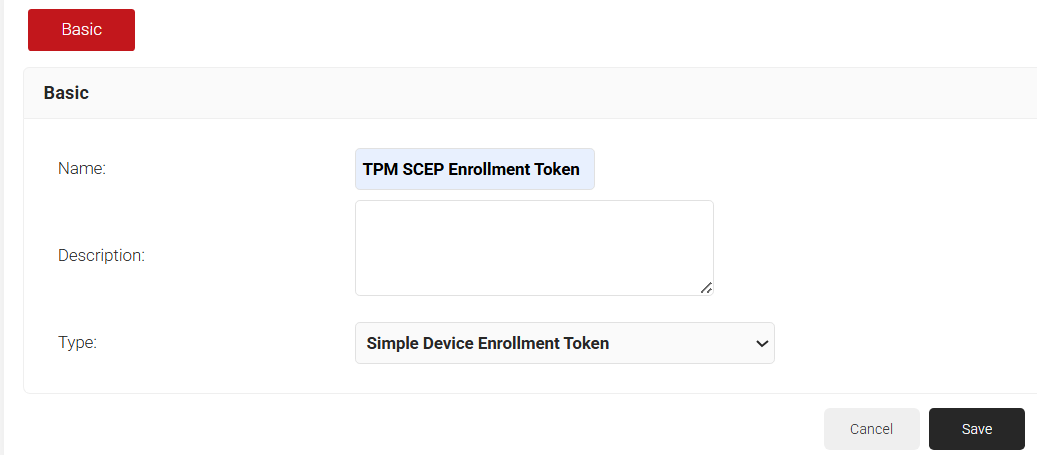
This section describes the steps to configure a key attestation platform for TPM.
- Navigate to Integration Hub > Key Attestation Platforms.
- Click Add.

- In the Name field, enter a name for the key attestation platform.
- In the Display Description field, enter a suitable description for the key attestation platform.
- From the Type drop-down list, select TPM.
- From the Manufacturer drop-down list, select the trusted vendor that manufactured the TPM chip. SecureW2 currently supports AMD and Infineon.
NOTE: Select Other in the Manufacturer field and manually enter a manufacturer that is not listed.

- Click Save.
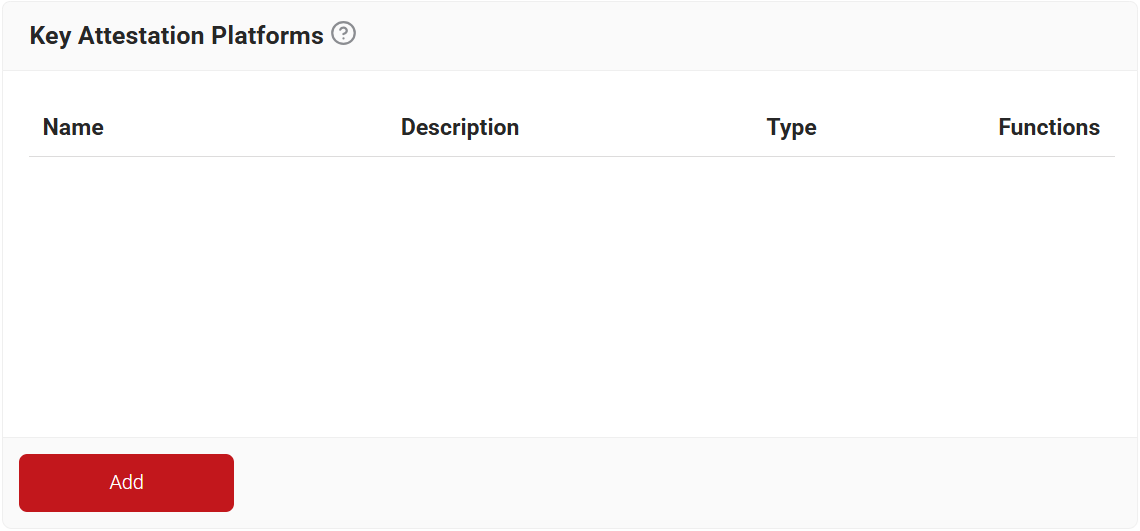
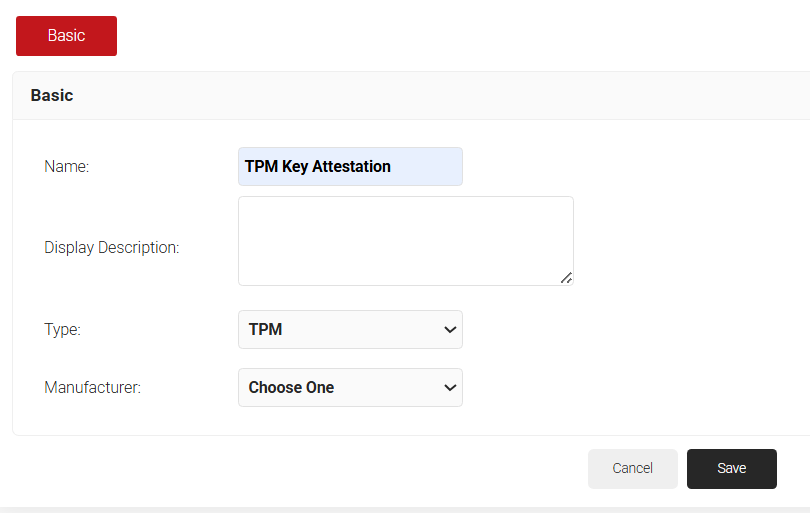
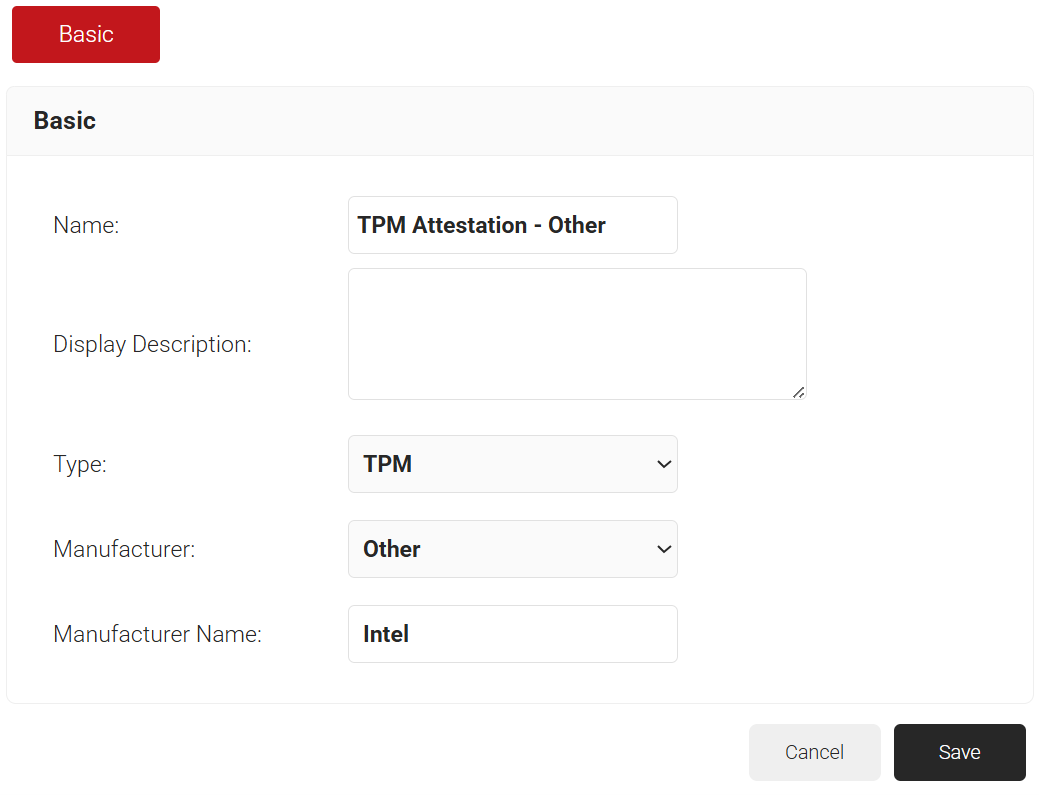
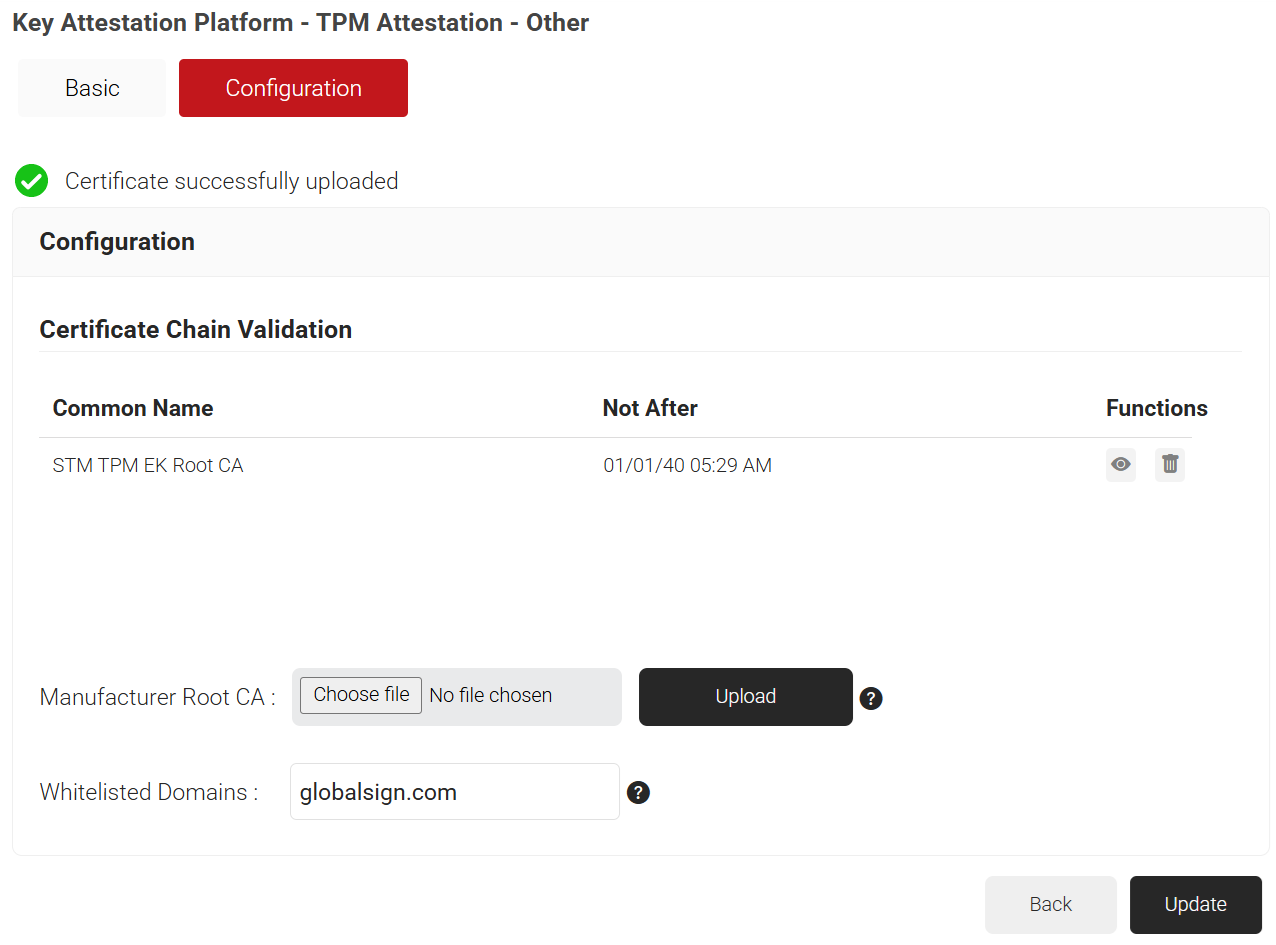
If the TPM chip’s manufacturer is not listed in the Manufacturer drop-down, Admin can select Other to manually enter the manufacturer, add the Manufacturer Root CA, and specify the whitelisted domains for the AIA URL.
This section describes the steps to configure a custom manufacturer for TPM.
- Navigate to Integration Hub > Key Attestation Platforms.
- Click Add.
- In the Name field, enter a name for the key attestation platform.
- In the Display Description field, enter a suitable description for the key attestation platform.
- From the Type drop-down list, select TPM.
- From the Manufacturer drop-down list, select Other.
- In the Manufacturer Name field, enter the manufacturer’s name.

- Click Save. Click the Configuration tab.
- In the Manufacturer Root CA field, click Choose file to locate and upload the root certificate.
- In the Whitelisted Domains field, enter the whitelisted domain and click Upload.

- Click Update.
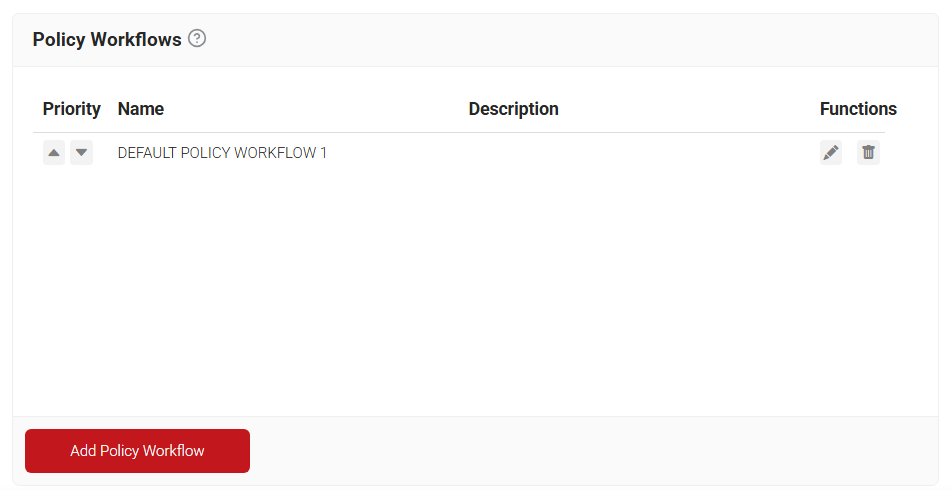
- Go to Policy Management > Policy Workflows.
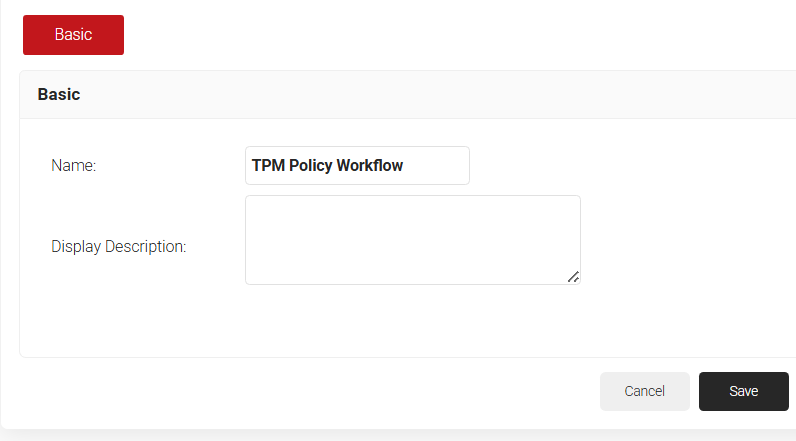
- Click Add Policy Workflow.

- In the Basic section, in the Name field, enter a name for the policy.
- In the Description field, enter a description for the policy.

- Click Save. The page refreshes and automatically selects the Conditions tab.
- In the Conditions section, click the Core Provider drop-down and select the Device Management Platform created in the Creating Simple Device Enrollment Token section.

- Click Update.
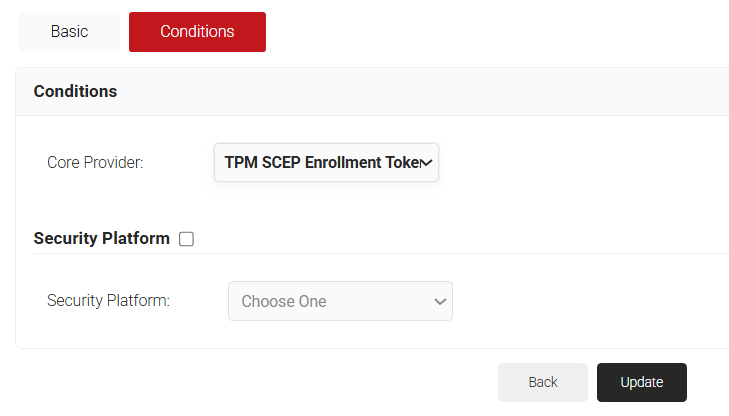
Device Role Policy helps in mapping the attestation provider in JoinNow for device attestation.
- From the JoinNow Management Portal, go to Policy Management > Device Role.
- Click Add Device Role Policy.

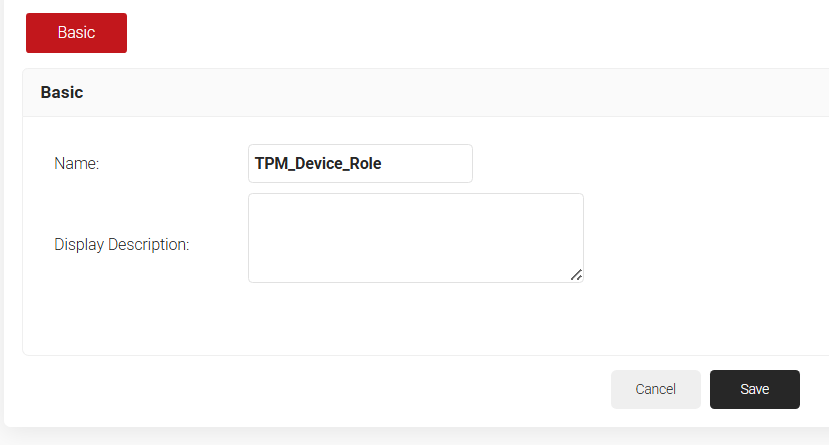
- In the Basic tab, enter a name in the Name field.
- For Display Description, enter a description.

- Click Save. The page refreshes, and the Conditions tab opens.
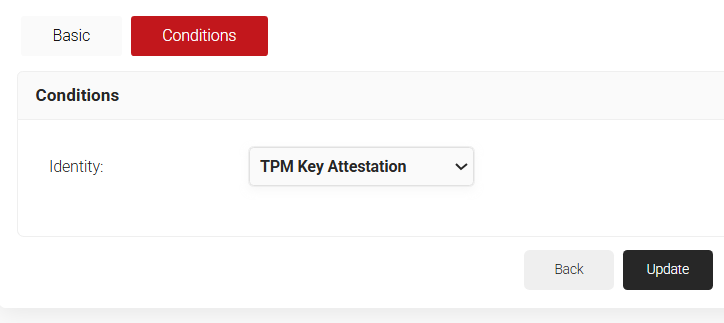
- Click on the Conditions tab.
- From the Identity drop-down, select the Key Attestation Provider created in the Configure Key Attestation Platform section.

- Click Update.
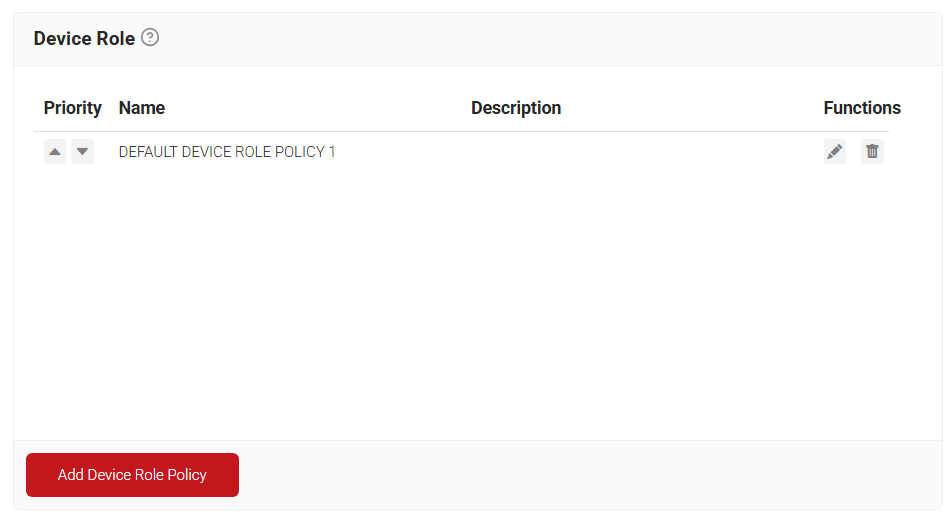
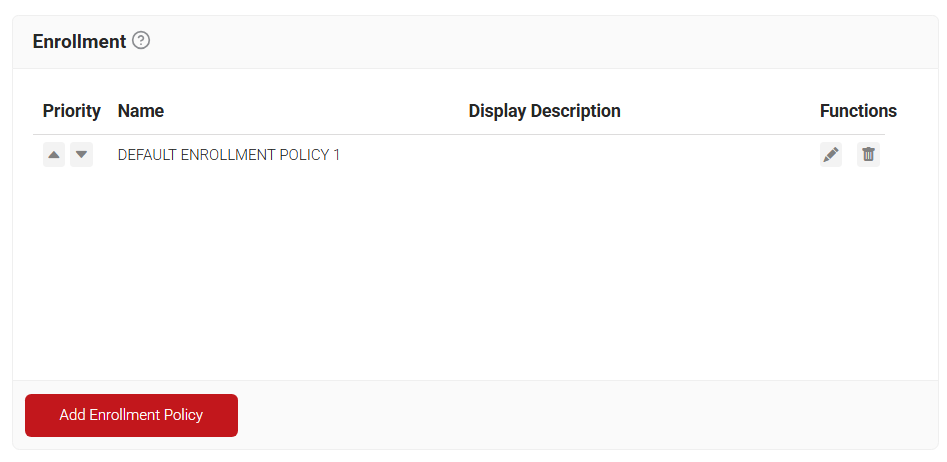
- From the JoinNow Management Portal, go to Policy Management > Enrollment.
- Click Add Enrollment Policy.

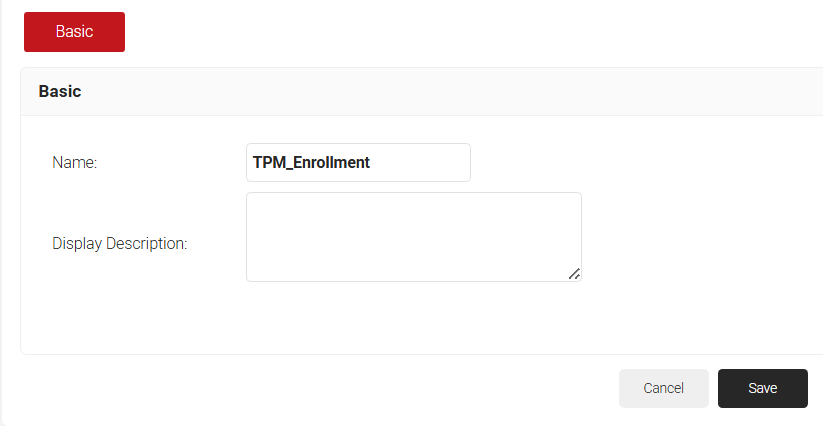
- In the Basic tab, for Name, enter a name.
- For Description, enter a description.

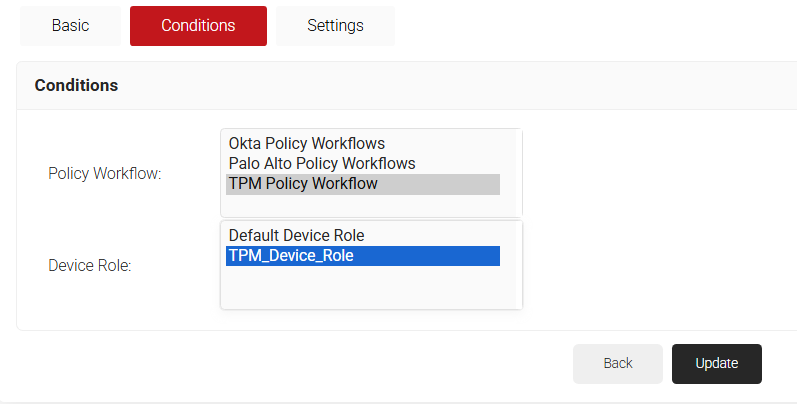
- Click Save. The page refreshes and displays the Conditions and Settings tab.
- In the Conditions section, for Role, select the user role policy you created in the Creating a Policy Workflow section.
- For Device Role, select the device role created in the Creating a Device Role Policy section.

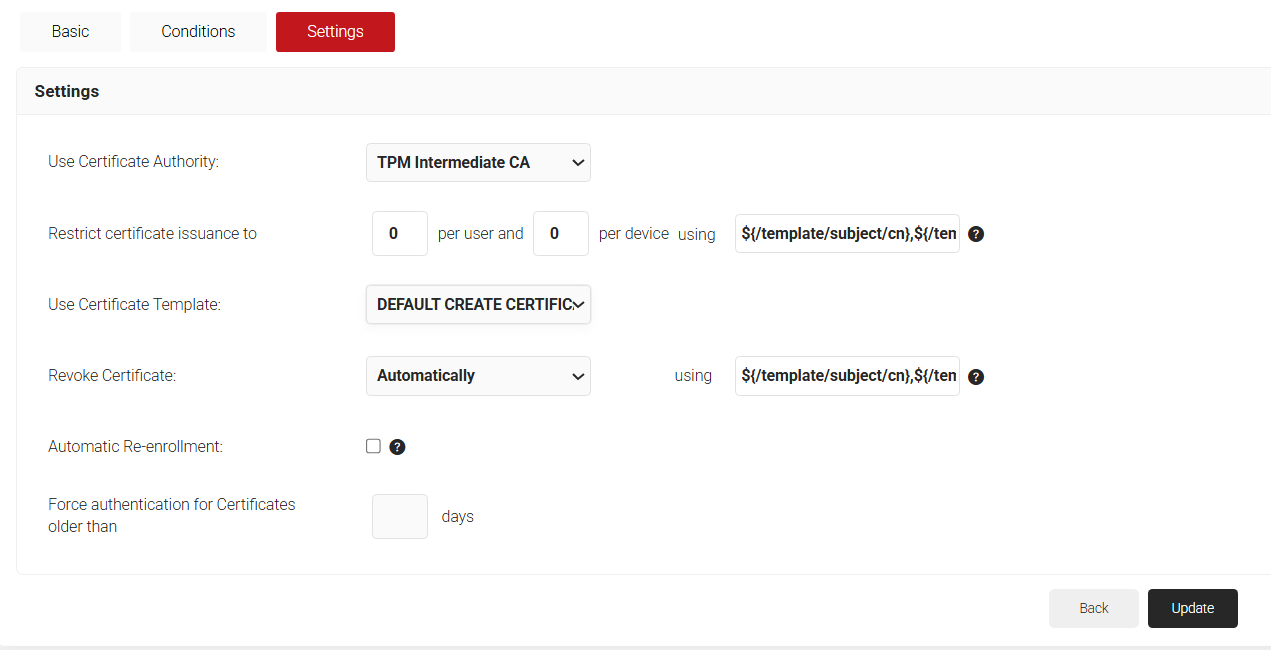
- Click on the Settings tab.
- From the Use Certificate Authority drop-down, select the intermediate CA created for TPM-based attestation.
- From the Use Certificate Template drop-down list, choose the DEFAULT CREATE CERTIFICATE TEMPLATE 1.

- Click Update.
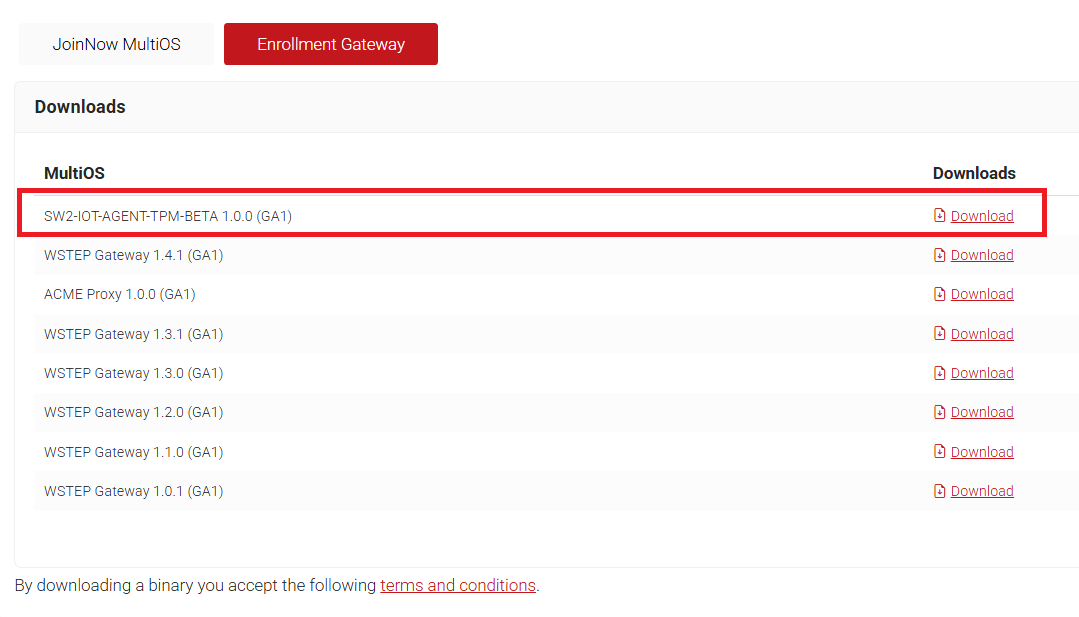
To download the TPM agent required for a Linux machine:
- Navigate to Downloads > Enrollment Gateway.
- Click the Download button adjacent to the TPM Agent.

Admins can check the enrollment success message on the Enhanced Events page under Data and Monitoring: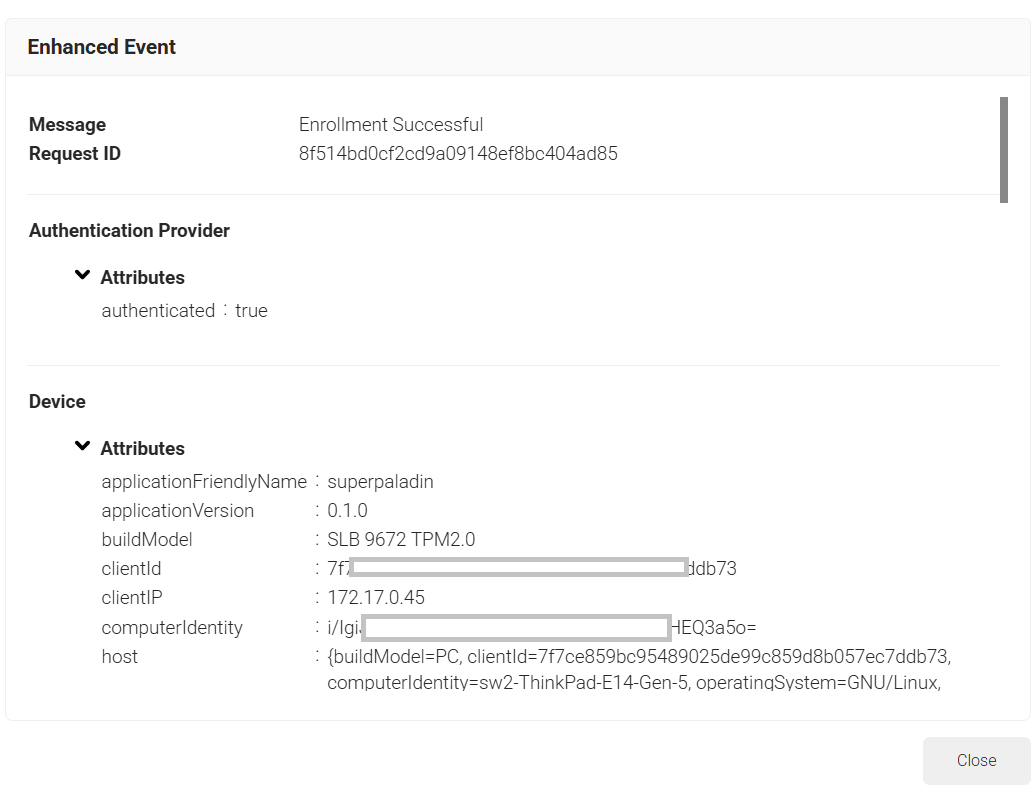
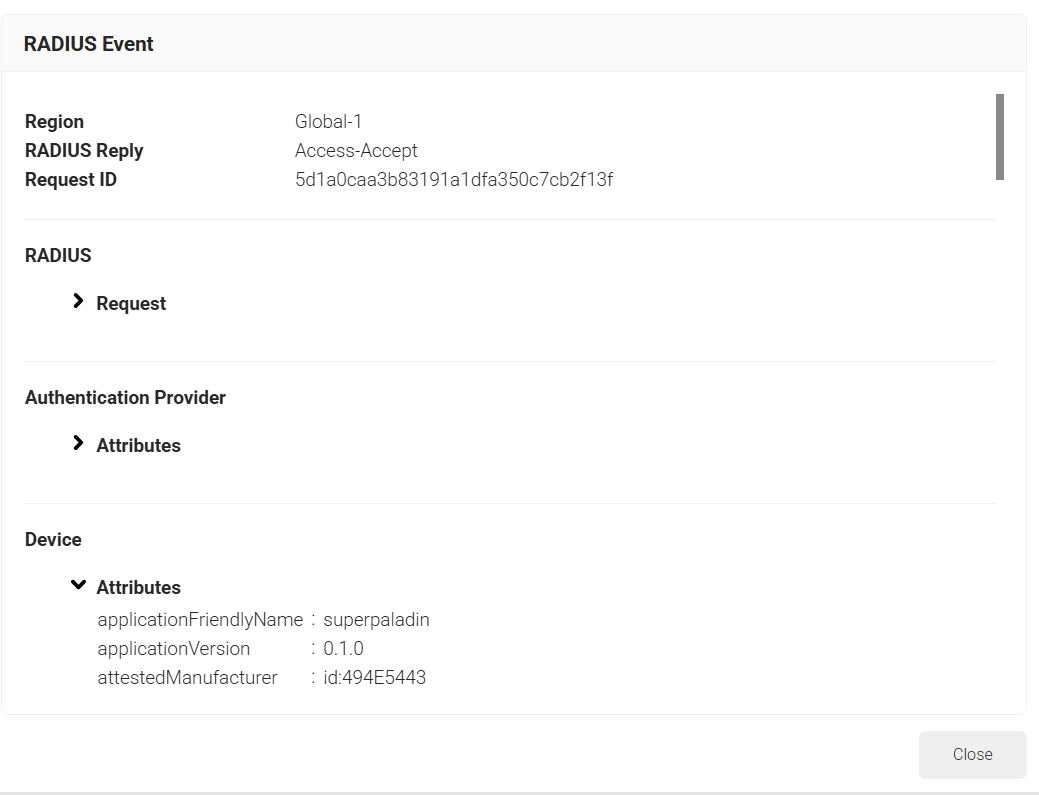
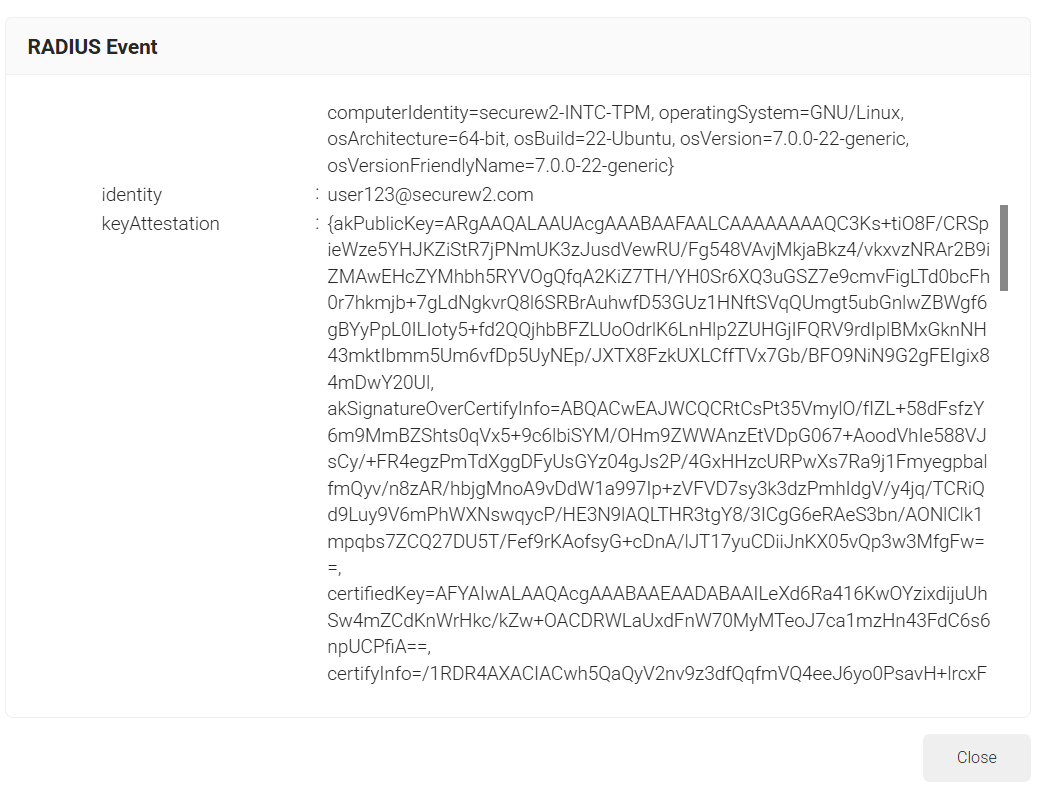
Similarly, admins can check the RADIUS success message on the RADIUS Events page under Data and Monitoring: