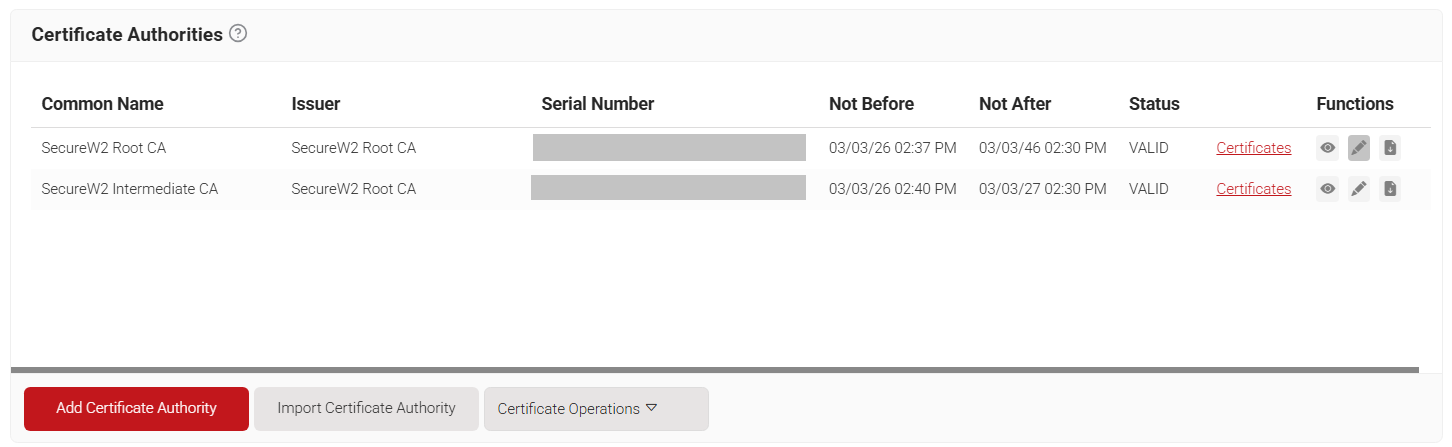
- Log in to the JoinNow Management Portal and navigate to Dynamic PKI > Certificate Authorities.
- Download the Root Certificate and the Intermediate Certificate.

- Go to the ClearPass Policy Manager page, navigate to Administration, and click Trust List.
- Click Add and then Browse:
- Here, we will upload the recently downloaded certificates.
- Locate the certificates in your folder, click Open, and select Add Certificate (the names of your root and intermediate certificates will be the name of your organization)
- Check that the certificates are valid and enabled in the Trust List by typing the name of the certificates in the search bar.
- In the ClearPass Policy Manager page, click Services.
- Click Add, and in the drop-down for Type, change the value to 802.1X Wireless:
- The first service rule has been changed to wireless
- Delete the second service rule.
- Create a new service rule to specify the SSID for authentication requests by clicking Click to add and choosing RADIUS: IETF in the Type field:
- In the Name field, choose Callback-Id.
- In the Operator field, choose CONTAINS.
- In the Value field, enter the name of your SSID.
- Click the Authentication tab, then in the Authentication Methods section, delete all except EAP-TLS:
- If you are going to use PEAP-MSCHAPv2 in conjunction with EAP-TLS, do NOT delete it in Authentication Methods.
- In the Authentication Sources section, add Customer CAS (Active Directory).
- To configure roles, click the Roles tab:
- For the Role Mapping Policy, click the dialog box and choose the [Guest Roles]:
- You can get very specific with the roles you assign, but for now, the default guest roles will suffice.
- Click Save.


- Click Configuration, and in the Authenticating section, click Sources.
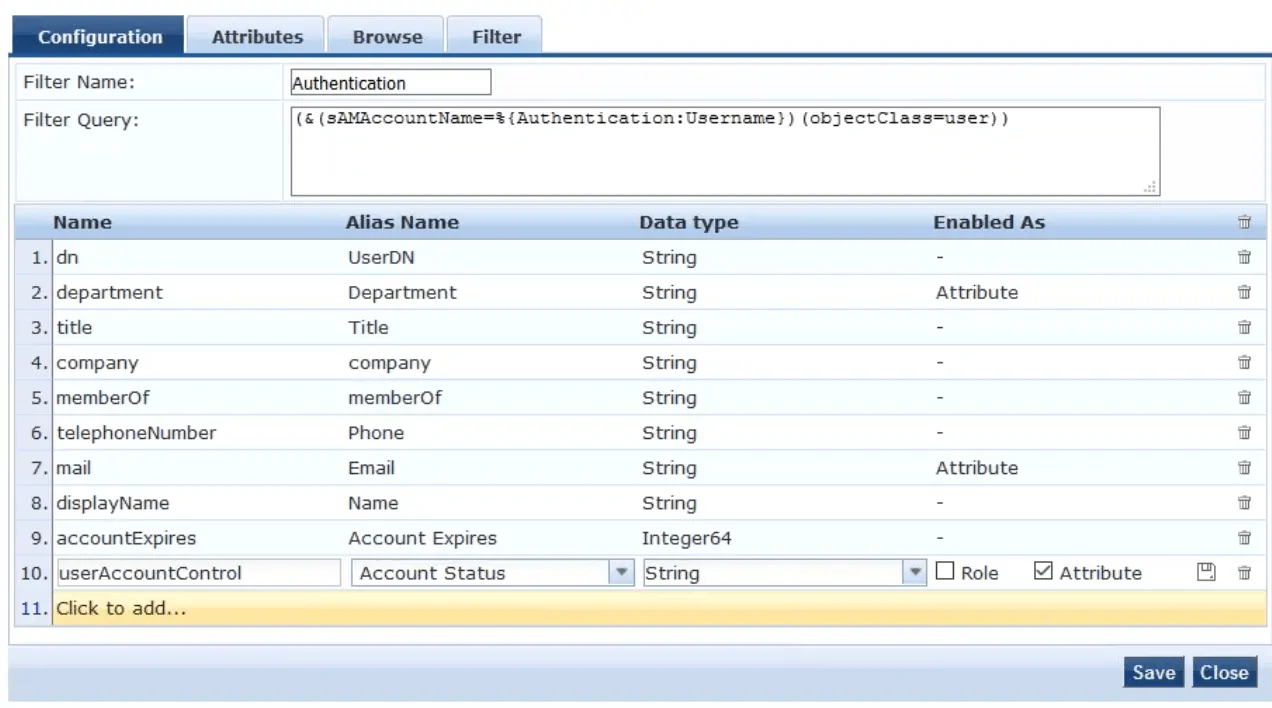
- Double-click Customer CAS (Active Directory) and navigate to the Attributes tab.
- Click Authentication under the Filter Name column.
- In the bottom row, click Click to add… and add the attribute userAccountControl:
- For the Alias Name, enter Account Status.
- For the Data Type, enter String.
- In the Enabled As section, check the box next to Attribute and click Save.

Now that our Signal Source is configured to include this attribute, we need to check our Authentication Source to ensure LDAP is sending these attributes.
- Go back to the Authentication Source Customer CAS, navigate to the Attributes tab, and click Authentication in the Filter Name column.
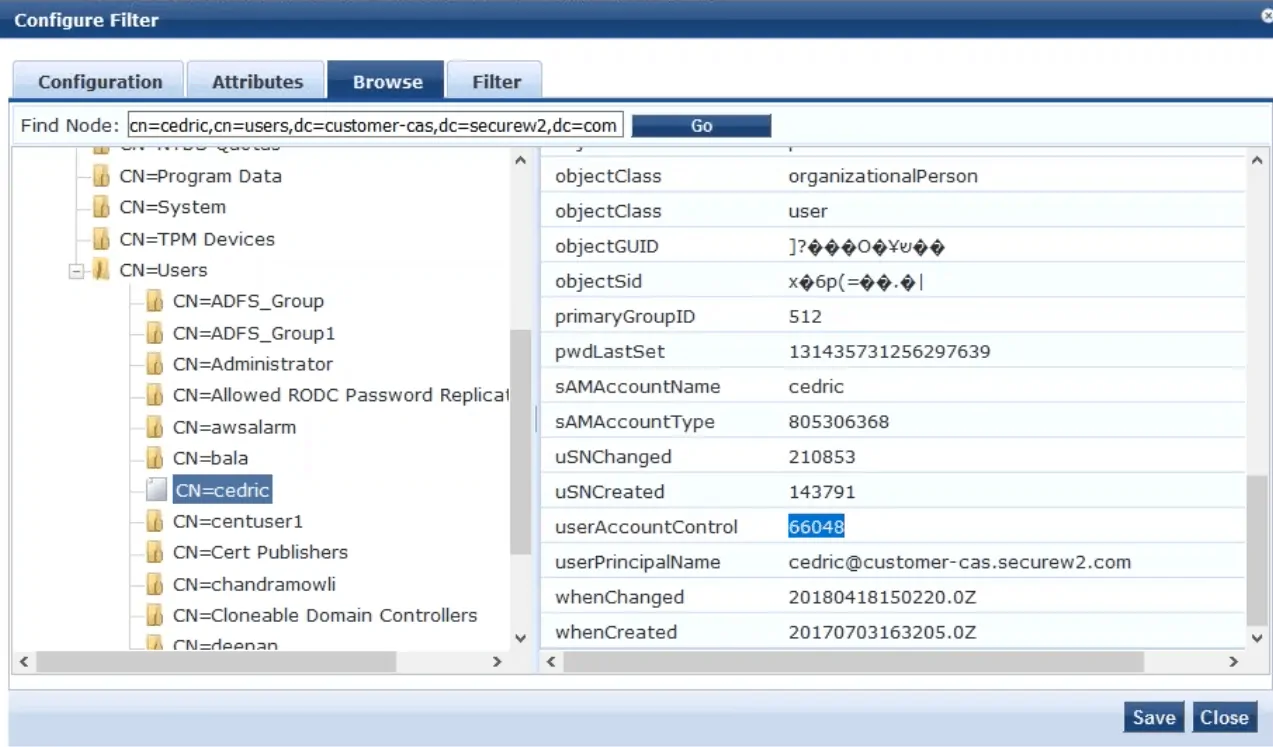
- In the Configure Filter window that appears, go to the Browse tab.
- Click the folder for your organization, then click CN=Users, and click the test user we previously created.

- Check to see that userAccountControl is visible with a value assigned:
- If you see 66048, it means the user is enabled.
- If you see 66050, it means the user is disabled.
To ensure that Authorization is enabled, you must:
- Navigate to Services, then click the SecureW2 CPPM RADIUS Server.
- From here, click the Service tab and verify that the Authorization box is checked under More Options.
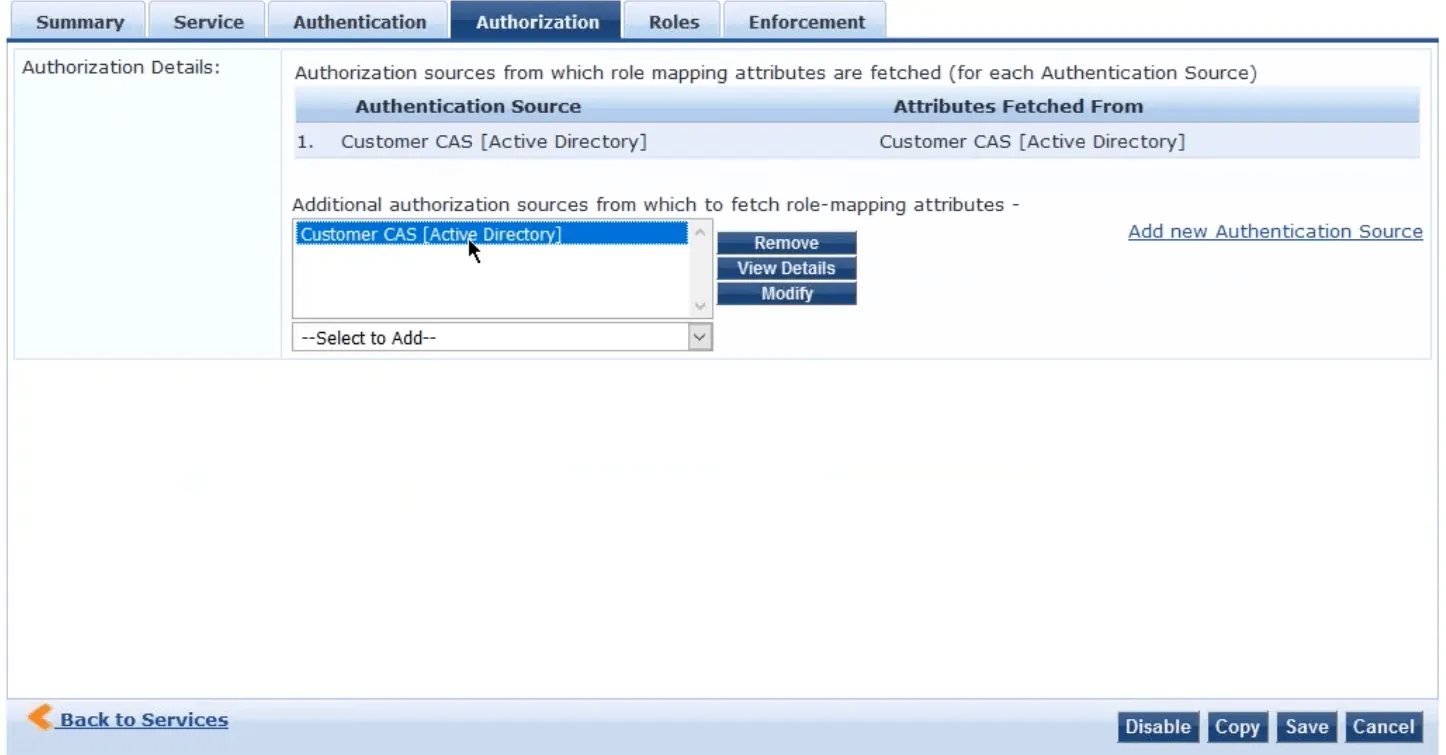
- If you go to the Authorization tab, make sure the Authentication Source is the previously configured Customer CAS.
- Customer CAS should also be included in the Additional authorization sources box shown below.

- Customer CAS should also be included in the Additional authorization sources box shown below.
- Click Save.
- In the ClearPass Policy Manager, navigate to Administration > Certificates > Revocation List.
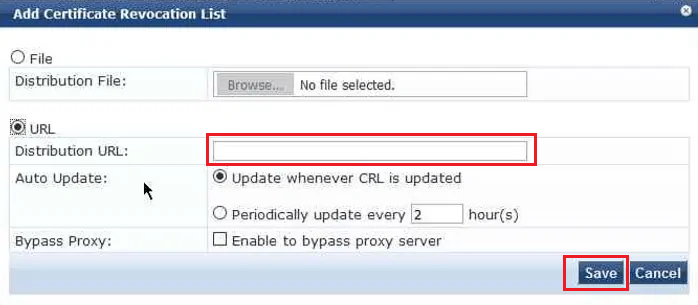
- Click Add.
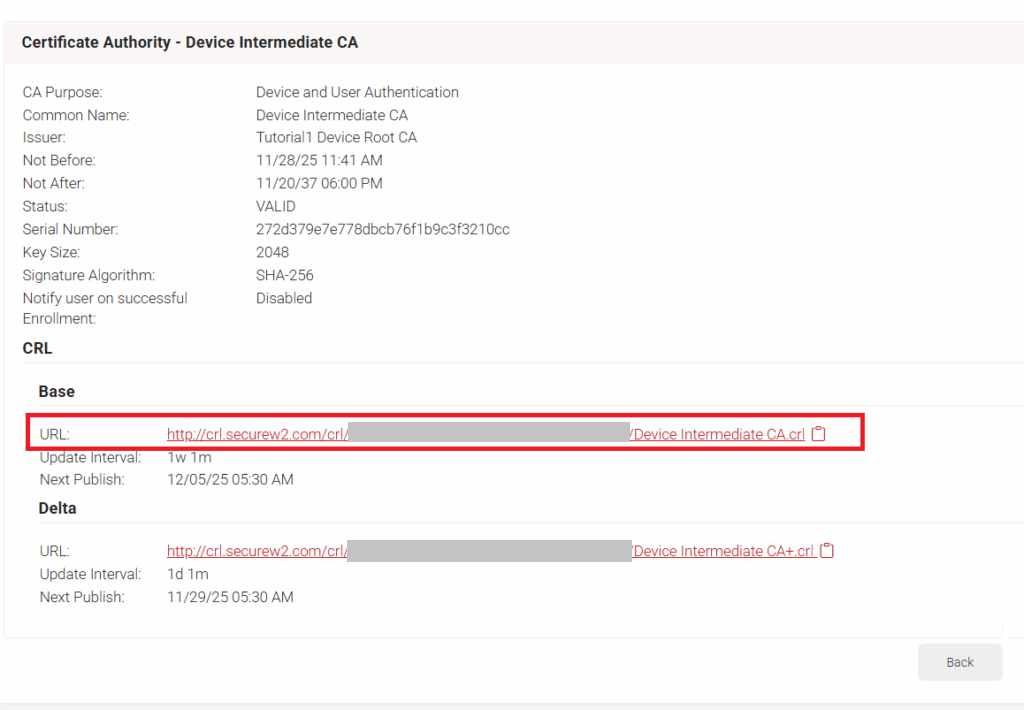
- Navigate to the JoinNow Management Portal, and click Certificate Authorities under Dynamic PKI.
- Click View that corresponds to the Intermediate CA, and right-click on the Base CRL link and click Copy Link Address.

- Navigate back to the ClearPass Policy Manager and paste the URL in the Distribution URL field.

- Click Save, and the CRL list will be added and checked.