SecureW2 offers several Certificate Enrollment settings to deliver an easy, customizable end-user experience.
To configure these settings:
- Log in to the JoinNow Management Portal.
- Navigate to Device Onboarding > Profiles.
- Click Edit on the profile you created in Getting Started.
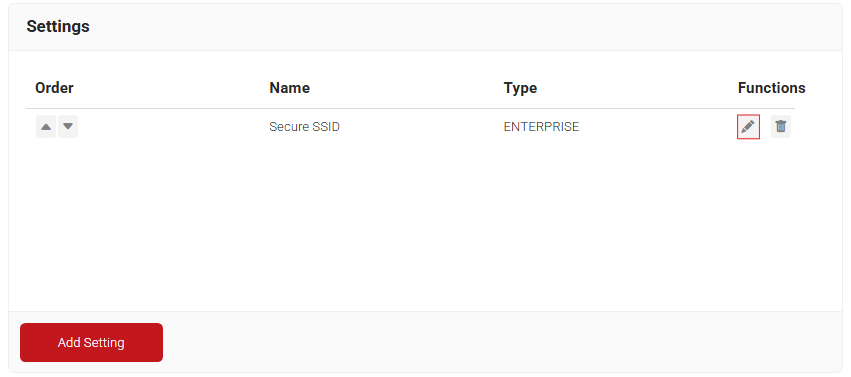
- Scroll down to the Settings section and click Edit for Secure SSID.

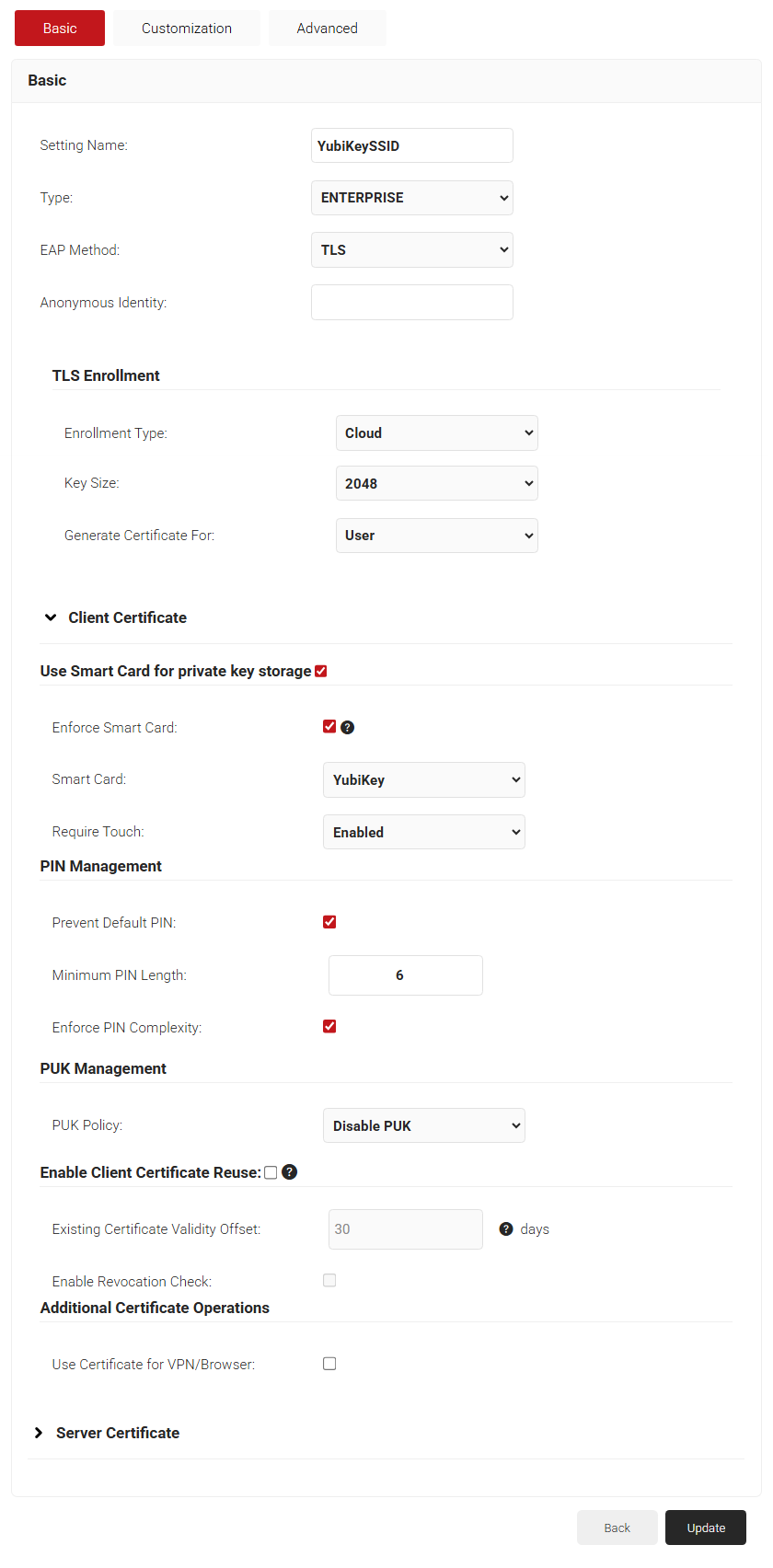
- Expand the Client Certificate section and configure the following settings:
- Select the Use Smart Card for private key storage checkbox.
- Select the Enforce Smart Card checkbox.
- Select YubiKey from the Smart Card drop-down list.
- Select Enabled from the Require Touch drop-down list to require users to touch their YubiKeys.
- Optionally, configure PIN Management.
- Select Prevent Default PIN if you want to prevent YubiKeys with default PINs from enrolling for certificates.
- Minimum PIN – Length allows you to require a minimum PIN length.
- Select the Enforce PIN Complexity checkbox. It enforces the following PIN complexity conditions. Contains characters from the following categories:
- English uppercase characters (A through Z).
- English lowercase characters (a through z).
- Base 10 digits (0 through 9).
- Optionally, configure PUK Management.
- PUK Policy:
- Select Disable PUK to prompt only for resetting the YubiKey PIN.
- PUK Policy:
- Click Update.

- Click Update.
SecureW2 enables YubiKeys to perform Key Attestation, attesting that the private key was generated on the YubiKey itself. This allows administrators to create high security clearance access policies specifically for YubiKeys.
YubiKeys come with an attestation certificate signed by the standard Yubico PIV CA by default. Some YubiKeys, when ordered in large custom batches, come with attestation certificates issued by a custom Root CA. If your YubiKeys have a custom attestation Root CA, you can also upload that here.
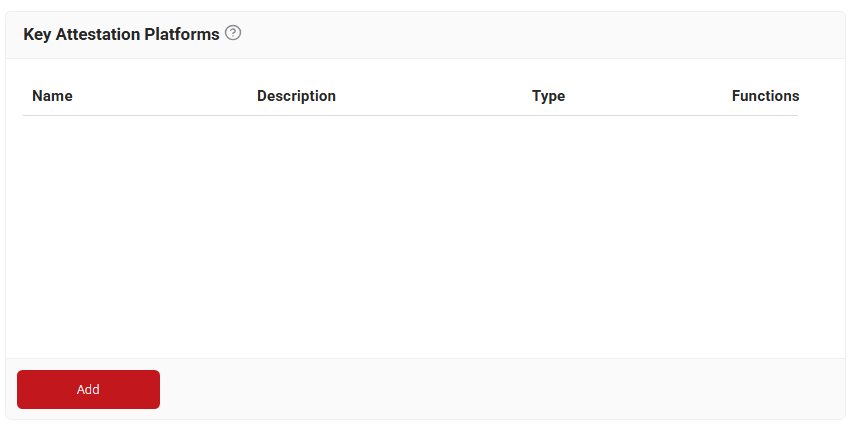
- Navigate to Integration Hub > Key Attestation Platforms.
- Click Add.

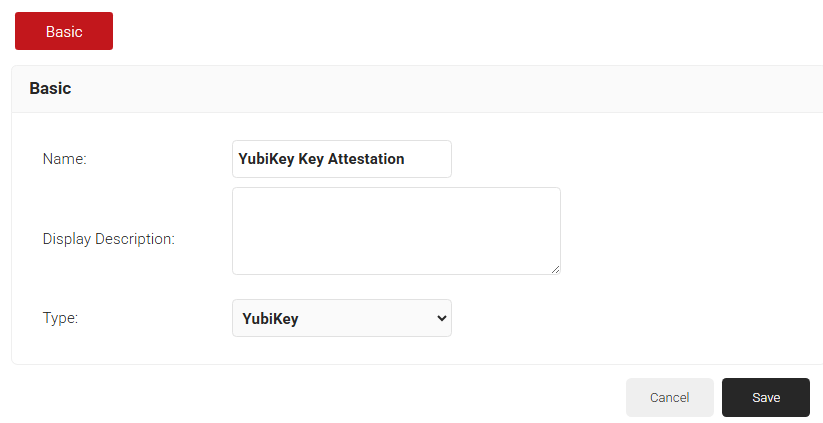
- In the Name field, enter the name of the key attestation platform.
- From the Type drop-down list, select YubiKey.

- Click Save.
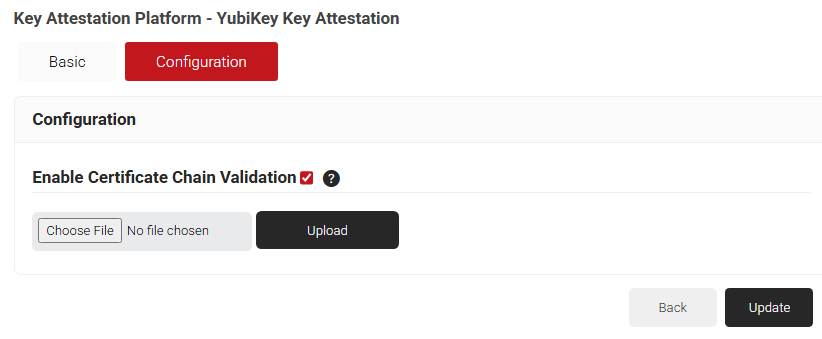
- Select the Configuration tab. To upload your custom Key Attestation Root CA:
- Select the Enable Certificate Chain Validation checkbox.
- Select Choose File.
- Upload your CA. Allowed certificate file extensions are .cer, .crt, and .pem.
- Click Upload.
- Click Update

- Now, your Key Attestation Provider will be a configurable setting when creating Device Policies.
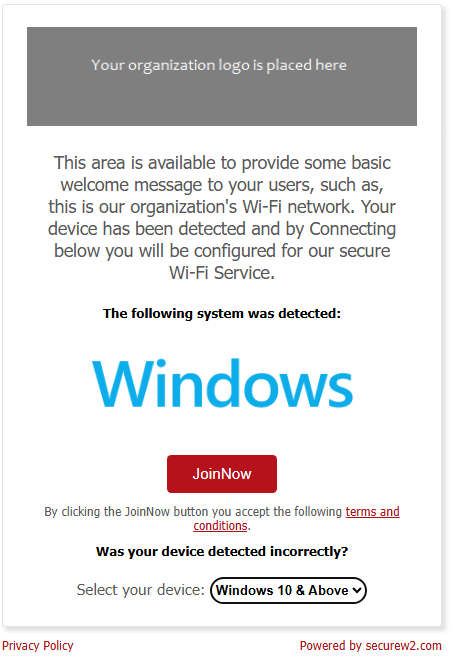
After the Getting Started Wizard has finished, a landing page will be generated. This is where you will instruct your end users to navigate so they can self-service their YubiKeys for certificates.
Every aspect of this page is completely customizable. Contact us for more information.
To get your landing page:
- Navigate to Device Onboarding > Profiles and click View.
 You are redirected to the JoinNow Landing Page, which automatically detects the device operating system and deploys the appropriate client to configure the YubiKey.
- Copy this URL and instruct end-users to navigate to the page.

There are many other features you can configure in SecureW2, but the steps above outline the minimum setup required to start configuring YubiKeys for Certificates.
Ensuring YubiKeys are not using the default PIN and PUKs is extremely important. The JoinNow client can enforce any PIN/PUK complexity rules, detect whether the user is using a default PIN/PUK, and prevent certificate enrollment until the user has configured a secure, unique PIN/PUK.
NOTE: For security reasons, you can disable PUK reset YubiKeys from enrolling for certificates. To do this, navigate to step 5.e in the Configuring YubiKey Certificate Enrollment Settings section.
If you have forgotten or need to reset your PIN, follow these steps:
- In the SecureW2 client, click Forgot PIN?
- You are prompted to Use my (default) PUK or Reset your YubiKey.
- If you choose to use my (default) PUK:
- Enter your PUK.
- Upon successful authentication, a new screen appears. This screen notifies you that resetting your YubiKey will erase all existing data stored on it.

- Enter your new PIN and PUK, and then click Next. A screen confirming you have set a new PIN and PUK appears.
- Certificate enrollment resumes per the instructions in the next section.
- If you choose Reset your YubiKey:
- A new screen appears. This screen warns you that resetting your YubiKey will erase all existing information stored on it.
- Enter your new PIN and PUK, and then click Next.
- A screen appears confirming you have set a new PIN and PUK.
- Certificate enrollment resumes per the instructions in the next section.
- If you choose to use my (default) PUK:
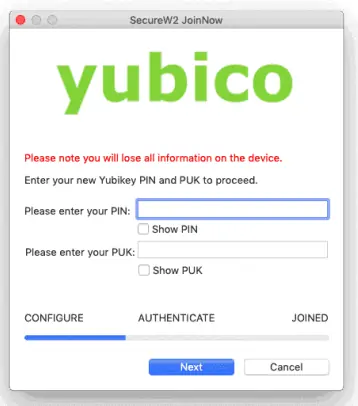
NOTE: If you enter your default PIN/PUK, you will be prompted to reset your YubiKey.
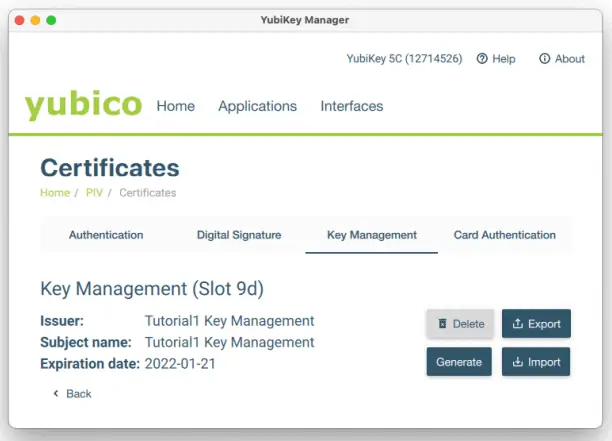
To unlock the keychain required for desktop login in macOS, a self-signed certificate must be configured in Slot 9d. The client automatically does this, as seen by opening the YubiKey Manager client.
Ensuring YubiKeys are not using the default PIN and PUKs is extremely important. The JoinNow client can enforce any PIN/PUK complexity rules, detect whether the user is using a default PIN/PUK, and prevent certificate enrollment until the user has configured a secure, unique PIN/PUK.
Note: For security reasons, you can disable PUK reset YubiKeys from enrolling for certificates. To do this, navigate to step 4.e in the “Configuring YubiKey Certificate Enrollment Settings” section.
If you have forgotten or need to reset your PIN, follow these steps:
- In the SecureW2 client, click Setup YubiKey/Forgot PIN.
- You are prompted to Use PUK or Reset YubiKey.
- If you choose Use PUK:
- Enter your PUK.
- Upon successful authentication, a new screen appears prompting you to enter your new PIN and PUK.

- Enter your new PIN and PUK, and then click Next. A screen appears confirming you have set a new PIN and PUK.
- Certificate enrollment resumes per the instructions in the next section.
- If you choose Reset YubiKey
- A new screen appears. This screen warns you that resetting your YubiKey will erase all existing information stored on it.
- Enter your new PIN and PUK, and then click Next. A screen appears confirming you’ve set a new PIN and PUK.
- Certificate enrollment resumes per the instructions in the following section.
- If you choose Use PUK:
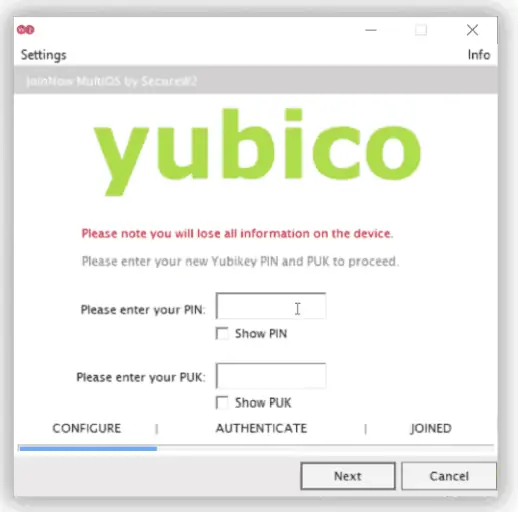
NOTE: If you enter your default PIN/PUK, you will be prompted to reset your YubiKey.