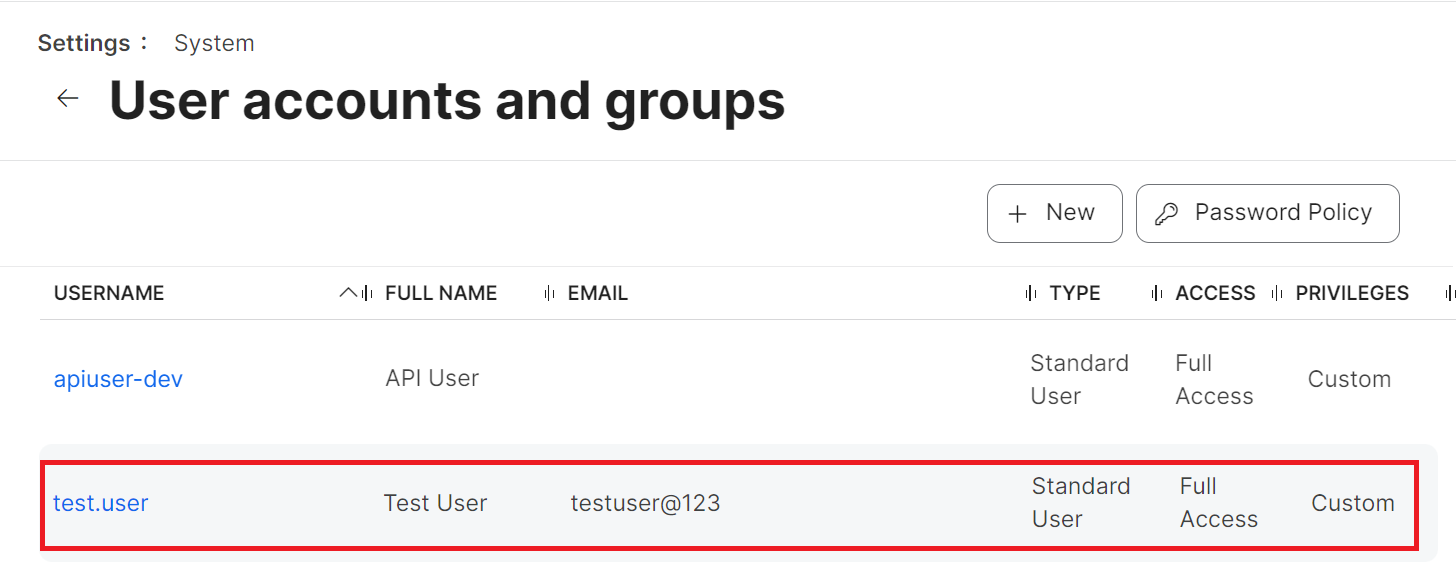
To create a read-only user in Jamf:
- From your Jamf Pro console, go to Settings > User accounts and groups.

- Click the + New button.

- On the Choose an Action step, select the Create Standard Account option and click Next.

- In the Account tab:
- In the Username field, enter a username for the account.
- From the Privilege Set drop-down list, select Custom.
- Enter the other details, such as email address, password, and so on, in the respective fields.

- Select the Force user to change password at next login checkbox to require the user to reset their password the next time they sign in. Sign-in attempts may fail until the user’s password is reset.
- Click the Privileges tab and select the READ checkbox for the following items.
- Mobile Devices
- Smart Computer Groups
- Smart Mobile Device Groups
- Static Computer Groups
- Static Mobile Device Groups
- Computers

- Click Save.


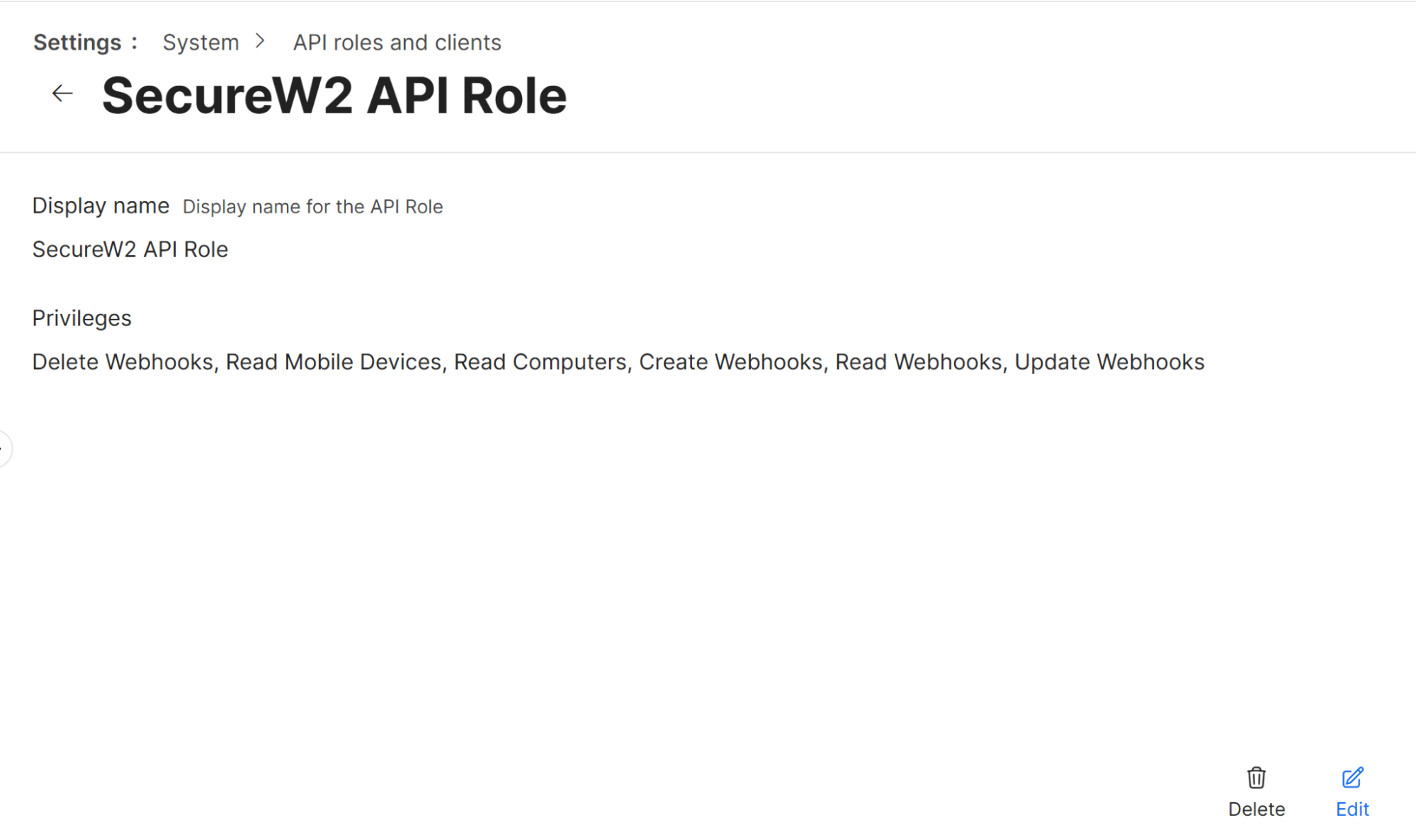
- From your Jamf Pro console, go to Settings > System.
- Click API roles and clients.

- Select the API Roles tab.
- Click the + New button.

- In the Display name field, enter the name of the API role.
- From the Privileges drop-down list, select the following privileges to be granted:
- Read Mobile Devices
- Read Computers
- Create Webhooks
- Delete Webhooks
- Read Webhooks
- Update Webhooks

- Click Save.


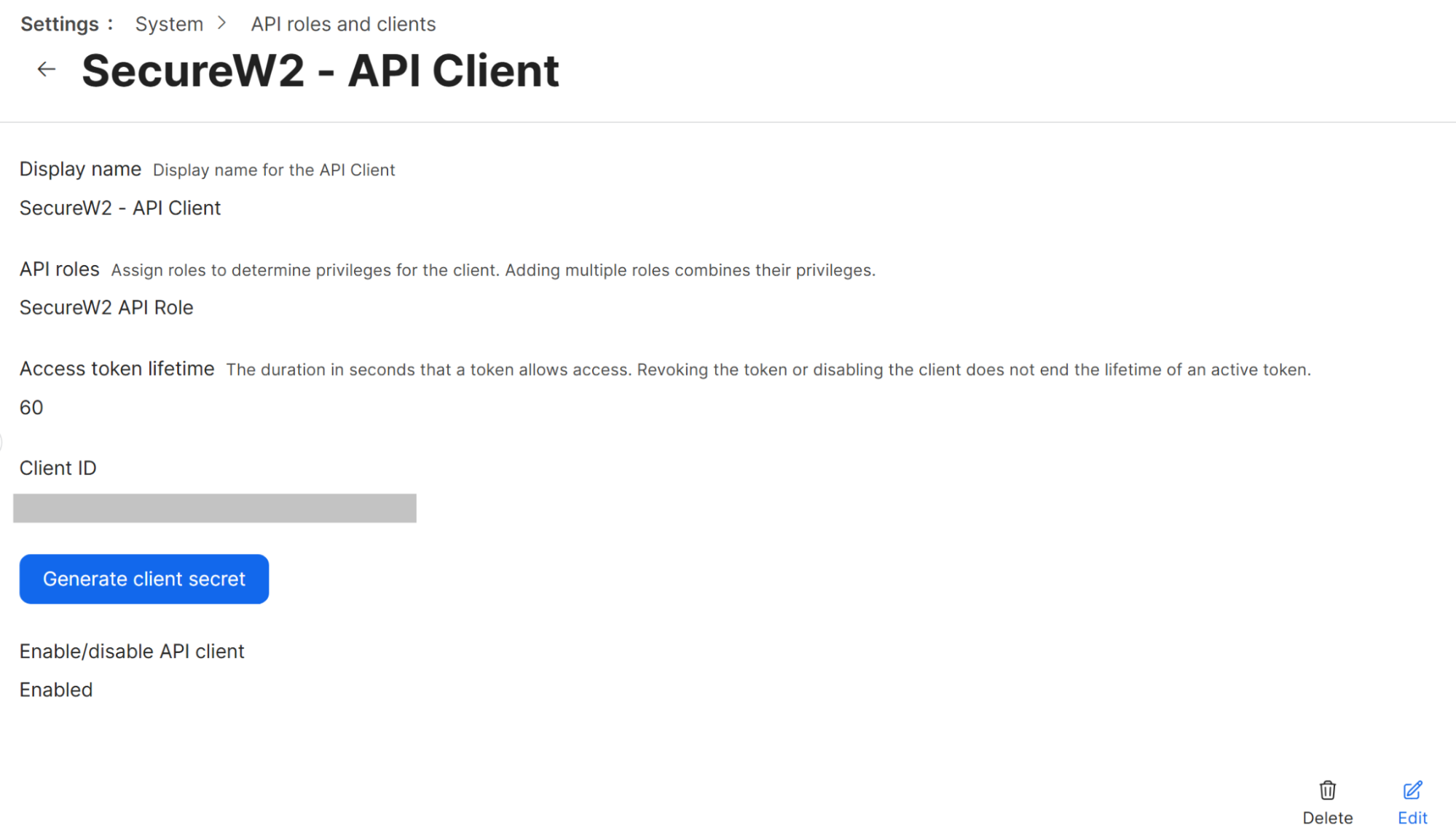
- From your Jamf Pro console, go to Settings > System.
- Click API roles and clients.
- Select the API Clients tab.
- Click the + New button.

- In the Display name field, enter the name of the API Client.
- From the API roles drop-down list, select the API role created in the Creating new API Roles section to grant the privileges.
- In the Access token lifetime field, enter the token’s access duration in seconds.
- Click the Enable API client button to enable it.

- Click Save.
- Click the Generate client secret button to create the Client Credentials.


- Copy the client credentials and paste them into a TextPad.




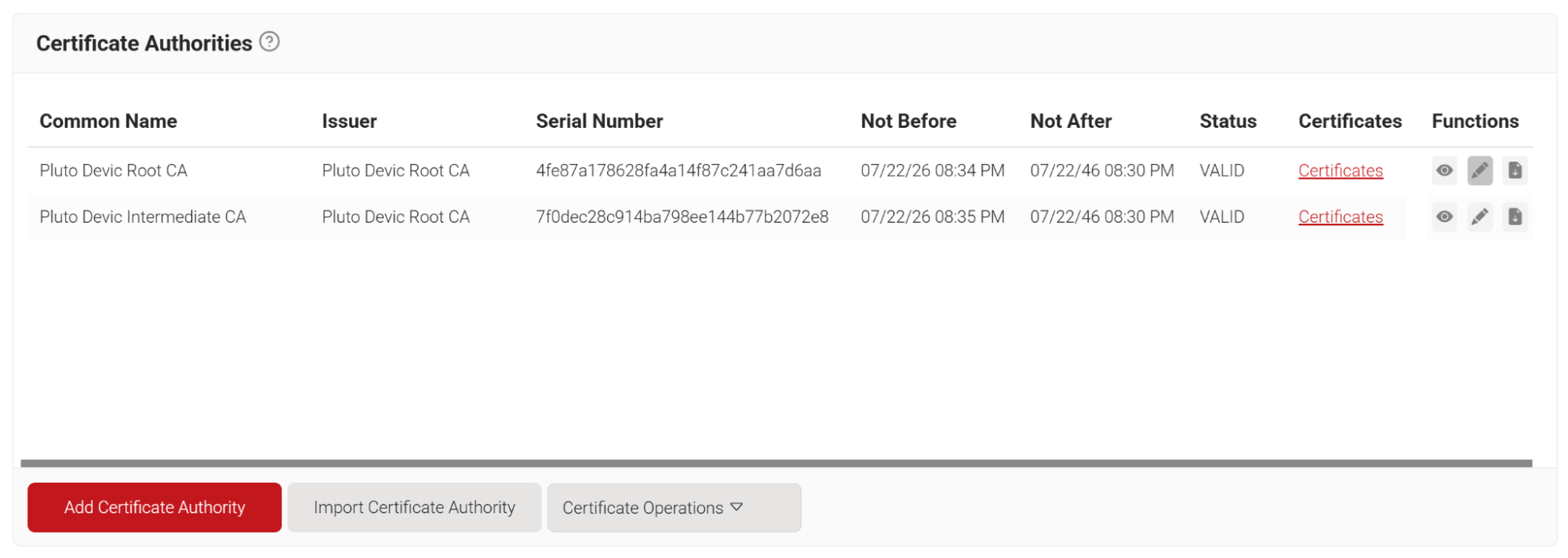
SecureW2 recommends the use of an Intermediate CA for Jamf lookup as a best practice for easy identification and management of your CAs.
To create a new intermediate CA:
- Log in to the JoinNow Management Portal.
- Navigate to Dynamic PKI > Certificate Authorities.
- Click Add Certificate Authority.

- In the Basic section, from the Generate CA For drop-down list, select the Device and User Authentication option to authenticate devices.
- From the Type drop-down list, select Intermediate CA.
- From the Certificate Authority drop-down list, select the default Root CA that comes with your organization.
- For the Common Name field, enter a name. Recommended name format for easy identification – “myOrgName jamf Intermediate CA”.
- From the Key Size drop-down list, select 2048 for the CA certificate key pair.
- From the Signature Algorithm drop-down list, select the signature algorithm for the certificate signing request. The option available is SHA-256.
- In the Validity Period field, enter the validity period for the Intermediate CA in terms of the number of years.
- In the Notifications section:
- From the Expiry Notification Frequency (in days) drop-down list, select the frequency interval for which a certificate expiration notification should be sent to users.
- Select the Notify user on successful Enrollment checkbox to notify users after a successful enrollment.
- If the RFC has a valid email address, the user will receive the certificate-issued or expired notification; otherwise, they will not.
- In the Revocation section:
- In the Revoke Certificate if unused for the field, select the number of days after which an unused certificate can be revoked.
- Since last usage – Select this checkbox to revoke the certificate after a specified number of days if it remains unused.
- Since certificate issuance – Select this checkbox to revoke the certificate after a specified number of days after it is issued.
- From the Reason Code drop-down list, select any one of the following reasons for which the certificate is revoked.
- Certificate Hold
- AA Compromise
- Privilege Withdrawn
- Unspecified

- In the Revoke Certificate if unused for the field, select the number of days after which an unused certificate can be revoked.
- Click Save. This generates the new intermediate CA.



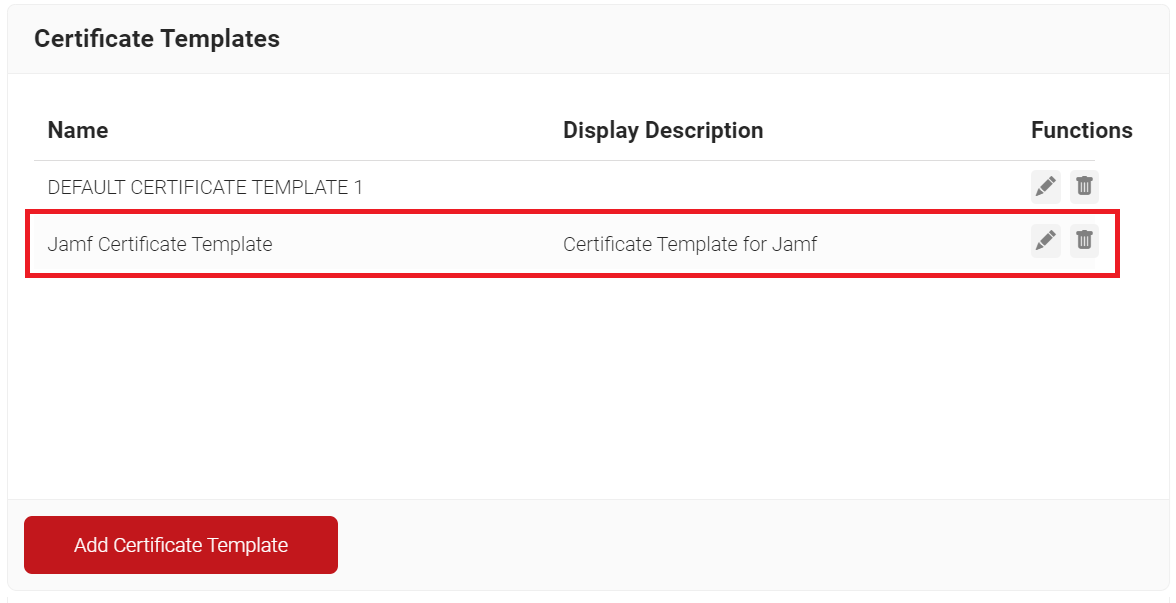
A certificate template determines how information is encoded in the certificate to be issued by the Certificate Authority. It will consist of a list of certificate attributes and how the information must be encoded in the attribute values. This information is provided by the organization administrator using the JoinNow Management Portal.
To create a Certificate Template for Jamf lookup, perform the following steps:
- Navigate to Dynamic PKI > Certificate Authorities.
- Scroll to the Certificate Templates section and click Add Certificate Template.

- In the Basic section, enter the name of the certificate template in the Name field.
- In the Subject field, enter CN=${/device/identity:/csr/subject/commonname}. This fetches the common name configured in Jamf.
- In the Display Description field, enter a suitable description for the certificate template.
- In the Validity Period field, type the validity period of the certificate (based on the requirement).
- To override the Validity Period attribute, select the Override Validity Period checkbox and choose the end date from the date picker to set a hard-coded date as the expiry date of a certificate.
- From the Signature Algorithm drop-down list, select SHA-256 as the signature algorithm for the certificate signing request.

- In the SAN section:
- In the Other Name field, enter ${/device/clientId}
- In the RFC822 field, enter ${/device/clientId}
- In the DNS field, enter ${/device/buildModel}
- In the URI field, enter ${/device/userDescription}

- In the Extended Key Usage section, from the Use Certificate For list, select Client Authentication.
- In the Notification section, select the Notify admin on certificate expiry checkbox to send certificate expiry email notifications to all Admins.

- Click Save.


A Signal Source must be set up in the JoinNow Management portal to integrate with the Jamf portal for device status lookup during the RADIUS Authentication.
To create a signal source, perform the following steps:
- Navigate to Integration Hub > Core Platforms.
- Click Add.

- In the Basic section, in the Name field, enter the name of the signal source.
- In the Description field, enter a suitable description for the signal source.
- From the Type drop-down list, select Jamf Pro.

- Click Save.
- The page refreshes, and the Configuration, Attribute Mapping, and Groups tabs are displayed.
- Click the Configuration tab.
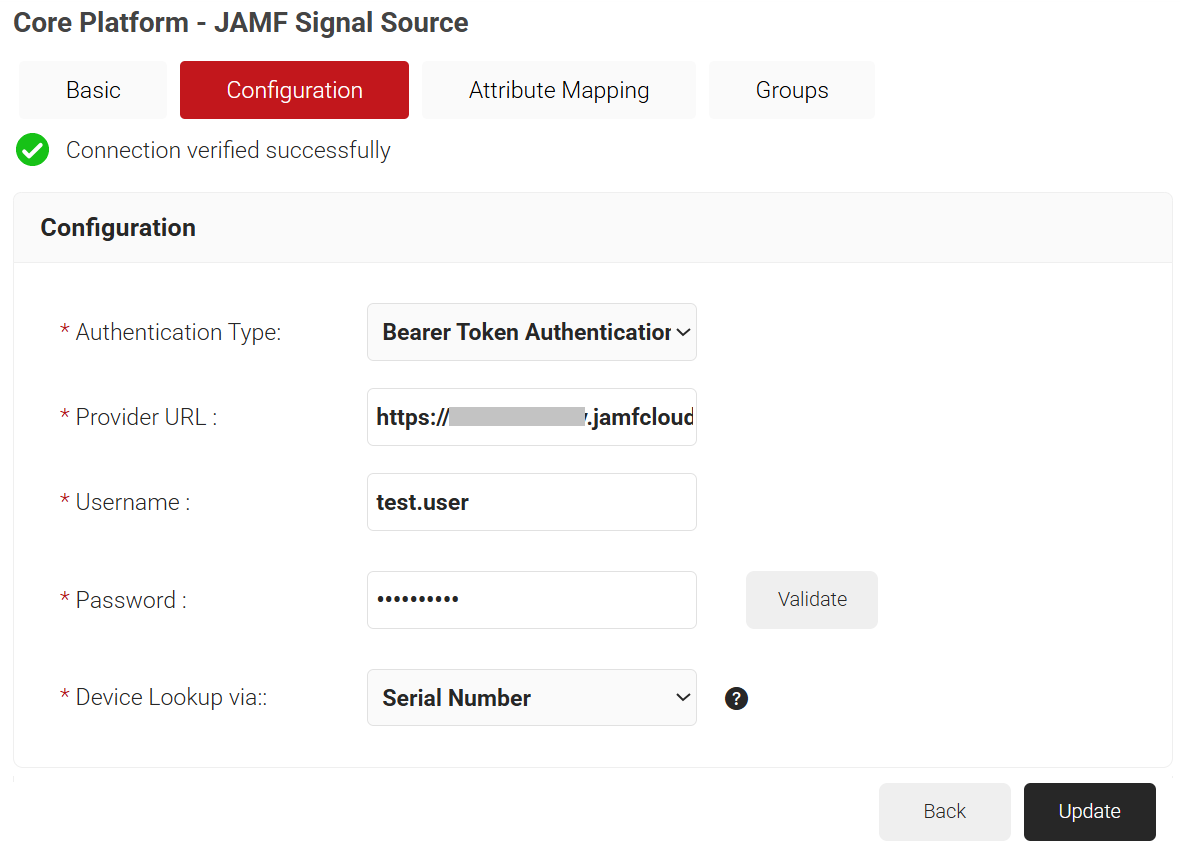
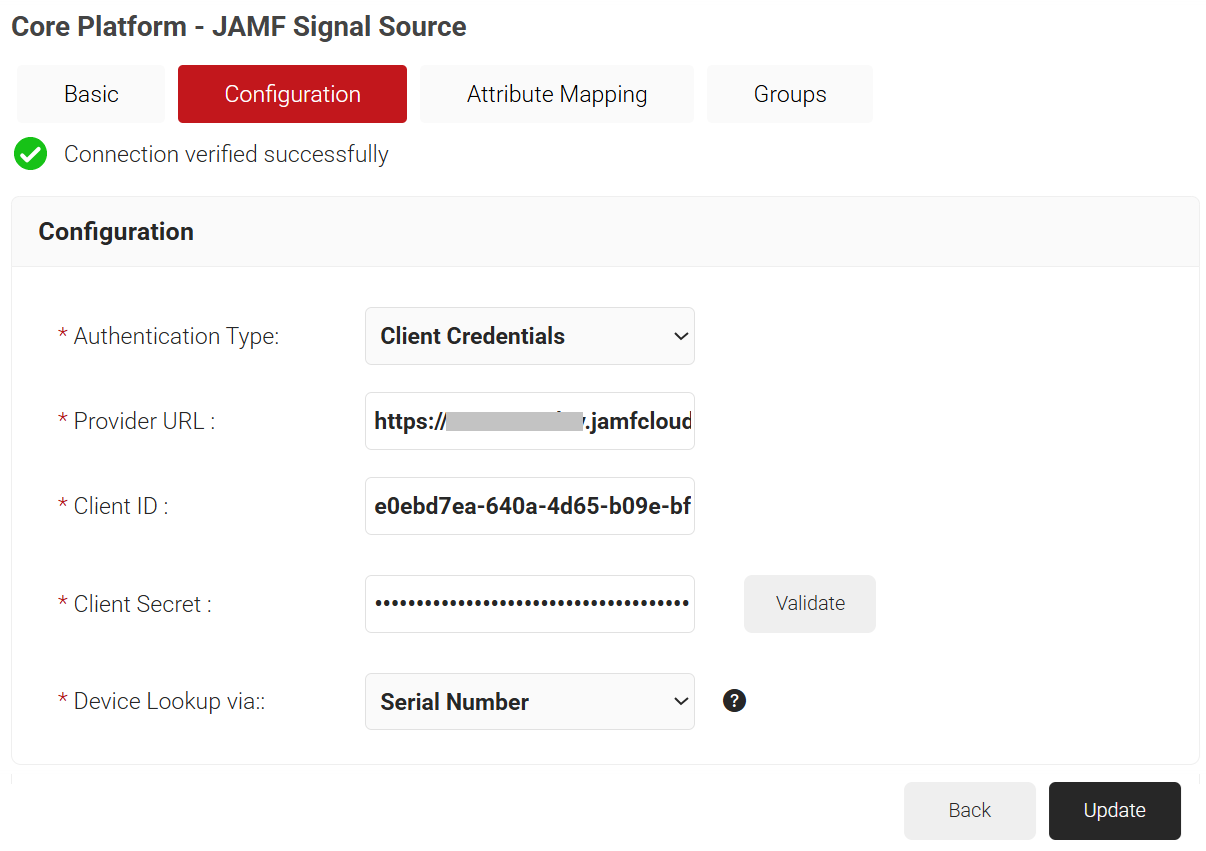
- From the Authentication Type drop-down list, select any one of the following options based on your business requirements. SecureW2 recommends using Client Credentials.
- Bearer Token – Authentication is done using Jamf user credentials.
- Client Credentials – Authentication is done using Client credentials.
- Bearer Token – Authentication is done using Jamf user credentials.
- For Provider URL, enter your organization’s Jamf login URL.
- For the Username and Password fields, enter the Jamf credentials.
- From the Device Lookup via drop-down list, select the attribute to use for device lookup. The default is Serial Number.
- Click Validate to check your connection with Jamf.

- Client Credentials – Authentication is done using Client credentials
- For Provider URL, enter the Jamf URL of the organization.
- For the Client ID field, enter the client ID from Jamf.
- For the Client Secret field, enter the client secret from Jamf.
- From the Device Lookup via drop-down list, select the attribute to use for device lookup. The default is Serial Number.
- Click Validate to check your connection with Jamf.

- From the Authentication Type drop-down list, select any one of the following options based on your business requirements. SecureW2 recommends using Client Credentials.
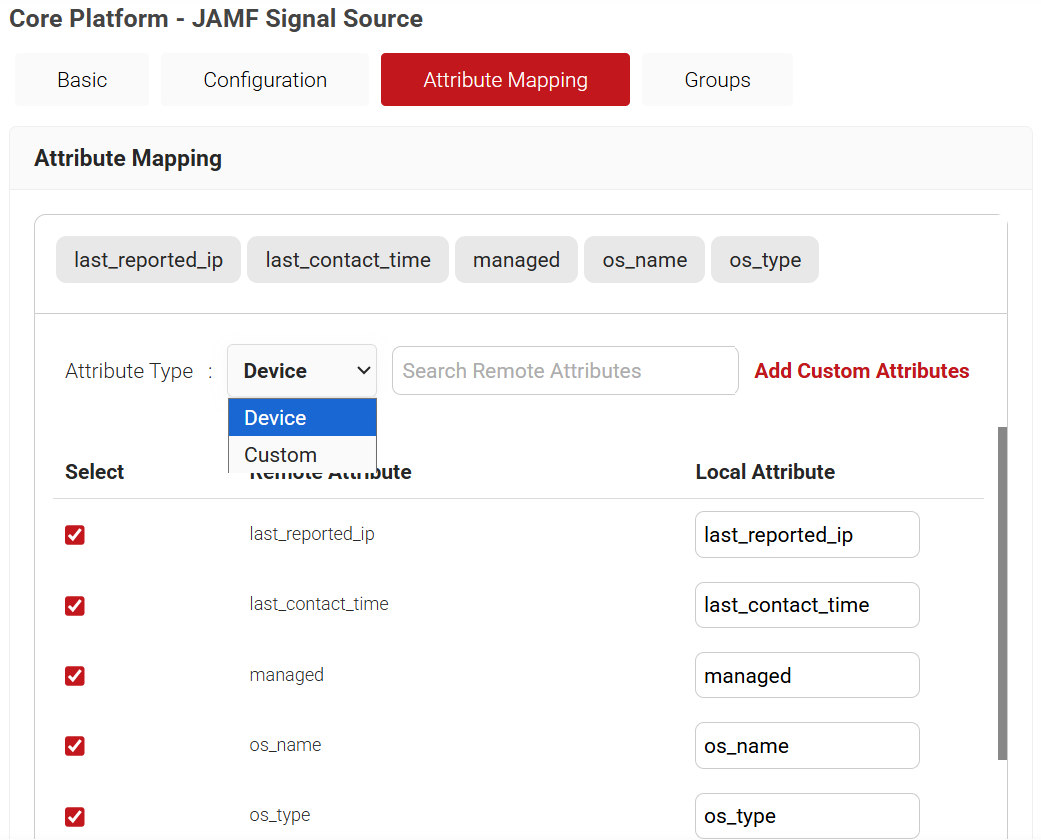
- Click the Attribute Mapping tab. The list of attributes supported by Jamf Pro Signal Source and SecureW2 is displayed in the Attribute Mapping section.
- From the Attribute Type drop-down list, select any one of the following options based on your business requirements.
- Device
- Custom

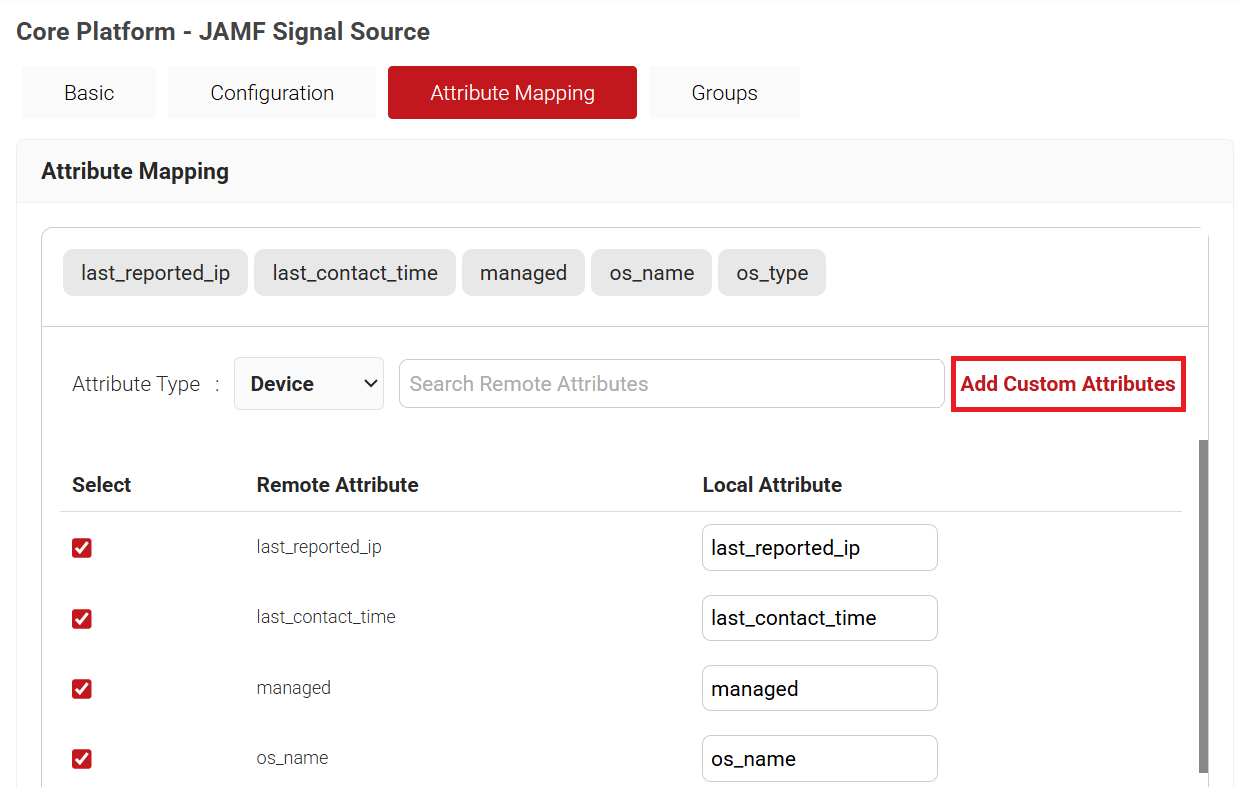
- To create custom attributes:
- Click the Add Custom Attributes link.

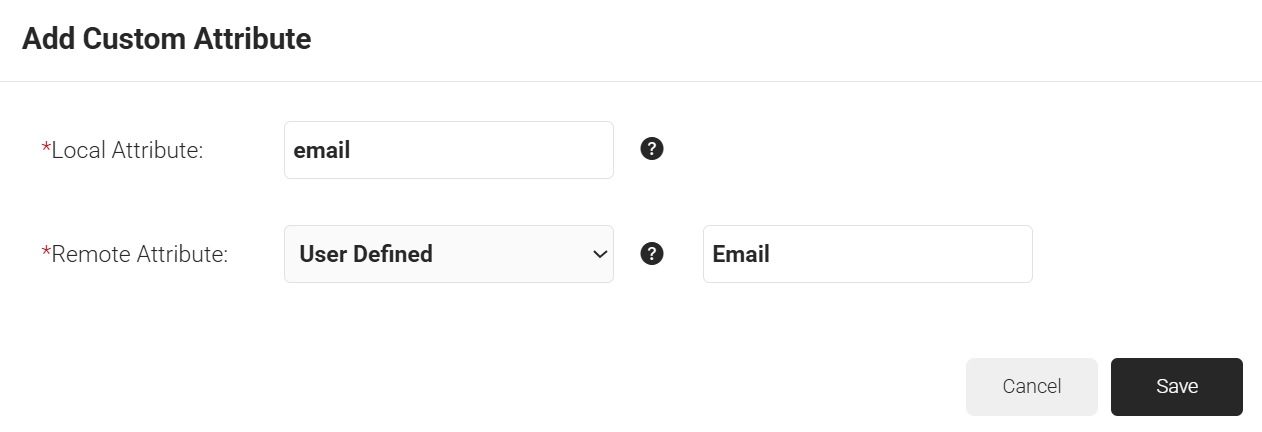
- In the Local Attribute field, enter the name to identify the attribute locally.
- From the Remote Attribute drop-down list, select any one of the attributes to be mapped to the Local attribute.
- Name
- User Defined
- If you select User Defined, enter a value to be mapped.

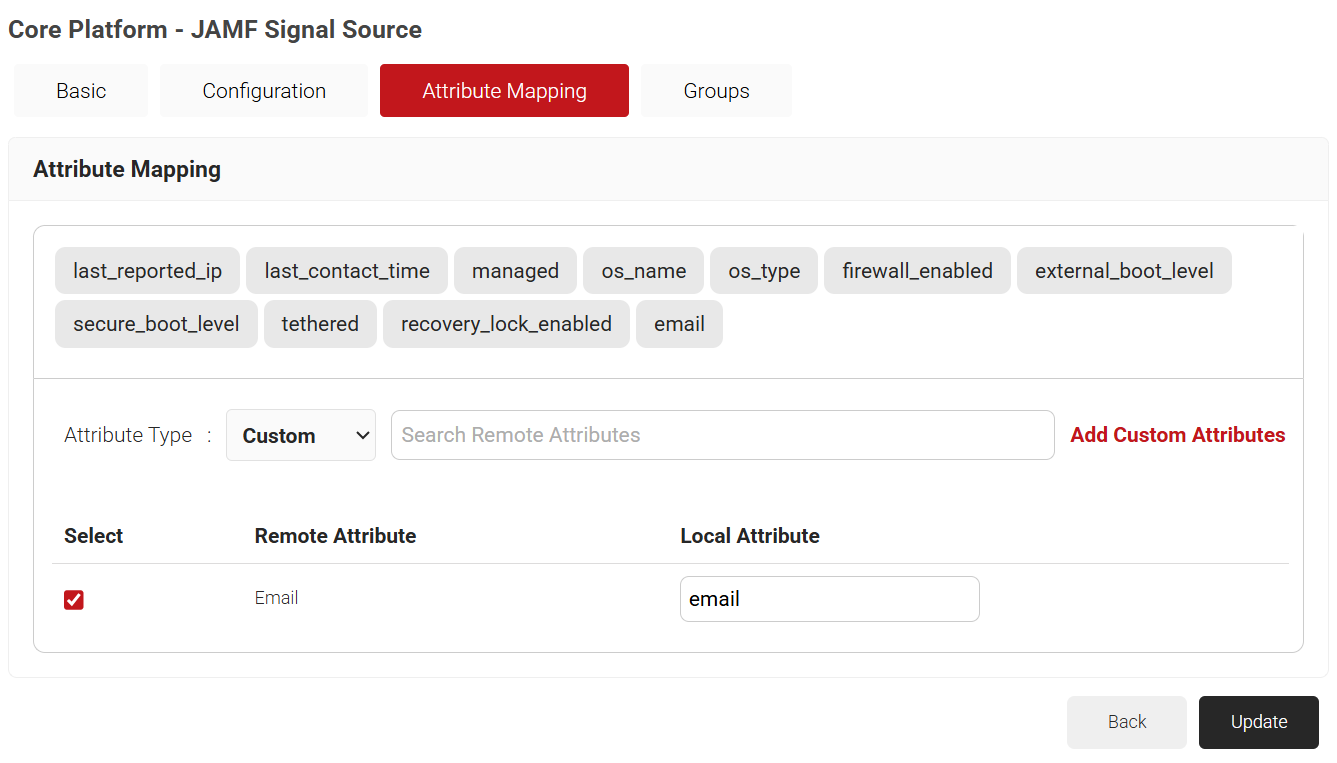
- Click Save to create the custom attribute with the appropriate mapping.

- Click the Add Custom Attributes link.
- From the Attribute Type drop-down list, select any one of the following options based on your business requirements.
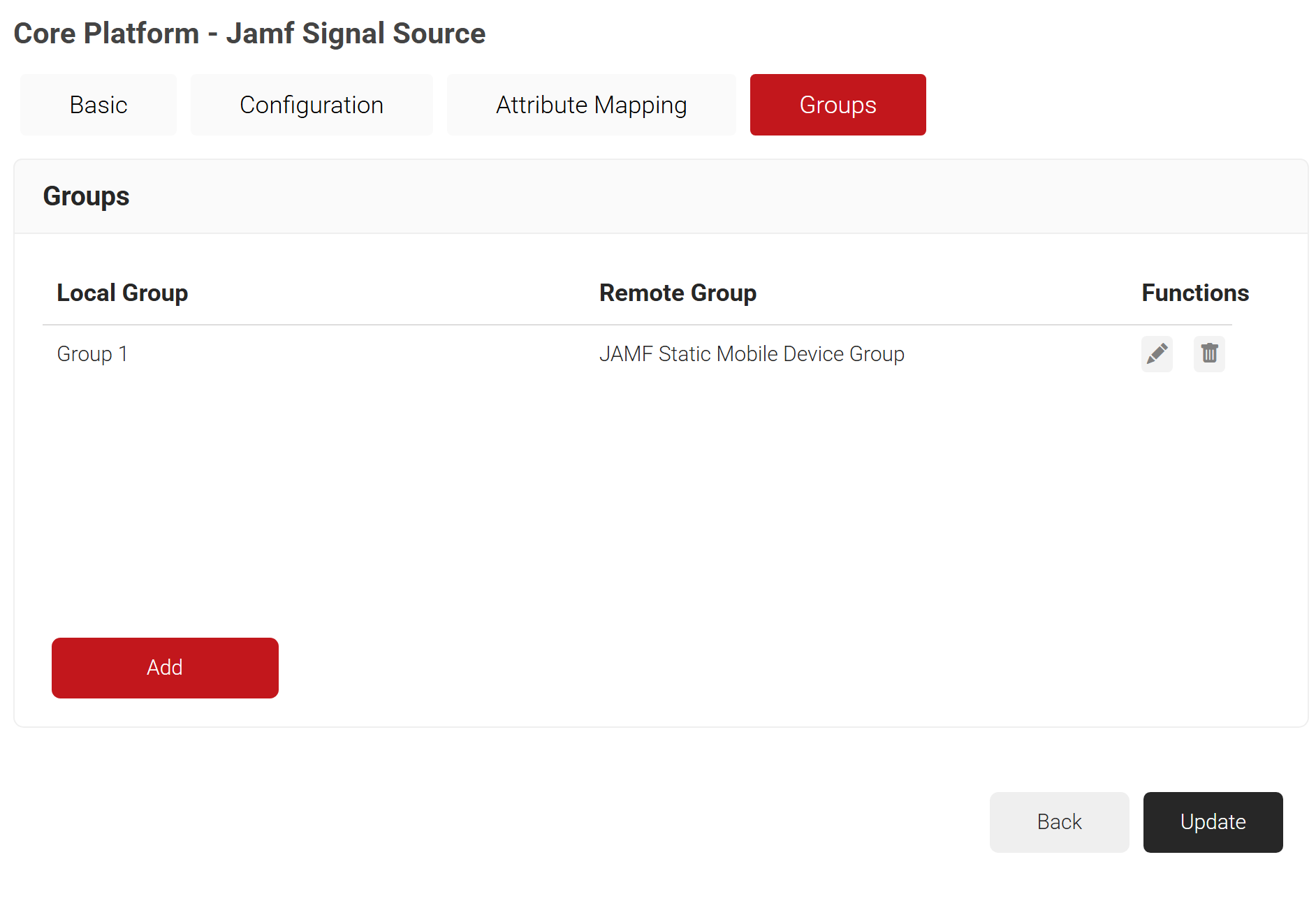
- Click the Groups tab.
- Click Add.

- In the Local Group field, enter the local group name.
- In the Remote Group field, enter the name of the group as configured in the Jamf Core Provider.
- Click Create.

- Click Add.
- Click Update.



The Security Signal Source can be mapped to the Jamf Signal Source created earlier for device lookup.
To create a Security Signal Source, perform the following steps:
- Navigate to Policy Management > Security Signal Sources.
- Click Add Security Signal Source.

- In the Basic section, enter the name of the security signal source in the Name field.
- In the Display Description field, enter a suitable description for the security signal source.
- Lookup Purpose – Purpose of Account Lookup
- Certificate Issuance – To lookup the user/device account during Certificate Issuance.
- RADIUS Authentication – To lookup the user/device account during RADIUS Authentication.

- Click Save.
- The page refreshes, and the Conditions and Settings tabs are displayed.
- Click the Conditions tab.
- Under the Conditions section, from the Provider drop-down list, select the Core Provider used for authentication during the Certificate Issuance. This policy will be triggered if a certificate’s Core Provider is mentioned in the Conditions tab and that certificate has been sent for CloudRADIUS Authentication. If your organization is using only one Core Provider, then choosing ANY should work. Alternatively, you can create various lookup policies with Conditions mapping to each Core Provider that your Organization supports.
- From the Identity drop-down list, select an attribute to trigger conditions based on specific lookup requirements. The displayed attributes depend on the Lookup purpose selected earlier. The attributes are:
- Custom – Select this option to add custom lookup attributes for both Enrollment and RADIUS authentication during lookup, in addition to the listed attributes.
- CSR – Select a CSR attribute as the lookup attribute for Enrollment during lookup.
- Certificate – Select a certificate attribute as the lookup attribute for RADIUS authentication during lookup.

- Configure Regex to identify and group the entities in the Jamf Portal. The Lookup Operation can be applied to this selected group of entities.

- Select the Settings tab.
- Under the Settings tab, from the Provider drop-down list, select the Jamf signal source you created in the Creating a Jamf Signal Source section.
- From the Lookup Type drop-down list, select Device.
- From the Identity drop-down list, select the options based on your business requirements.
- Custom – The Org Admin can select this option to add custom lookup attributes for both Enrollment and RADIUS authentication, in addition to the listed options, during device lookup.
- CSR – The Org Admin can select any CSR attribute as the lookup attribute for Enrollment during device lookup.
- Certificate – The Org Admin can select any certificate attribute as the lookup attribute for RADIUS authentication during device lookup.

- Select the Revoke On Failure checkbox to automatically revoke a certificate if an account lookup fails, if necessary.
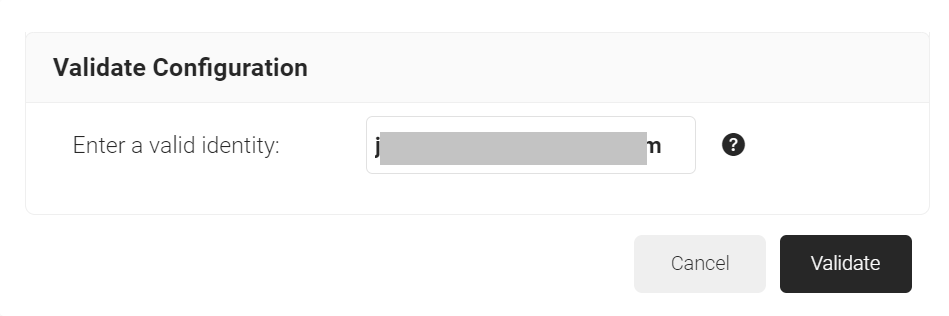
- Click the Validate Configuration button to check if the lookup is valid.
- On the Validate Configuration pop-up window, in the Enter a valid identity field, enter the identity (device) to validate the lookup, and click Validate.

- After the successful validation, the associated attributes and groups of the Jamf Signal Source are displayed on the Lookup Details prompt. The admin can use this information to configure the network policies and verify the user’s validity.
NOTE: When the Admin enters an invalid identity on the Validate Configuration pop-up window, the following error message is displayed: “Account lookup failed.” - Click Update.


The Cloud RADIUS Dynamic Policy Engine utilizes this policy to categorize devices based on the outcomes of their lookup operations, applying tailored Network Policies during authentication. For example, if a lookup operation identifies a device as inactive, the Policy Workflow can group these devices, allowing Cloud RADIUS to dynamically enforce Network Policies that restrict internet access for those devices.
- Navigate to Policy Management > Policy Workflows.
- Click Add Policy Workflow.

- In the Basic section, enter the name of the policy workflow in the Name field.
- In the Display Description field, enter a suitable description for the policy workflow.

- Click Save.
- The page refreshes, and the Conditions tab is displayed.
- Click the Conditions tab.
- From the Core Provider drop-down list, select the Signal Source created in the Creating a Jamf Signal Source section.

- Click Update.


You can now use the lookup before certificate issuance as a dynamic check. To trigger the lookup during certificate issuance, map the policy workflow created in the section Policy Workflow in the enrollment policy created below:
- Navigate to Policy Management > Enrollment.
- Click Add Enrollment Policy.

- In the Basic section, enter the name of the enrollment policy in the Name field.
- In the Display Description field, enter a suitable description for the enrollment policy.

- Click Save.
- The page refreshes, and the Conditions and Settings tabs are displayed.
- Click the Conditions tab.
- In the Conditions section, from the Policy Workflow list, select the role policy you created in the Creating a Policy Workflow section.
- From the Device Role list, select DEFAULT DEVICE ROLE POLICY 1.

- Select the Settings tab.
- In the Settings section, from the Use Certificate Authority drop-down list, select the intermediate CA you created in the Creating an Intermediate CA for Jamf Integration section.
- From the Use Certificate Template drop-down list, select the certificate template you created in the Creating a Jamf Certificate Template for Jamf Lookup section.
- For the other settings, retain the default values.

- Click Update.


As with certificate issuance, you can use Lookup before RADIUS Authentication as a dynamic check. To trigger the lookup during the RADIUS Authentication, map the policy workflow created in the Policy Workflow section in the Network Policy created below:
- Navigate to Policy Management > Network.
- Add Network Policy.

- In the Basic section, enter the name of the network policy in the Name field.
- In the Display Description field, enter a suitable description for the network policy.

- Click Save.
- The page refreshes and displays the Conditions and Settings tabs.
- Click the Conditions tab.
- Select Match All or Match Any based on your requirement to set authentication criteria. In the case explained here, we are selecting Match All.
- Click + Add rule.

- Expand Identity and select the Policy Workflow option.

- Click Save.
- The Policy Workflow option appears under the Conditions tab.
- From the Policy Workflow Equals drop-down list, select the policy workflow you created in the Policy Workflow section. You can select multiple Policy Workflows to assign to a Network Policy.

- Select the Settings tab.

- From the Access drop-down list, select any one of the options to allow or deny authentication requests. The default value is “Allow”.
- To configure MFA, select the checkbox to enable MFA.
- From the Perform MFA Using drop-down list, select a Core Provider for MFA.
- Click Add Attribute.
- From the Dictionary drop-down list, select an option: Radius: IETF or Custom.
- From the Attribute drop-down list, select an option.
- Framed-Protocol
- Framed-IP-Address
- Framed-IP-NetMask
- Framed-Routing
- Filter-Id
- Framed-MTU
- Framed-Compression
- Reply-Message
- Framed-Route
- Framed-IPX-Network
- State
- Class
- Session-Timeout
- Tunnel-Type
- Tunnel-Medium-Type
- Tunnel-Private-Group-ID
- Framed-Pool
- In the Value field, enter the appropriate value for the attribute.

- Click Save.

NOTE: Repeat the process for all the attributes you want to send to the Policy Workflow.
- Click Update.


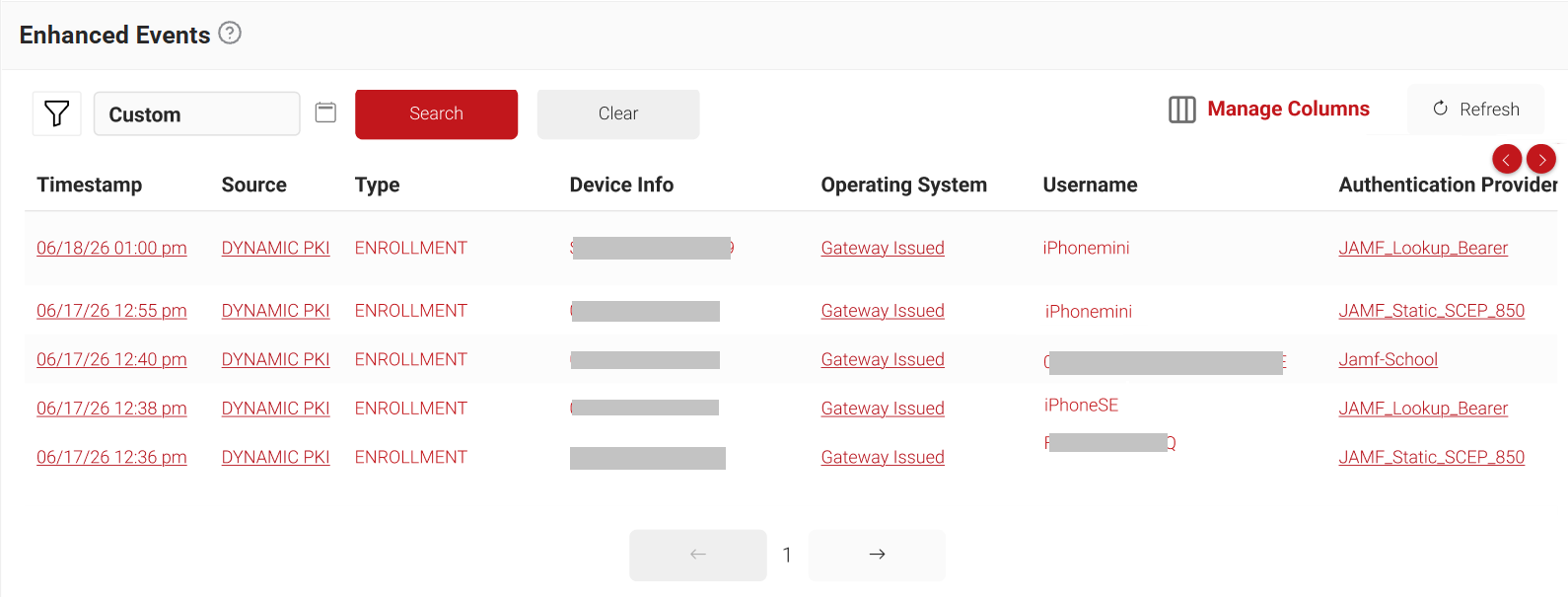
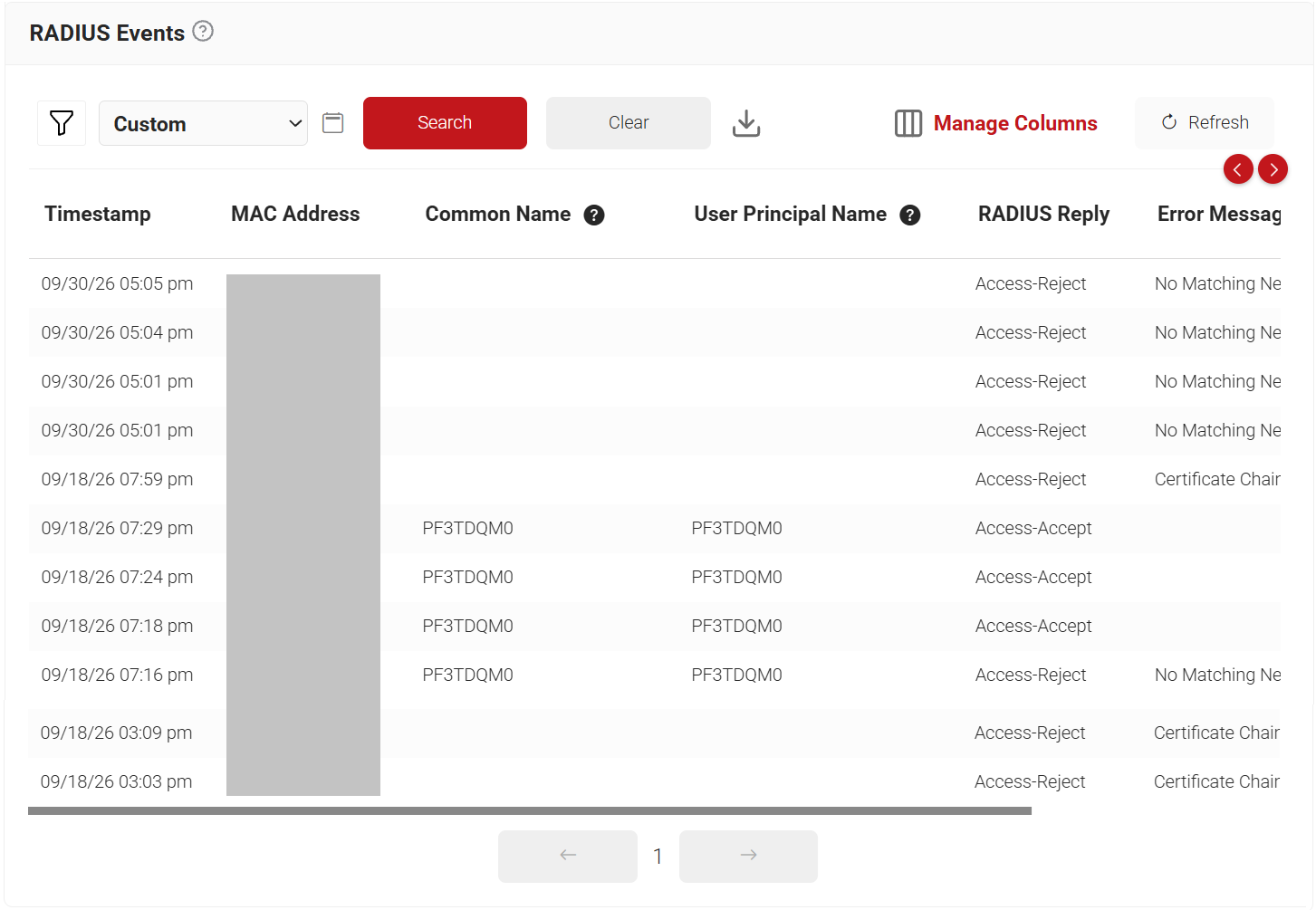
After successful configuration, admins can verify RADIUS Authentication Success under Data and Monitoring > RADIUS Events. In case of Certificate Issuance, a message will be displayed for the device enrolled under Data and Monitoring > Enhanced Events.
RADIUS Events
Enhanced Events