Pub/Sub is the messaging service that enables real-time communication between Google and SecureW2 Certificate Provisioning API. When a ChromeOS device requests a certificate, Google publishes the request to the Pub/Sub topic. SecureW2’s Certificate Provisioning API subscribes to that topic, receives the request, and forwards it to the Dynamic PKI-driven policy engine to issue the certificate. The issued certificate is then returned to the device.
Pub/Sub is a core requirement of the Certificate Provisioning Solution. Without it, SecureW2’s Certificate Provisioning Connector cannot receive certificate requests from Google in real time.
To configure Topic in the Pub/Sub, perform the following steps:
- Log in to the Google Cloud.
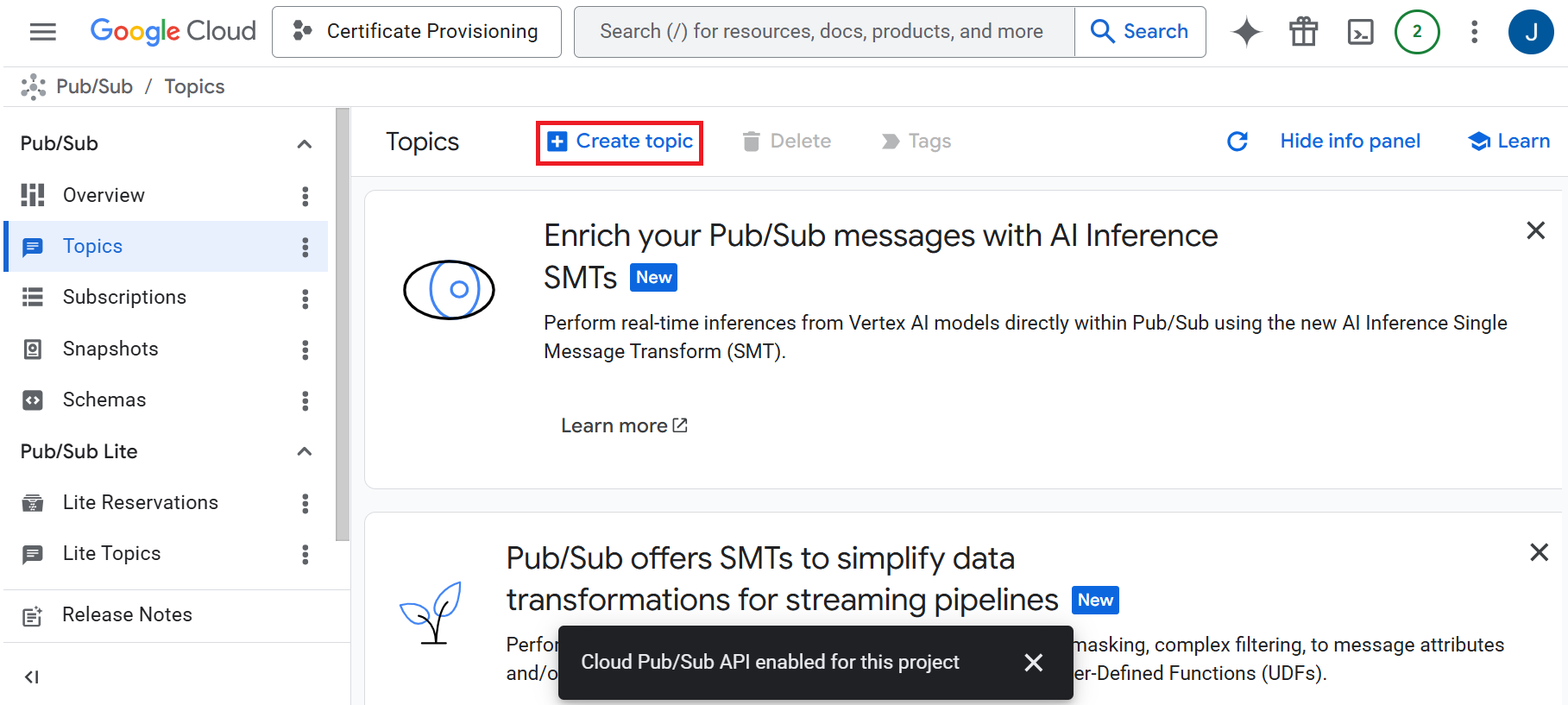
- Navigate to Pub/Sub > Topics.
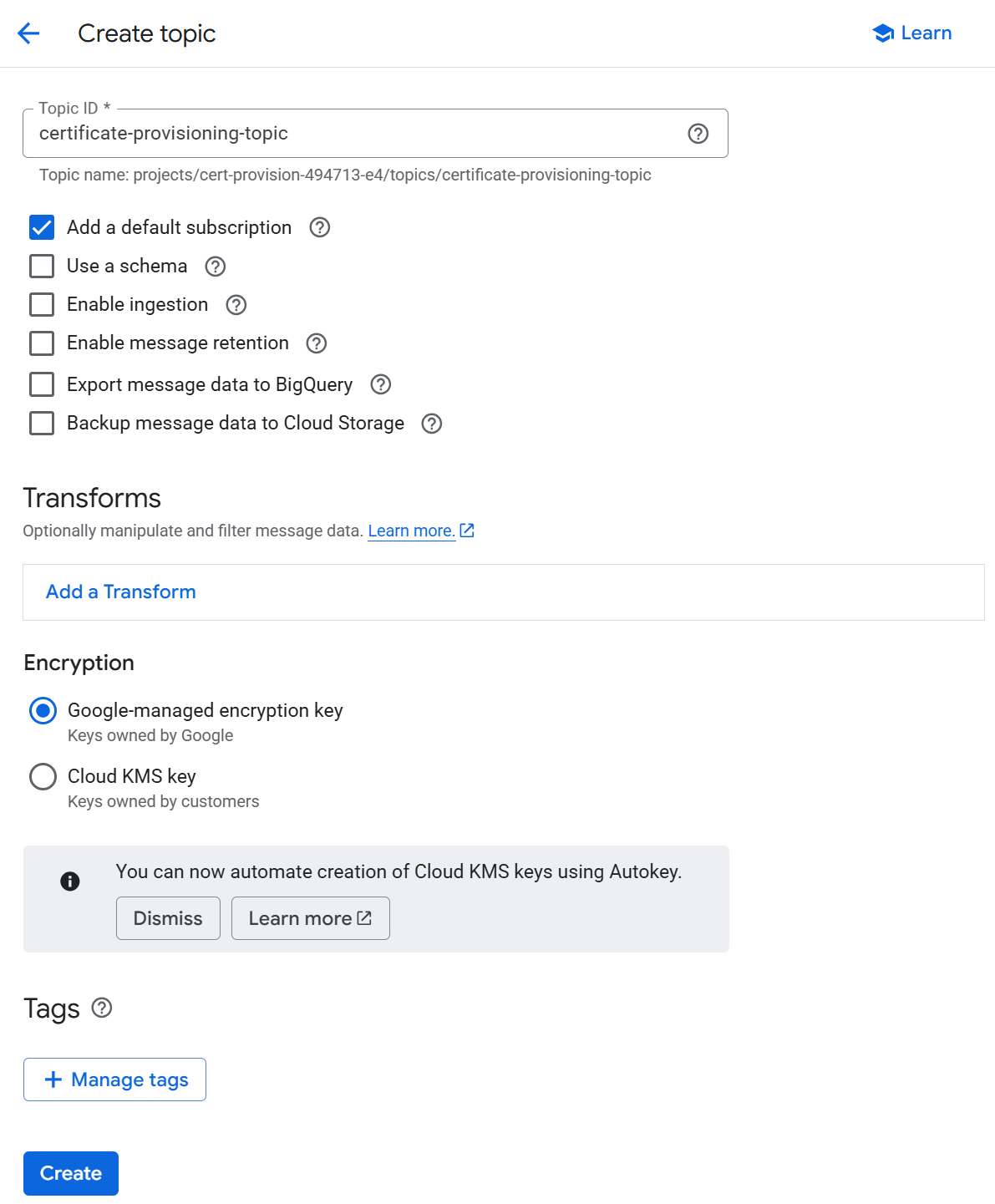
- Click Create topic.

- On the Create topic page, enter a name in the Topic ID field. The Topic name is automatically populated and serves as the globally unique identifier for the topic. The topic name follows this format: projects/<project_id>/topics/<topic_name>
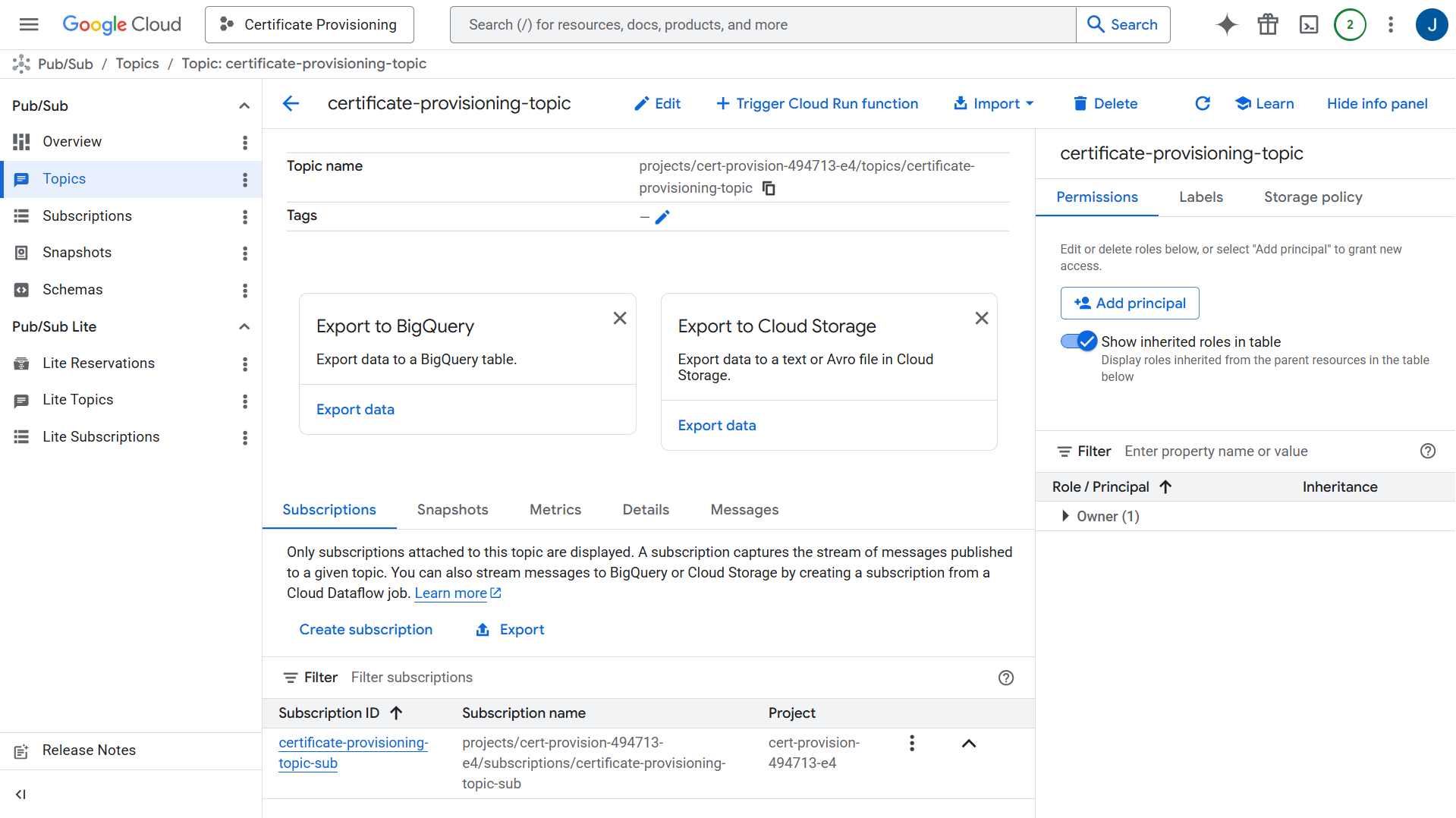
- Copy the Topic name to a text editor. You will need it when configuring the Google Admin Console.

- Click Create.

- Copy the Subscription ID to a text editor. You will need it to configure the JoinNow Management Portal.
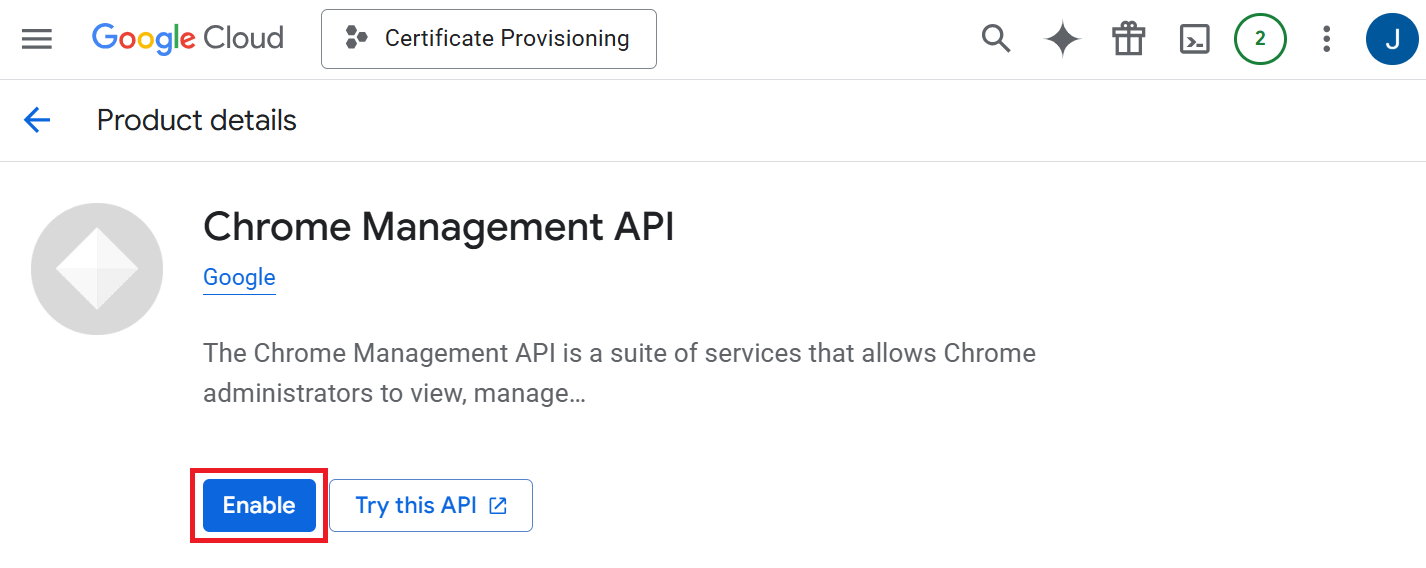
The Chrome Management API is enabled to allow the Google Cloud project to communicate with SecureW2’s Certificate Provisioning API for ChromeOS device enrollment. This section describes how to enable the Chrome Management API for your Google Cloud project.
- Navigate to APIs & Services > Library.
- Search for “Chrome Management API” and click Enable to activate the Chrome Management API for the project.

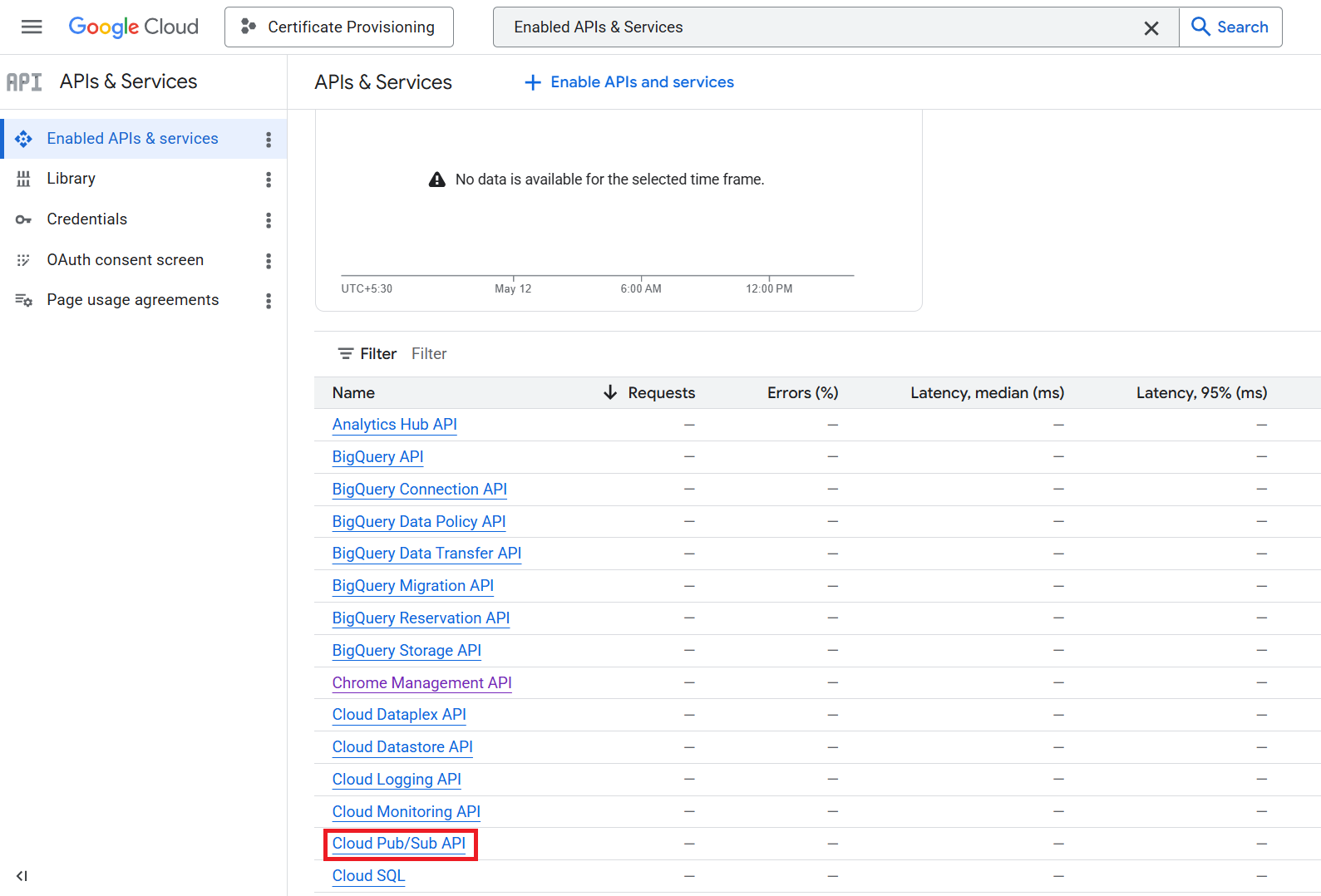
- Verify the Cloud Pub/Sub API is also enabled.
- Go to APIs & Services > Enabled APIs & Services.
- Confirm Cloud Pub/Sub API appears in the list.

- If not, return to APIs & Services > Library, search for it, and click Enable.
In this section, you create a service account in your Google Cloud project and download its JSON key. SecureW2 uses this key to authenticate with your Google Cloud project and subscribe to certificate enrollment events from the Pub/Sub topic.
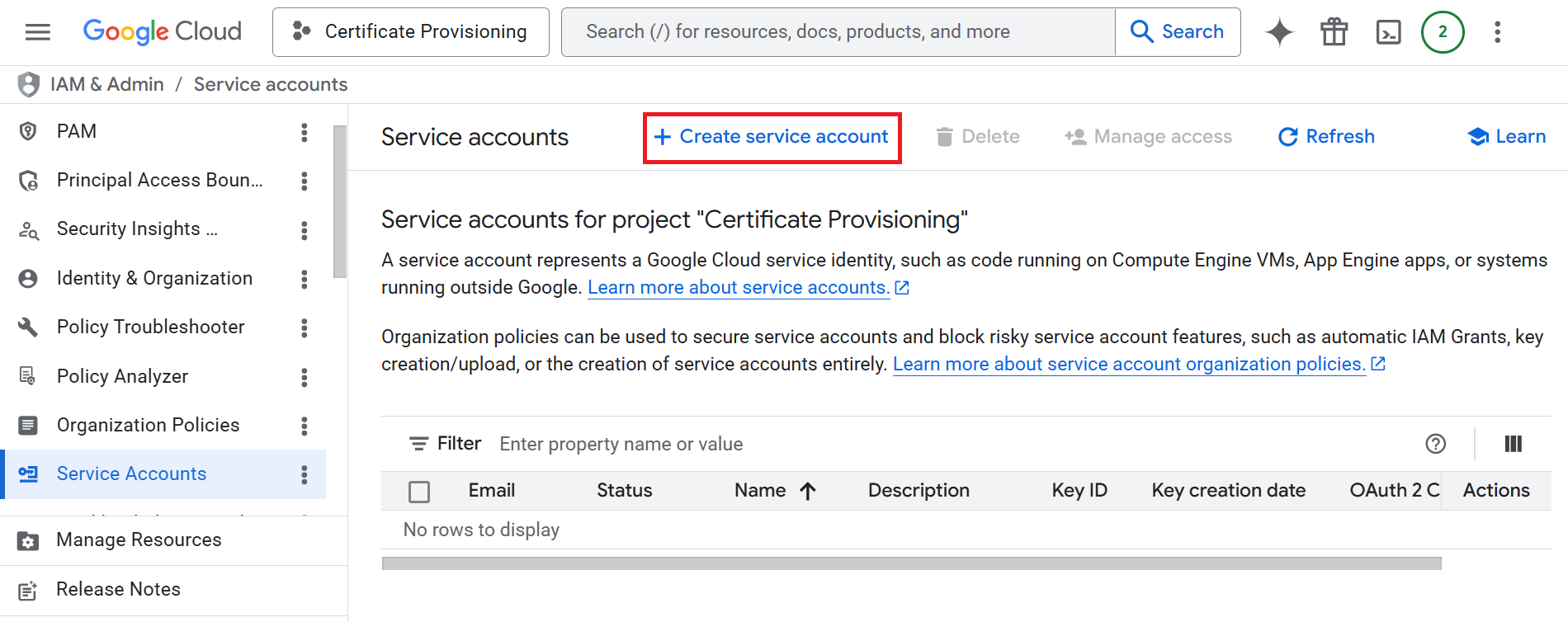
- Navigate to IAM & Admin > Service Accounts.
- Click Create service account.

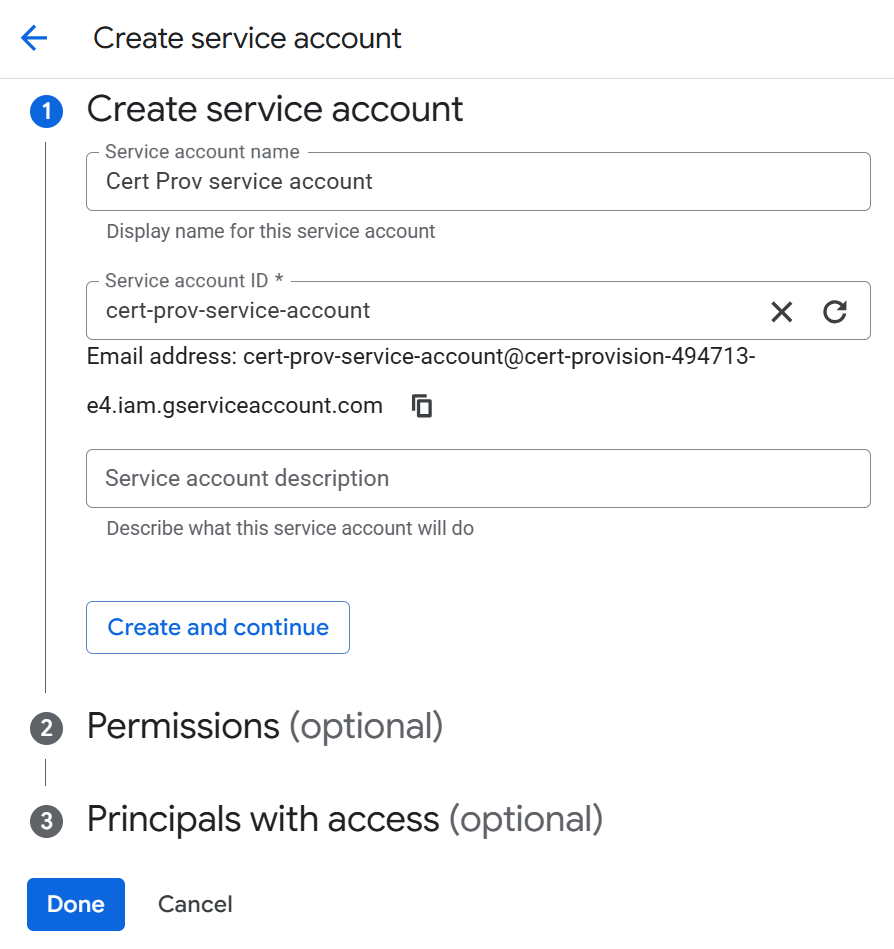
- On the Create Service Account page:
- In the Create Service Account section, provide the following details:
- In the Service account name field, enter a name for the service account. The name you enter also serves as the service account ID. Copy the service account email address to a text editor.

- Click Create and Continue. The service account is created. Skip the role assignment and click Done.
- In the Service account name field, enter a name for the service account. The name you enter also serves as the service account ID. Copy the service account email address to a text editor.
- In the Create Service Account section, provide the following details:
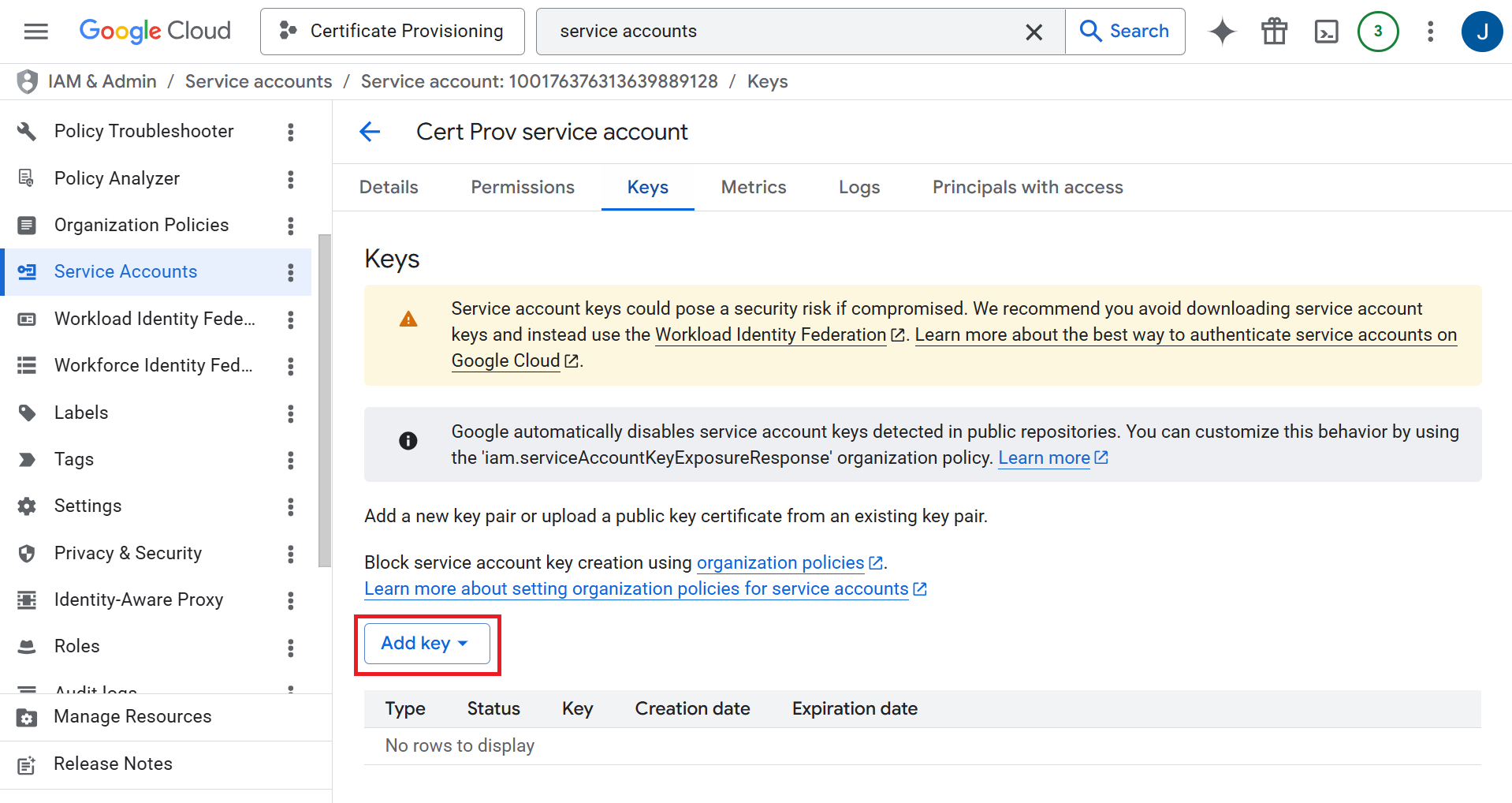
- Select the newly created service account.
- Select the Keys tab.

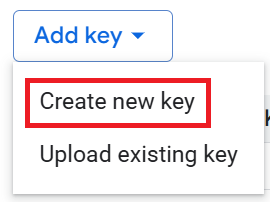
- Click Add Key and select Create new key.

- Select JSON as the key type and click Create. The key file is downloaded to your machine.

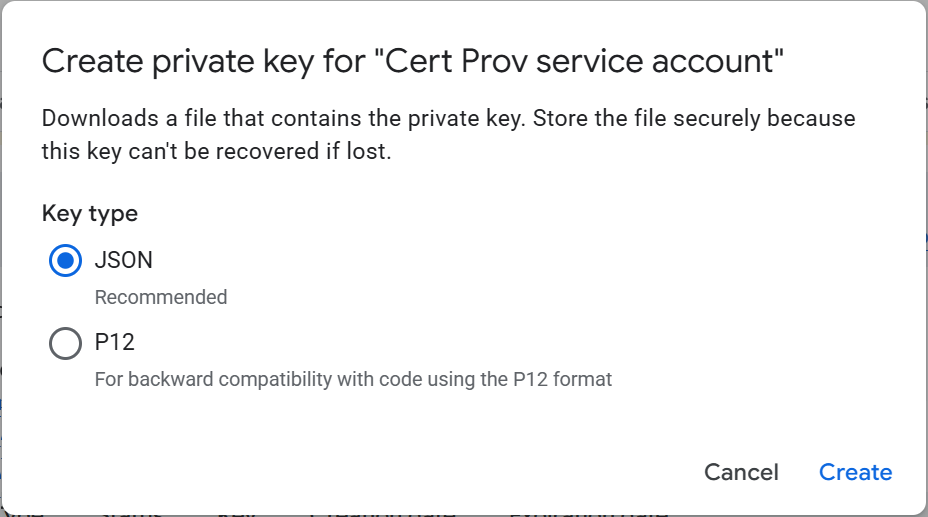
NOTE: The JSON key file grants access to your Google Cloud project, so store it securely. You’ll need it later to configure the Certificate Provisioning API in the JoinNow Management Portal.
In this section, you grant your service account the IAM roles it needs to interact with Pub/Sub and the Chrome Management API.
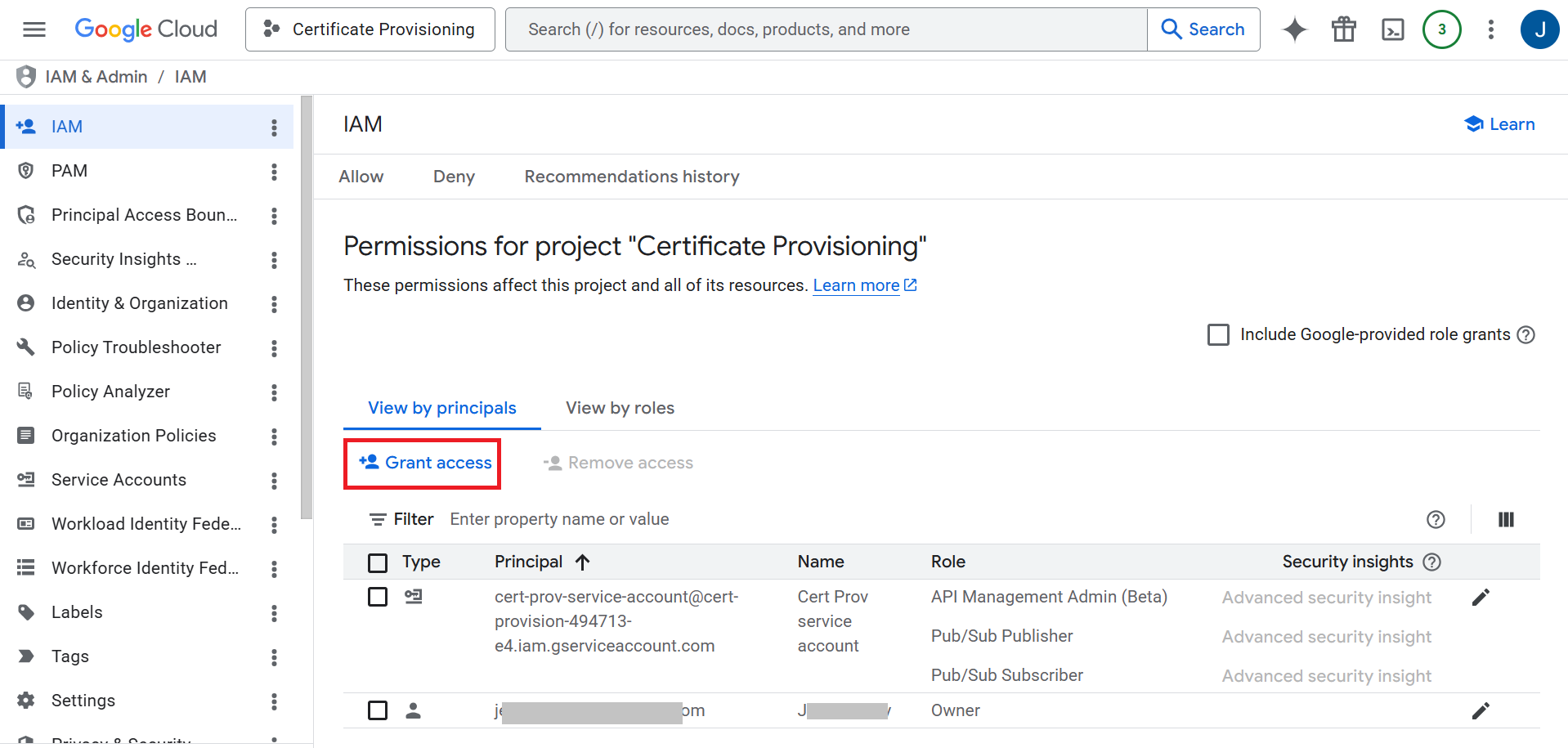
- Navigate to IAM & Admin > IAM > Grant access.

- On the Grant access to pane:
- In the Add principals field, enter the service account email address that you copied in the Create a Service Account & Download Key section.
- In the Assign roles section:
- From the Role drop-down list, select Pub/Sub Publisher.
- Click + Add another role.
- From the Role drop-down list, select Pub/Sub Subscriber.
- Click + Add another role.
- From the Role drop-down list, select API Management Admin.
- Click Save.

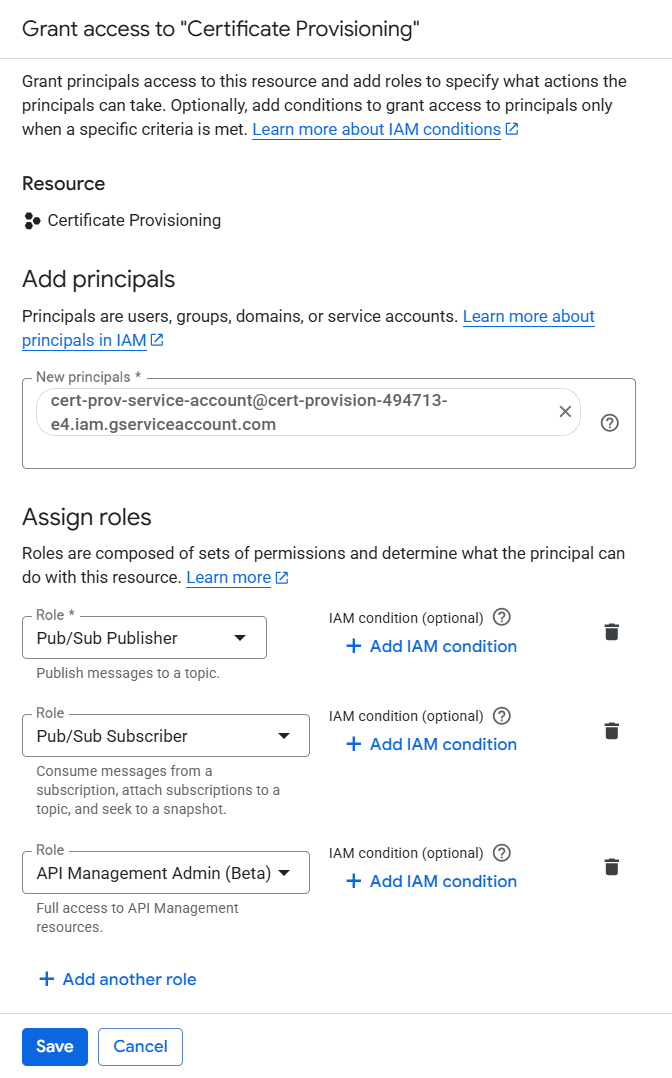
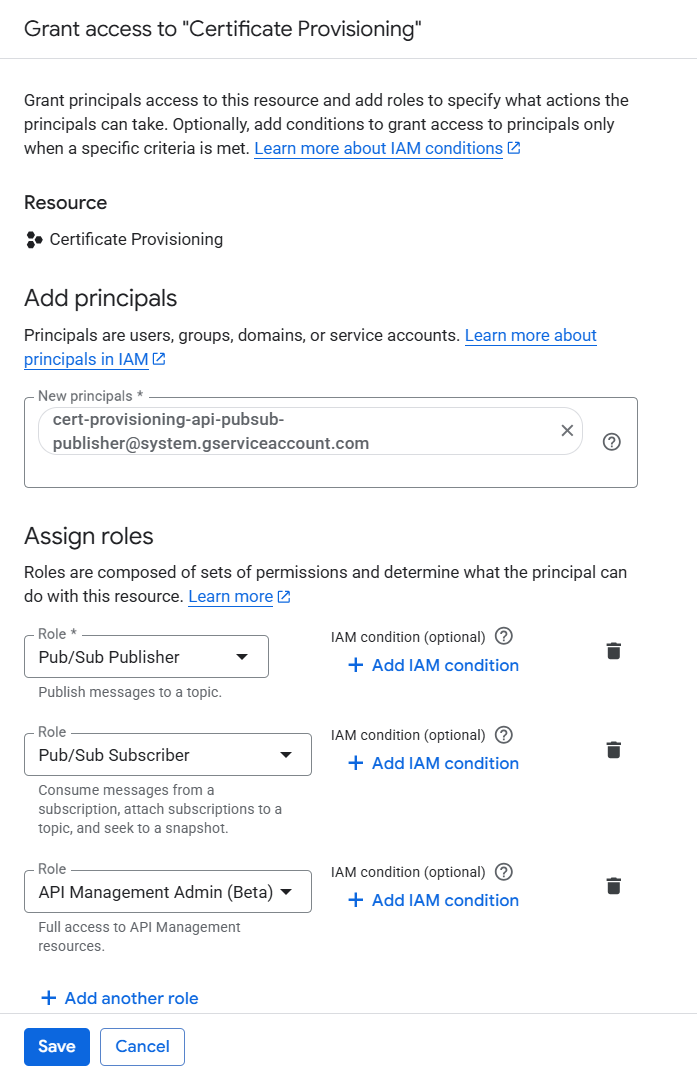
Google uses this system service account to publish certificate provisioning events to your Pub/Sub topic. Without these permissions, Google cannot communicate enrollment events to SecureW2.
- On the IAM page, click Grant Access.
- On the Grant access to pane:
- In the Add principals field, enter cert-provisioning-api-pubsub-publisher@system.gserviceaccount.com
- In the Assign roles section:
- From the Role drop-down list, select Pub/Sub Publisher.
- Click + Add another role.
- From the Role drop-down list, select Pub/Sub Subscriber.
- Click + Add another role.
- From the Role drop-down list, select API Management Admin.
- Click Save.

Prerequisite: Create a new dedicated Intermediate CA in SecureW2 for Certificate Provisioning before this step. Do not upload the existing SCEP Intermediate CA.
- Log in to the Google Admin Console.
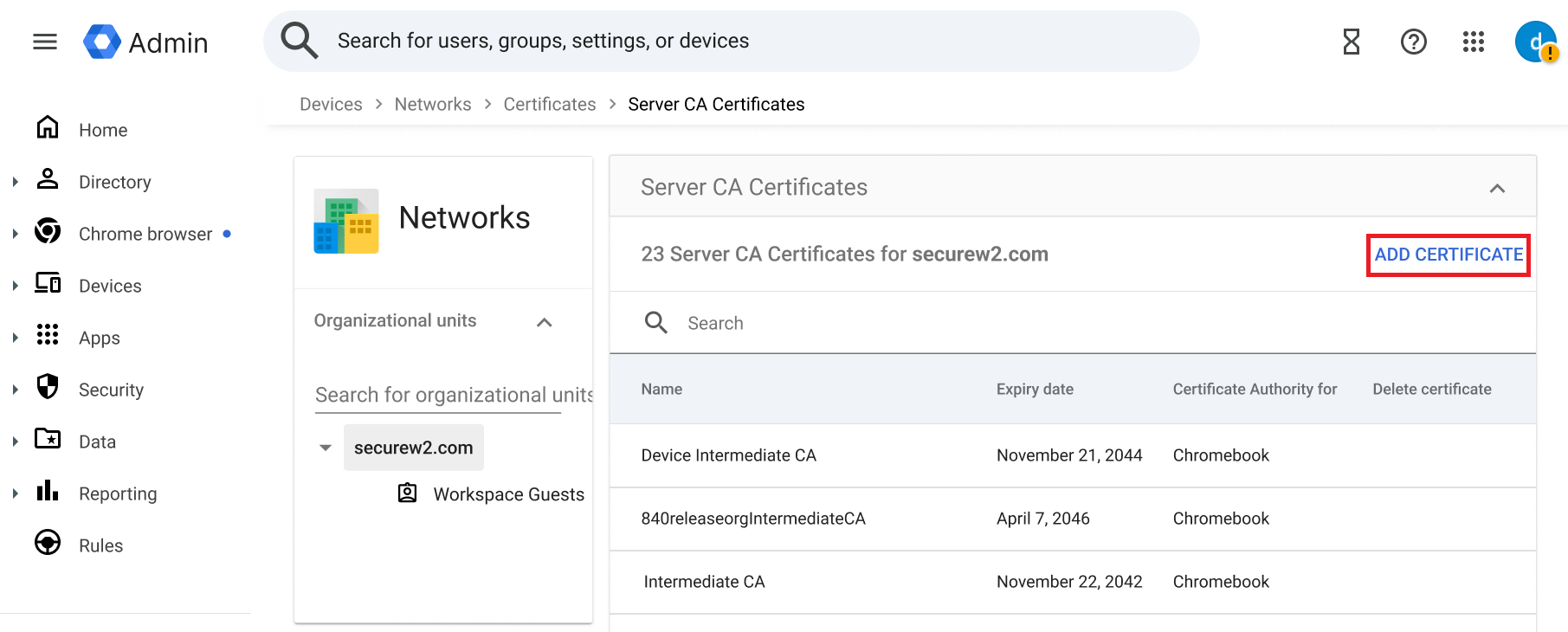
- Navigate to Devices > Networks > Certificates > Server Certificate Authority Certificates.
- Click ADD CERTIFICATE and upload the intermediate CA certificate from the JoinNow Management Portal.

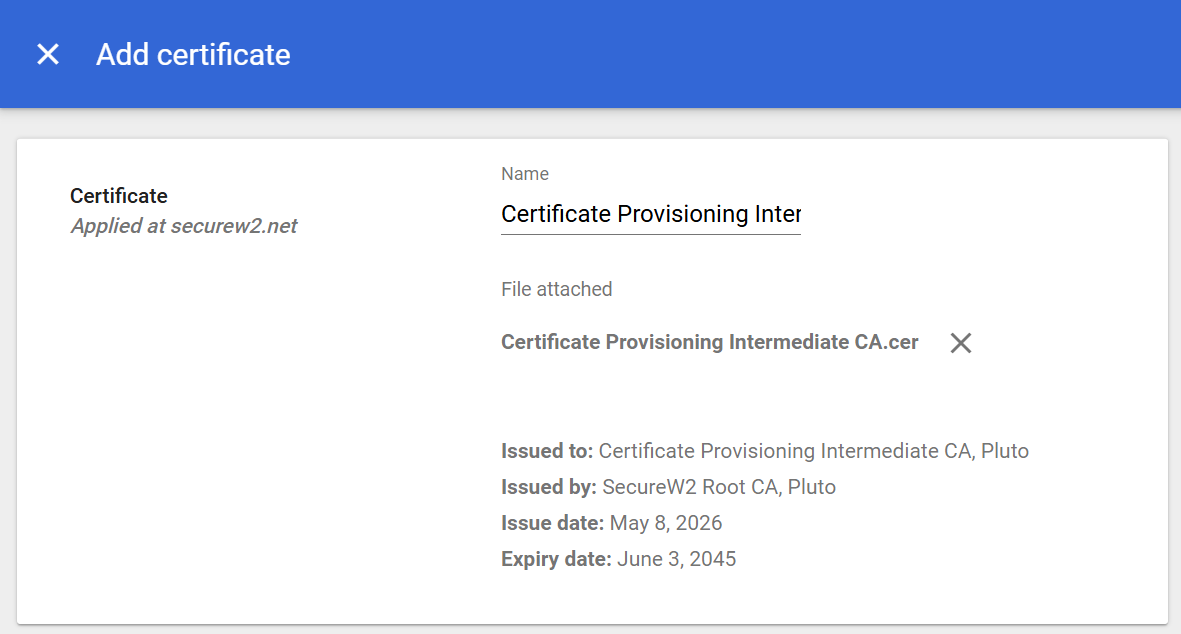
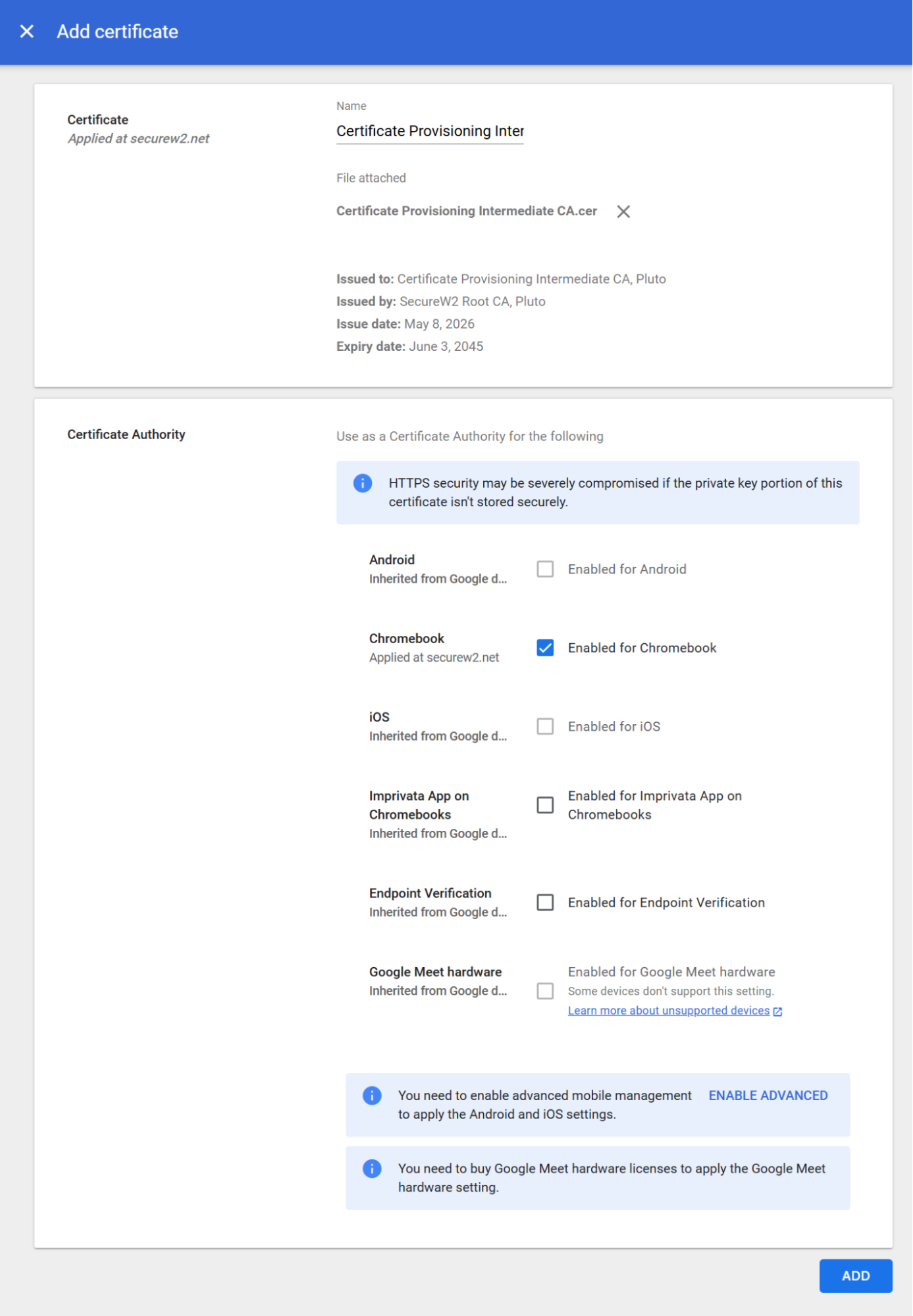
- On the Add certificate page:
- In the Name field, enter a name for the certificate.
- Click UPLOAD to upload the intermediate CA certificate downloaded from the JoinNow Management Portal.

- Select the Enabled for Chromebook option.

- Click Add.
To create a Certificate Authority Connection in the Google Admin Console, perform the following steps:
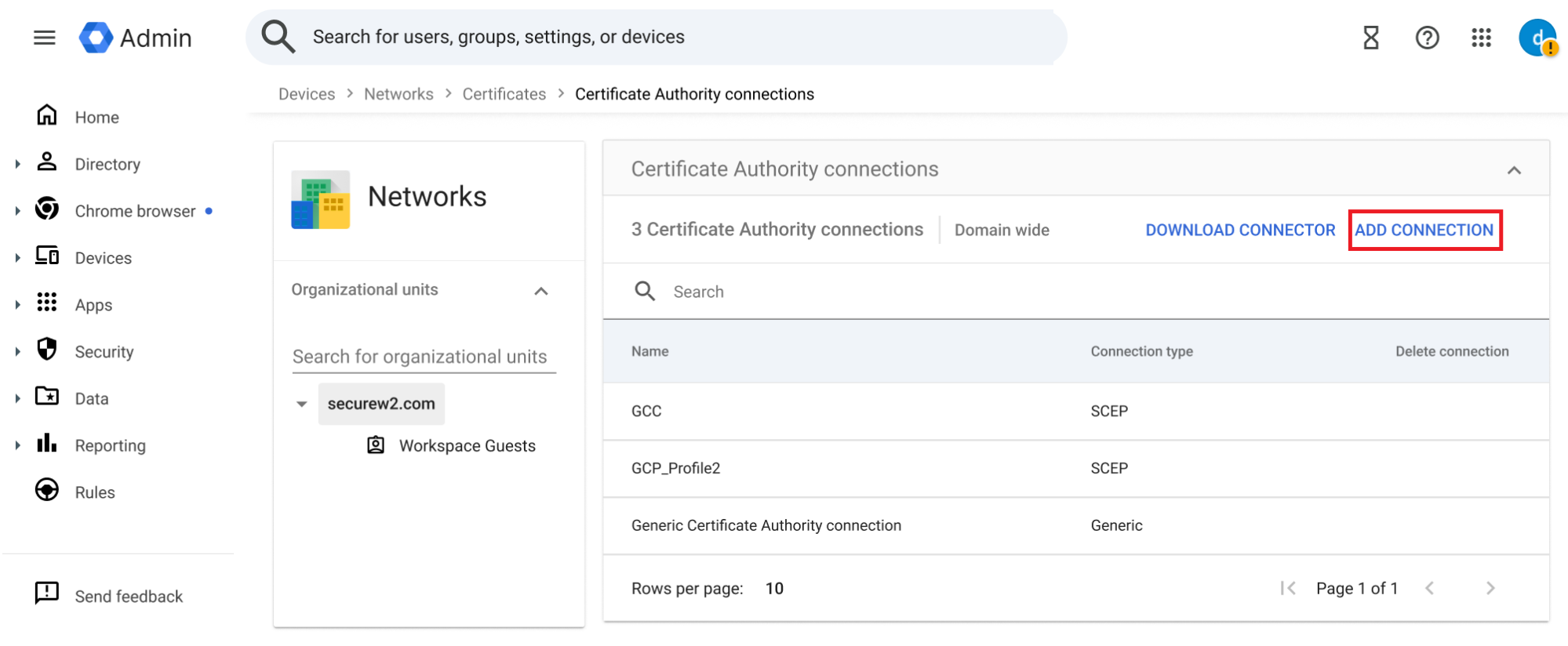
- Navigate to Devices > Networks > Certificates > Certificate Authority connections.
- Click ADD CONNECTION.

- On the Add Certificate Authority connection page:
- In the Certificate Authority Connection Type field, select Generic Certificate Authority connection.
- In the Certificate Authority connection name field, enter a name that identifies the purpose of the connection in the Google Admin Console.
- In the Service account field, enter the service account email address that you copied in the Create a Service Account & Download Key section.
- In the Pub/Sub topic field, enter the topic name that you copied in the Create a Pub/Sub Topic section.
- In the Certificate Authority connection configuration identifier field, enter the exact name of the intermediate CA certificate that you uploaded in the Create a Server Certificate Authority section.
- Click ADD.

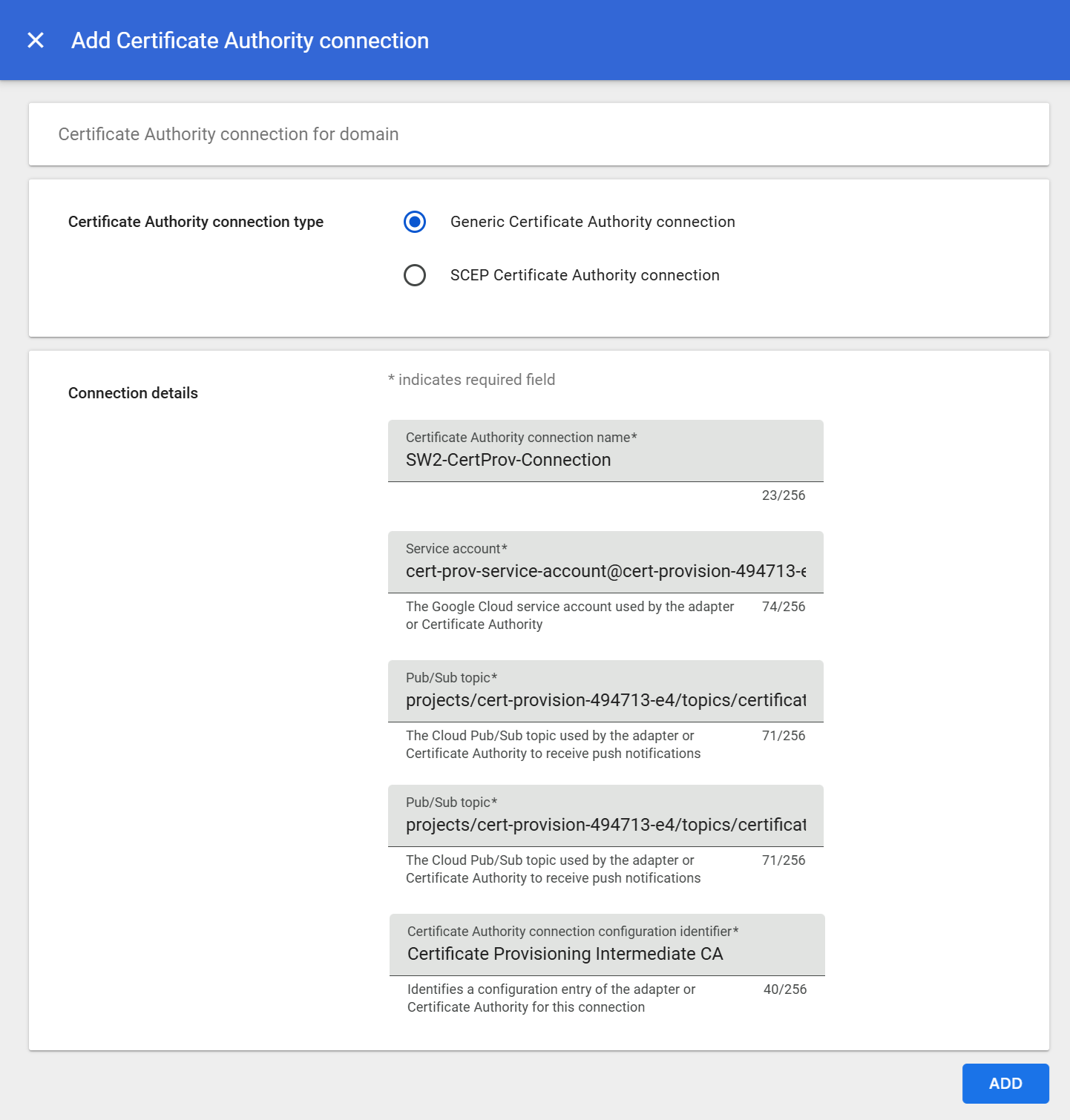
This section describes how to create a Certificate Provisioning Profile in the Google Admin Console.
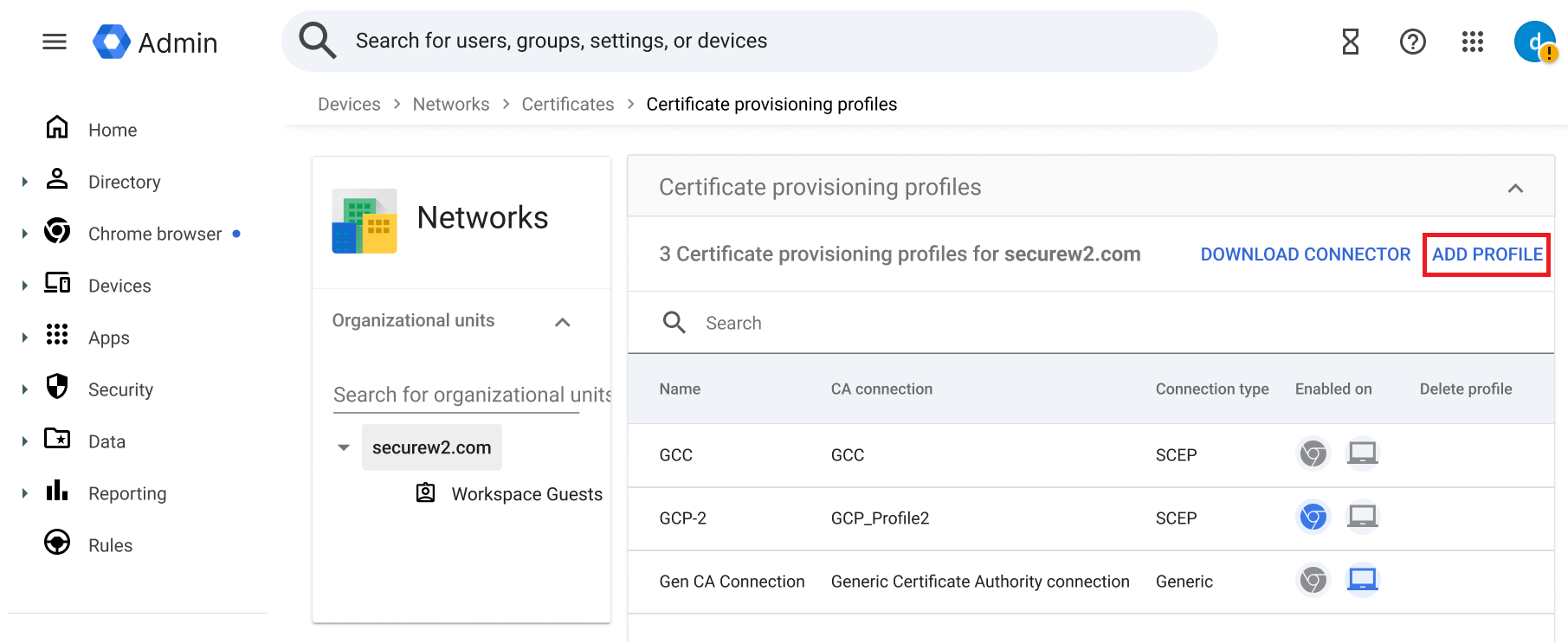
- Navigate to Devices > Networks > Certificates > Certificate provisioning profiles.
- Click ADD PROFILE.

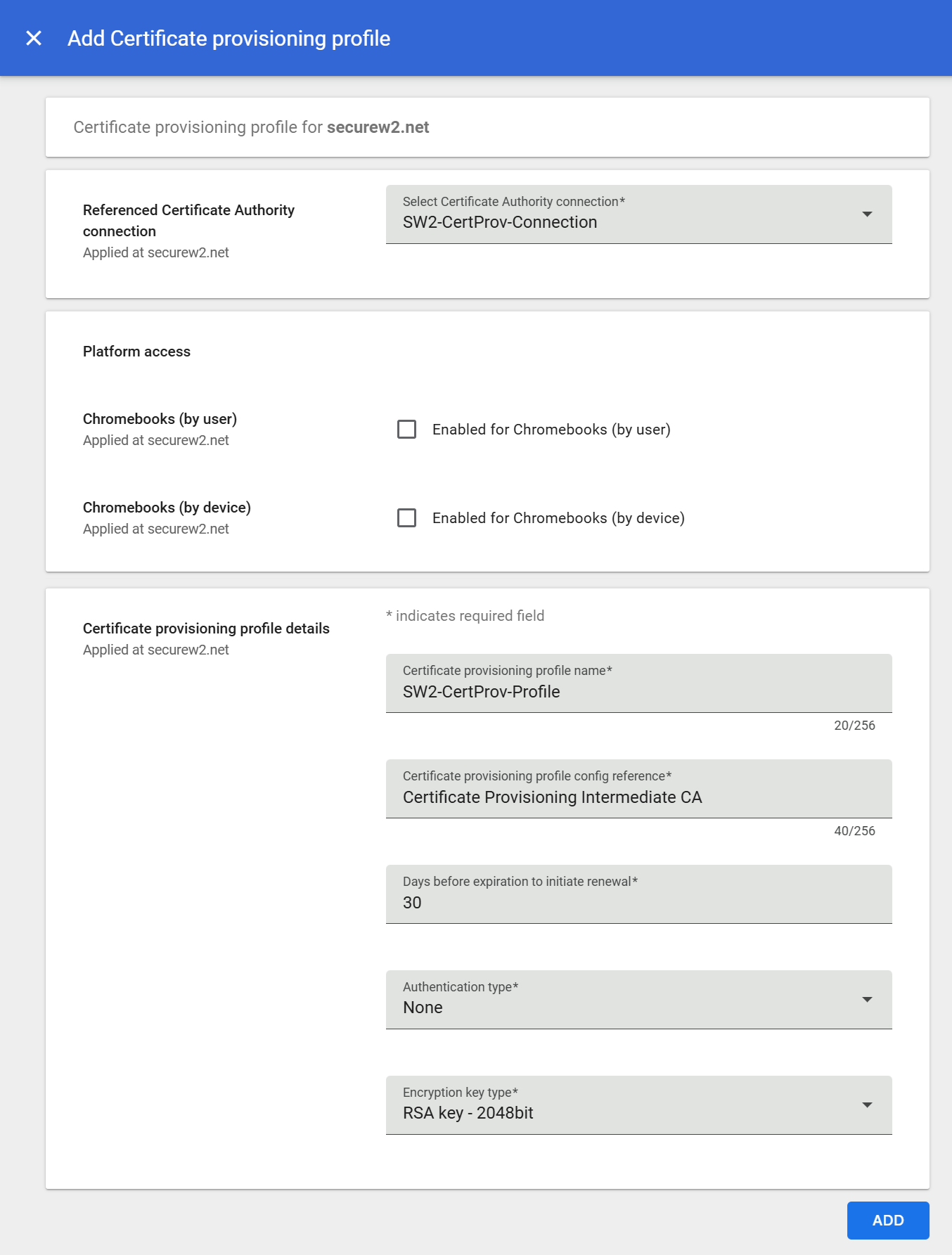
- On the Add Certificate provisioning profile page:
- From the Referenced Certificate Authority connection drop-down list, select the Certificate Authority Connection that you created earlier.
- In the Certificate provisioning profile name field, enter a name to identify the certificate provisioning profile in the Google Admin Console.
- In the Certificate provisioning profile config reference field, enter the exact name of the intermediate CA certificate that you uploaded in the Create a Server Certificate Authority section.
NOTE: The Intermediate CA Name must exactly match the Intermediate CA created in the Create a Server Certificate Authority section. A mismatch prevents certificate issuance. - Click ADD.

Google Certificate Provisioning is Google’s API-based implementation of a dynamic SCEP workflow. Unlike legacy SCEP, which uses a static challenge, Certificate Provisioning Connector generates a unique, dynamic challenge for each certificate request.
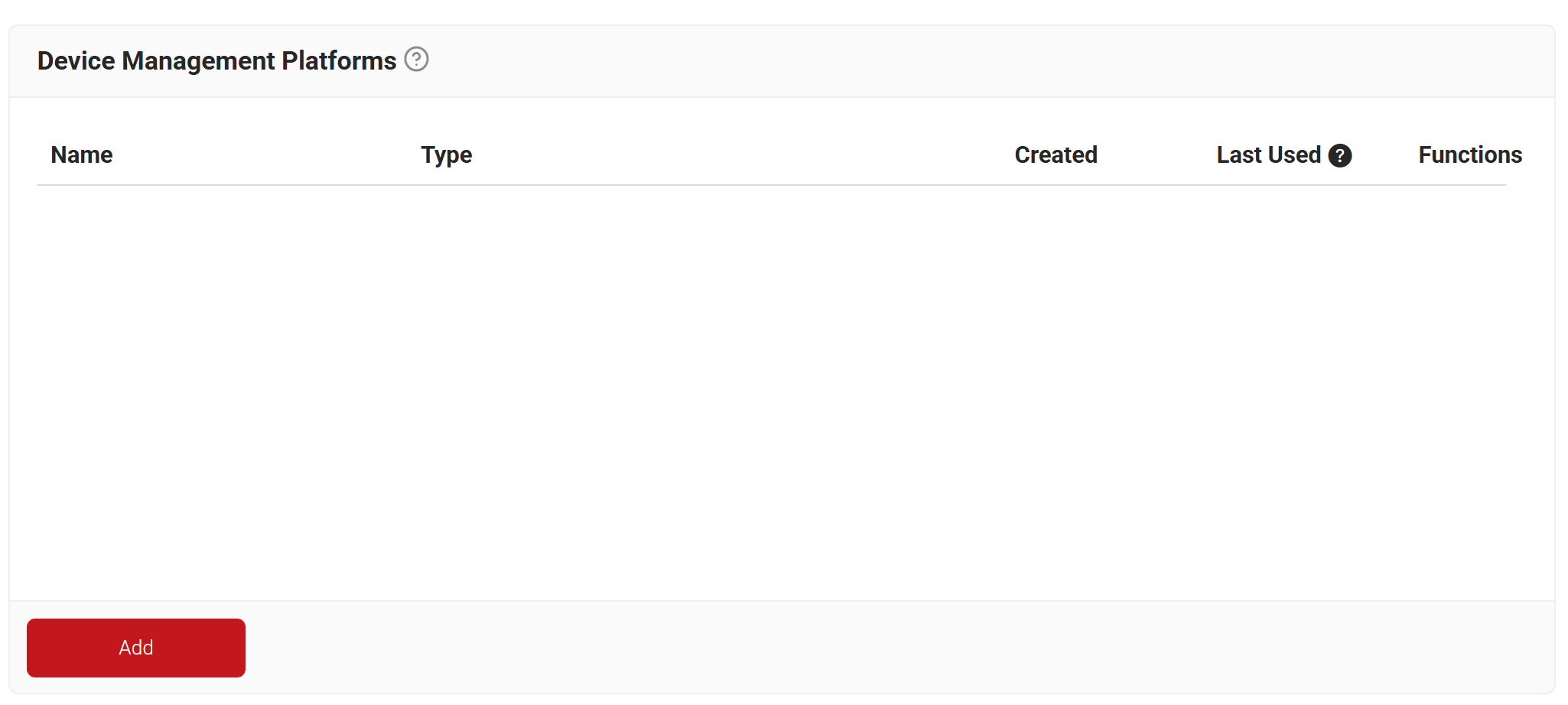
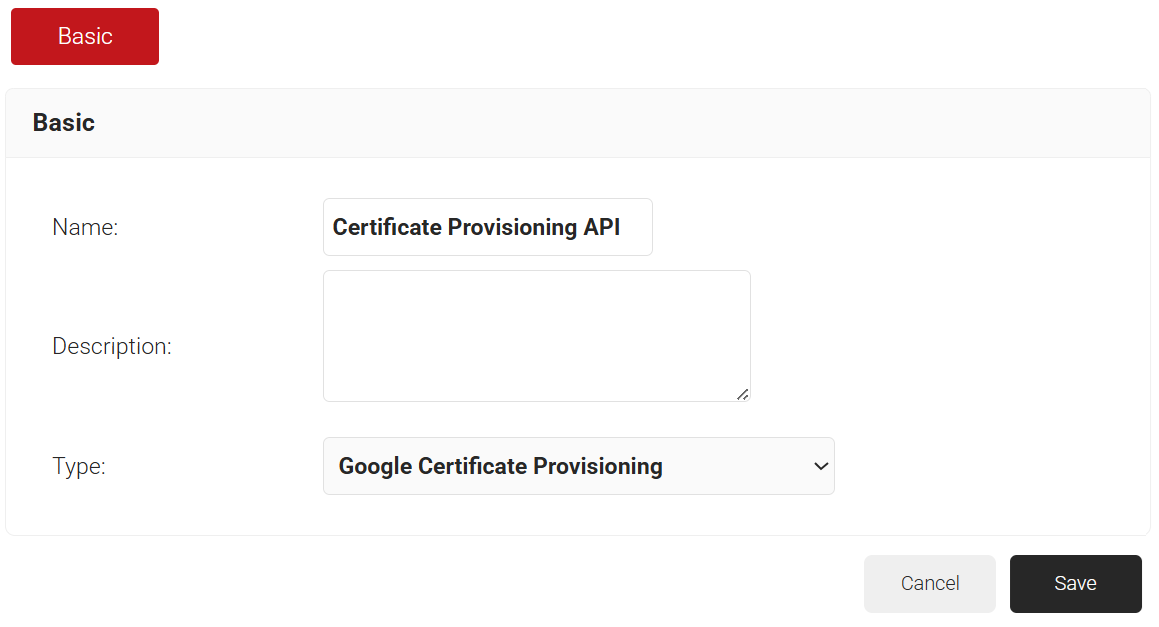
To create a Device Management Platform, perform the following steps:
- Log in to the JoinNow Management Portal.
- Navigate to Integration Hub > Device Management Platforms.
- Click Add.

- In the Basic section, enter the device management platform name in the Name field.
- In the Description field, enter the description for the device management platform.
- From the Type drop-down list, select Google Certificate Provisioning.

- Click Save.
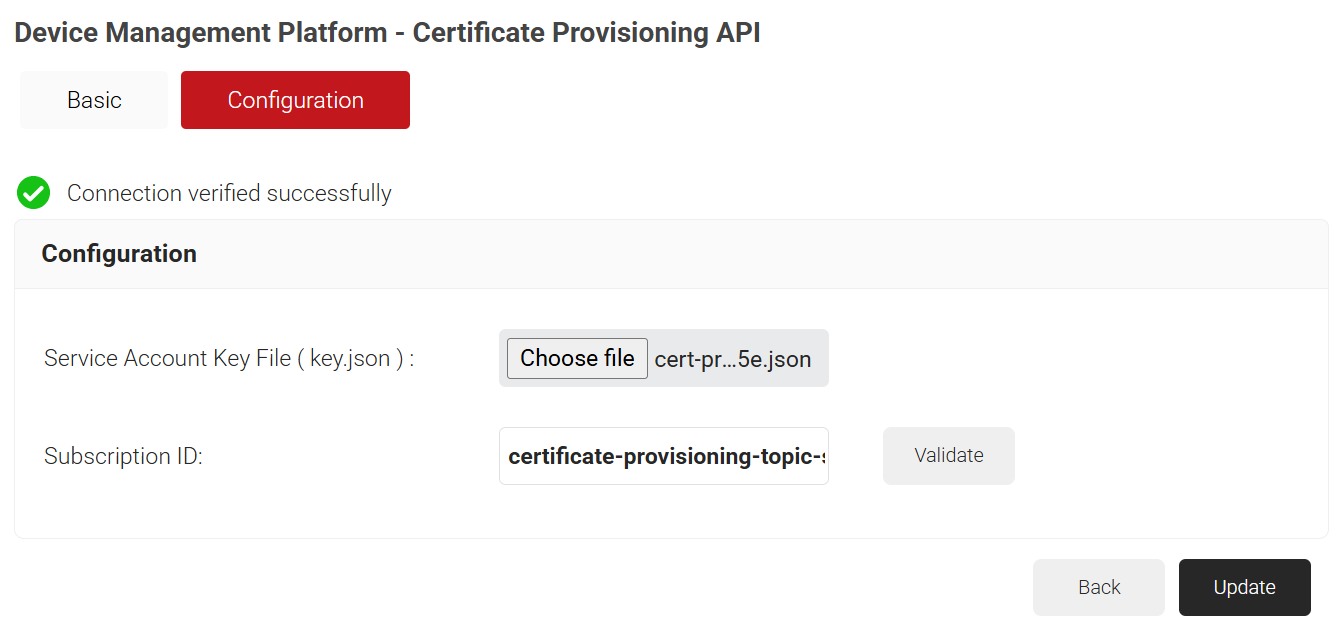
- Click the Configuration tab and configure the following settings:
- In the Service Account Key File (key.json) field, click Choose file to upload the key file obtained from the Create a Service Account & Download Key section.
- In the Subscription Name field, enter the subscription ID obtained from the Create a Pub/Sub Topic section.
- Click Validate to verify the connection with Google. A “Connection verified successfully” message is displayed when validation succeeds.

- Click Update.
- If validation fails, check the following:
- The JSON key file belongs to the correct service account.
- The Subscription ID is correct, and the Pub/Sub subscription exists.
- IAM roles are assigned to both service accounts (refer to the Assign IAM Permissions section).
- The Chrome Management API is enabled (refer to the Enable Chrome Management API section).
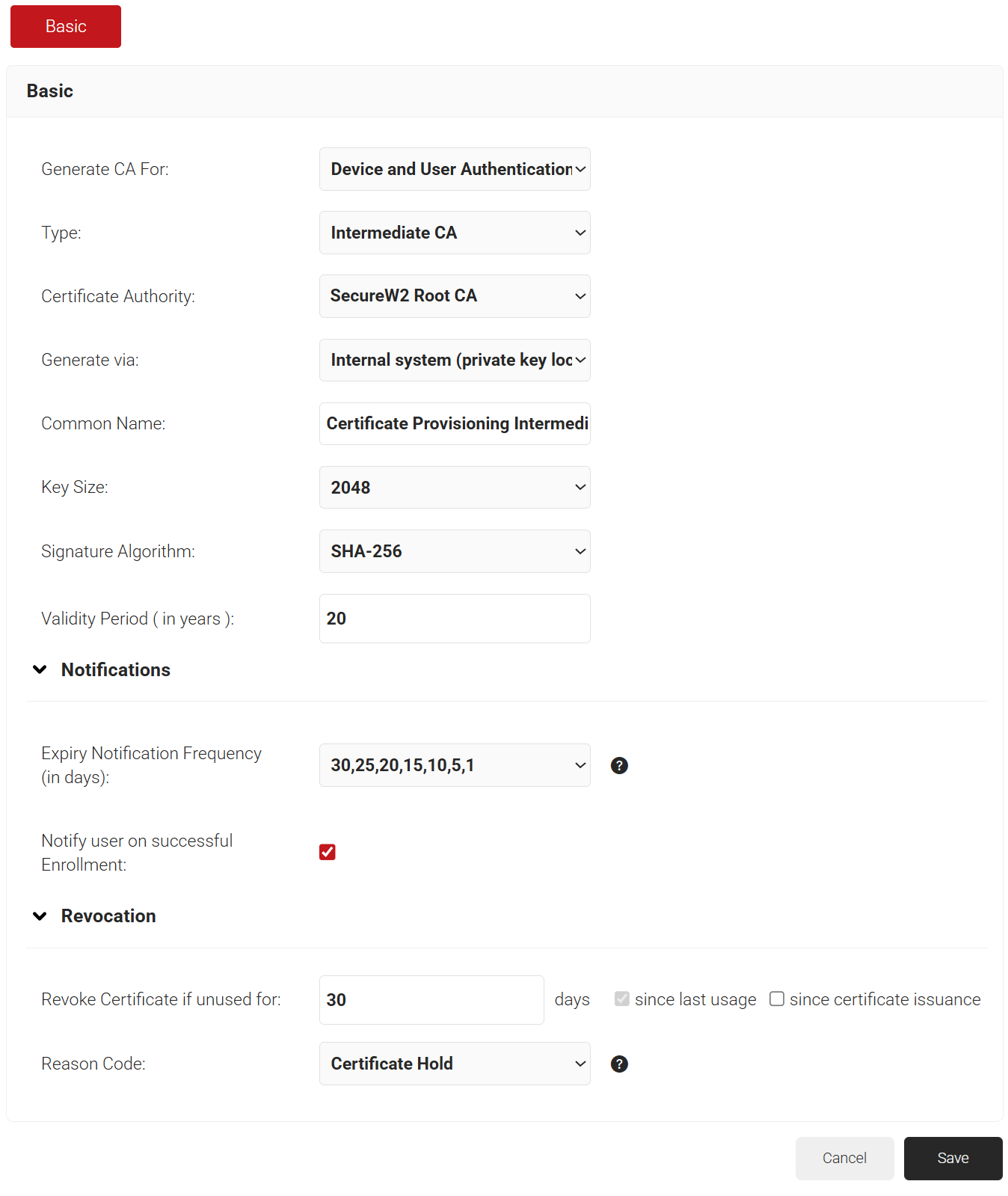
SecureW2 recommends using a new intermediate CA as a best practice for enrollments.
To create a new Intermediate CA, perform the following steps:
- Navigate to Dynamic PKI > Certificate Authorities.
- Click Add Certificate Authority.

- In the Basic section, from the Generate CA For drop-down list, select the Device and User Authentication option to authenticate devices and users.
- From the Type drop-down list, select Intermediate CA.
- From the Certificate Authority drop-down list, select the default Root CA that comes with your organization.
- For the Common Name field, enter a name.
- From the Key Size drop-down list, select 2048 for the CA certificate key pair.
- From the Signature Algorithm drop-down list, select the signature algorithm for the certificate signing request. The option available is SHA-256.
- In the Validity Period (in years) field, enter the validity period for the Intermediate CA in terms of the number of years.
- In the Notifications section:
- From the Expiry Notification Frequency (in days) drop-down list, select the frequency interval for which a certificate expiration notification should be sent to users.
- Select the Notify user on successful Enrollment checkbox to notify users after a successful enrollment.
- If the RFC has a valid email address, the user will receive a certificate-issued or expired notification; otherwise, they will not.
- In the Revocation section:
- In the Revoke Certificate if unused for field, select the number of days after which an unused certificate can be revoked.
- Since last usage – Select this checkbox to revoke the certificate after a specified number of days if it remains unused.
- Since certificate issuance – Select this checkbox to revoke the certificate after a specified number of days after it is issued.
- From the Reason Code drop-down list, select any one of the following reasons for which the certificate is revoked.
- Certificate Hold
- AA Compromise
- Privilege Withdrawn
- Unspecified
- In the Revoke Certificate if unused for field, select the number of days after which an unused certificate can be revoked.
- Click Save. This generates the new intermediate CA.


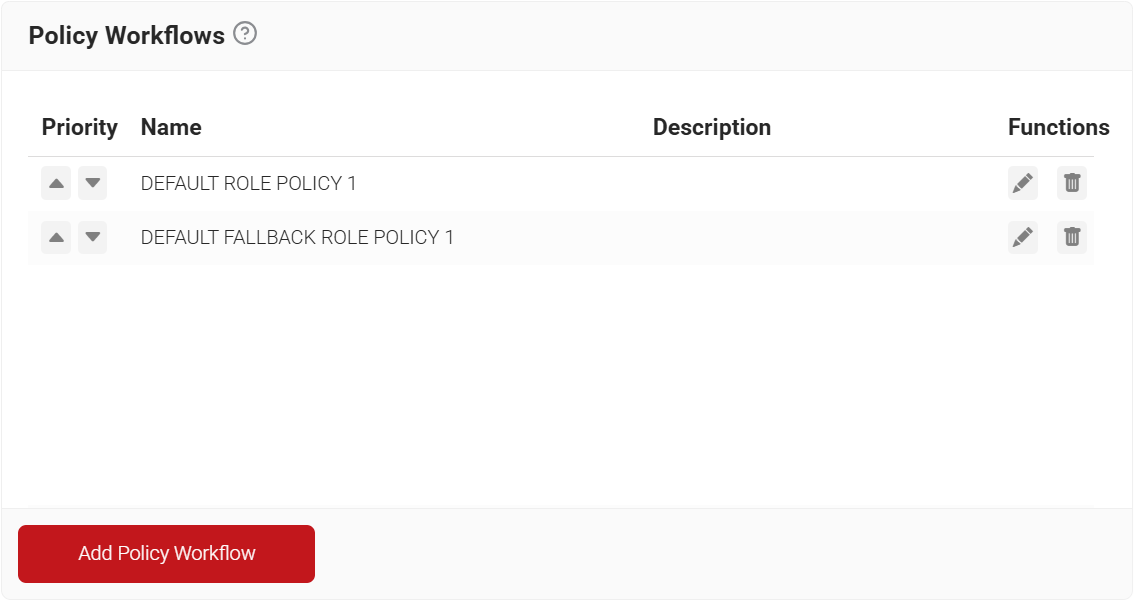
The Policy Workflow facilitates the segmentation of users and devices based on predefined criteria or associated attributes and groups, with each segment identified as a distinct Policy Workflow. This allows admins to configure the issuance of specific certificate types or formats for each Policy Workflow through an Enrollment Policy.
To create a policy workflow, perform the following steps:
- Navigate to Policy Management > Policy Workflows.
- Click Add Policy Workflow.

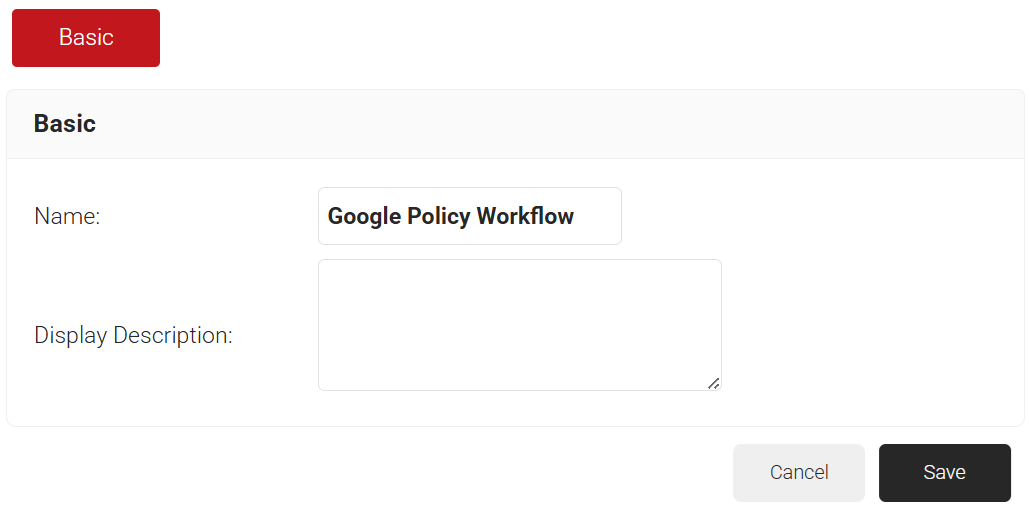
- In the Basic section, enter the name of the policy workflow in the Name field.
- In the Display Description field, enter a suitable description for the policy workflow.

- Click Save. The page refreshes, and the Conditions tab is displayed.
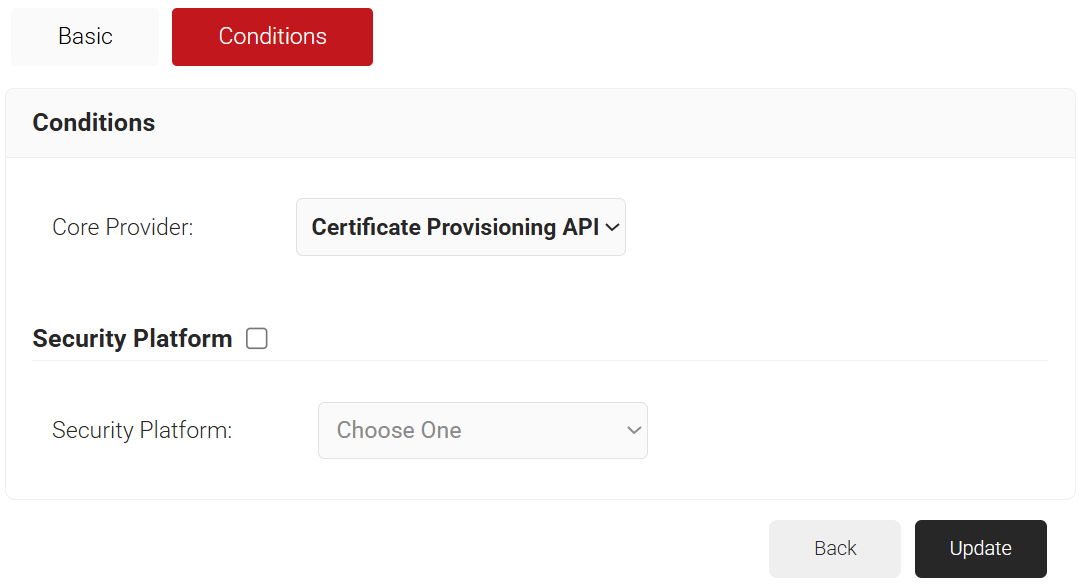
- Select the Conditions tab.
- From the Core Provider drop-down list, select the API token you created in the Create a Device Management Platform section.

- Click Update.
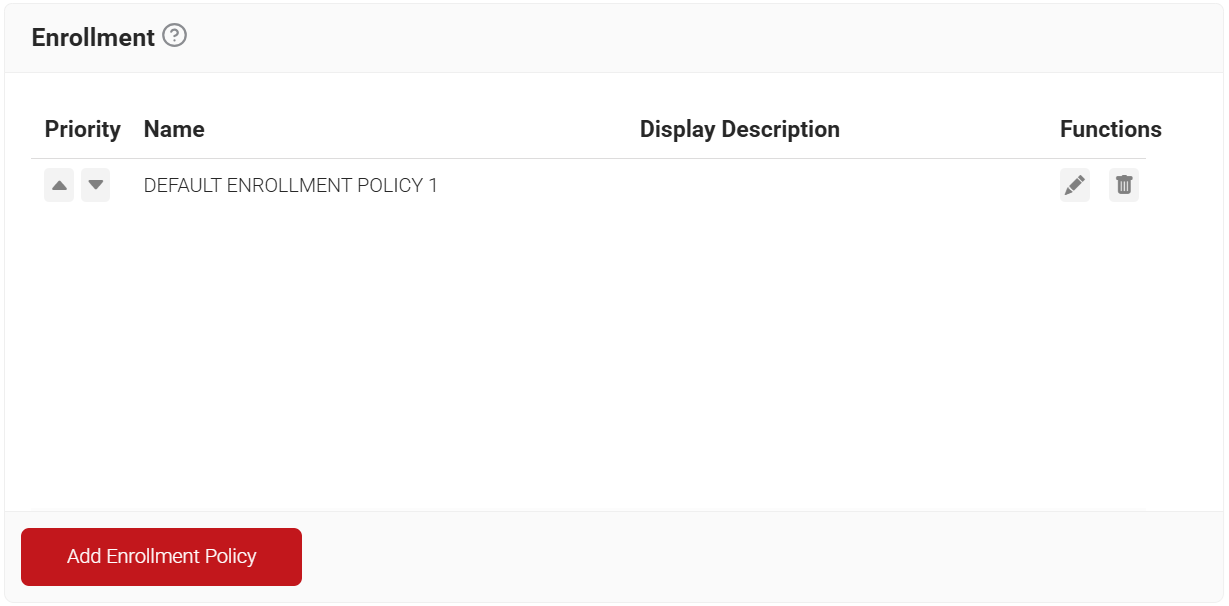
An Enrollment Policy defines the client certificate template and the Certificate Issuer to be used for each Policy Workflow. It leverages the segmentation established in the Policy Workflow to ensure that the appropriate client certificate template is issued for each workflow.
To create an Enrollment policy, perform the following steps:
- Navigate to Policy Management > Enrollment.
- Click Add Enrollment Policy.

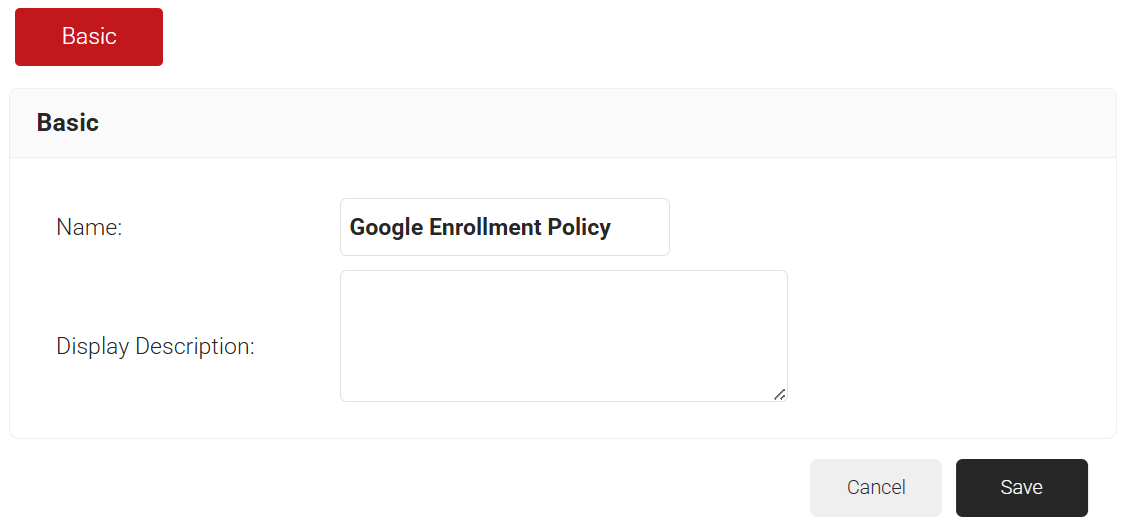
- In the Basic section, enter the name of the enrollment policy in the Name field.
- In the Display Description field, enter a suitable description for the enrollment policy.

- Click Save. The page refreshes, and the Conditions and Settings tabs are displayed.
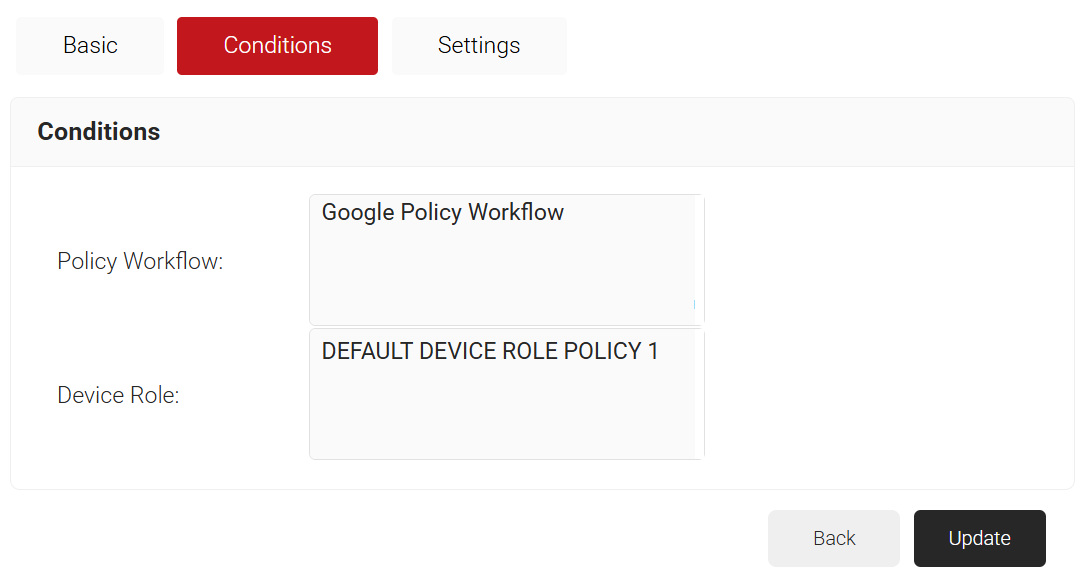
- Select the Conditions tab.
- From the Policy Workflow list, select the policy workflow you created earlier (see the Create a Policy Workflow section).
- From the Device Role list, select DEFAULT DEVICE ROLE POLICY 1.

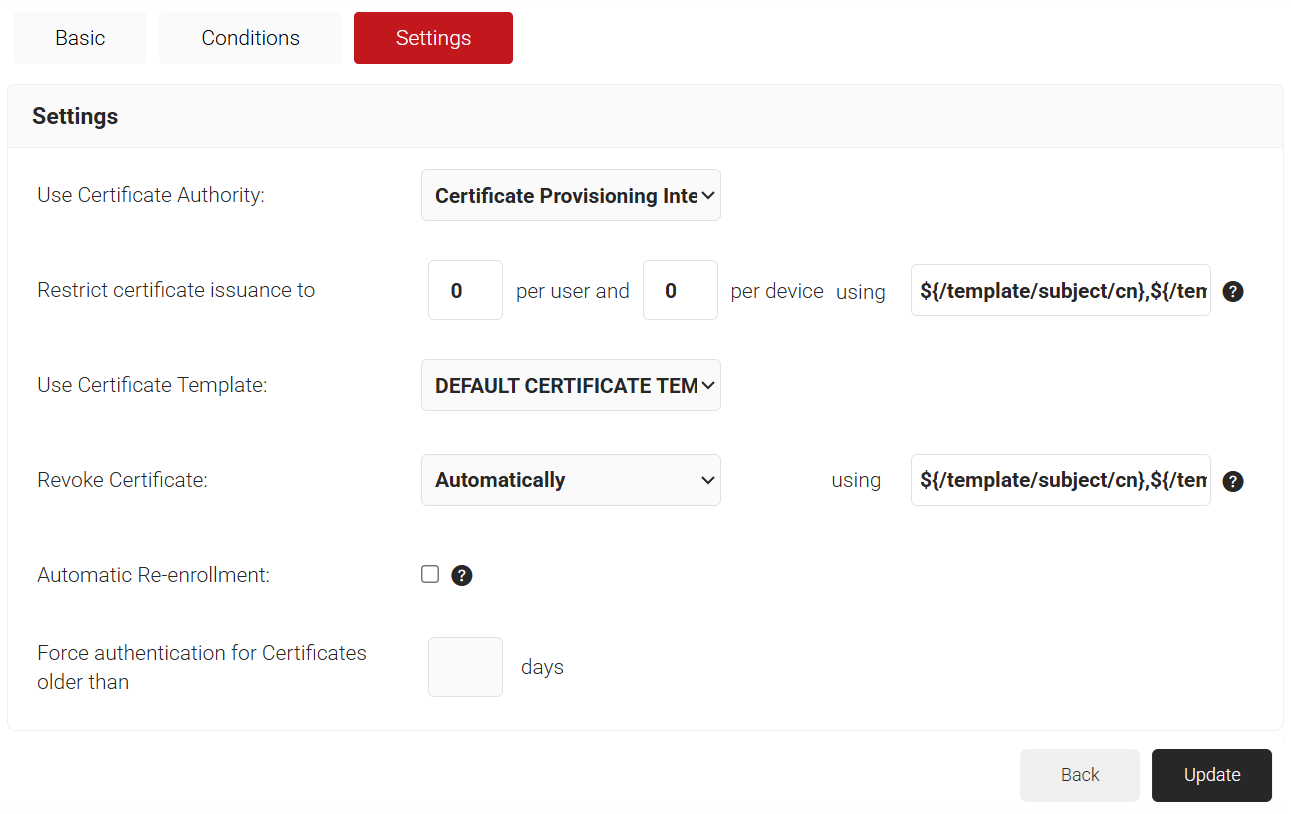
- Select the Settings tab.
- In the Settings section, from the Use Certificate Authority drop-down list, select the intermediate CA you created earlier (see the Create a SecureW2 Intermediate CA section).
- From the Use Certificate Template drop-down list, select the default certificate template.
- In the other settings, retain the default values.

- Click Update.
Similar to the Enrollment Policy, the Network Policy applies settings to a particular Policy Workflow. It allows us to specify whether the device will be granted or denied network access, along with other RADIUS attributes that can be sent, which are most commonly VLAN assignments.
Like with the Enrollment Policy, we are just going to show how to map our Policy Workflow (created in the Create a Policy Workflow section) to our Network Policy.
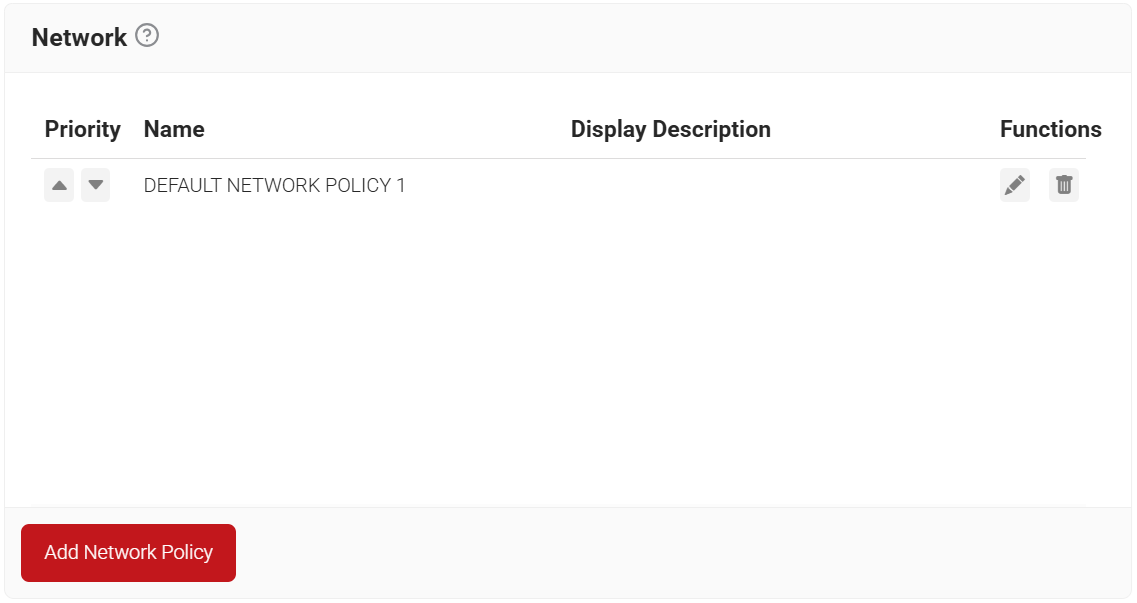
- Navigate to Policy Management > Network.
- Click Add Network Policy.

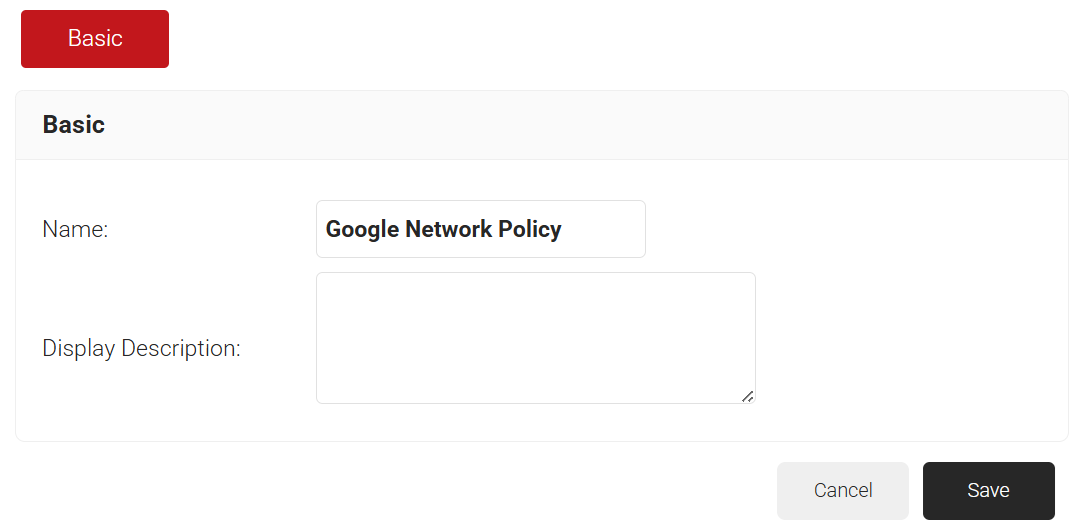
- Under the Basic section, in the Name field, enter the name of the network policy.
- In the Display Description field, enter a suitable description for the network policy.

- Click Save.
- The page refreshes, and the Conditions and Settings tabs appear.
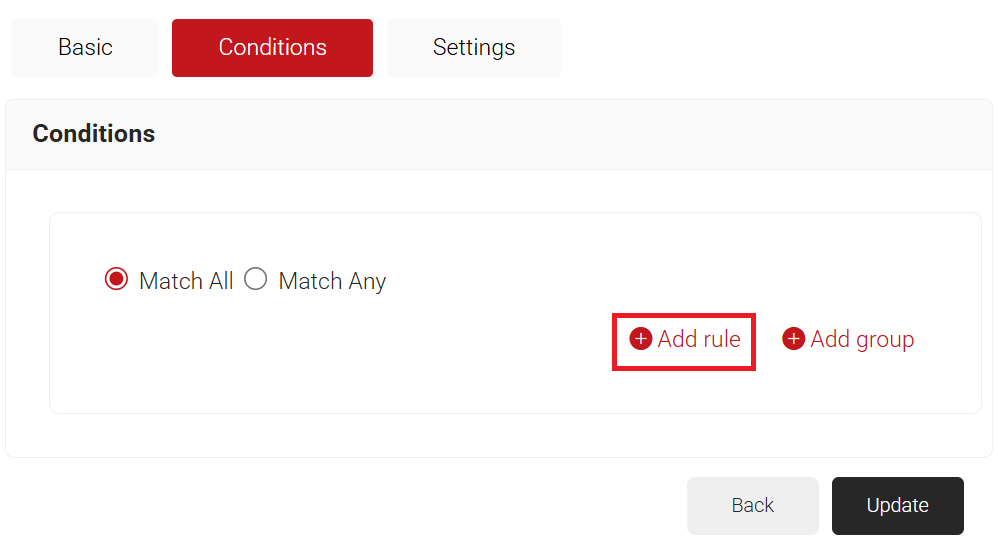
- Select the Conditions tab.
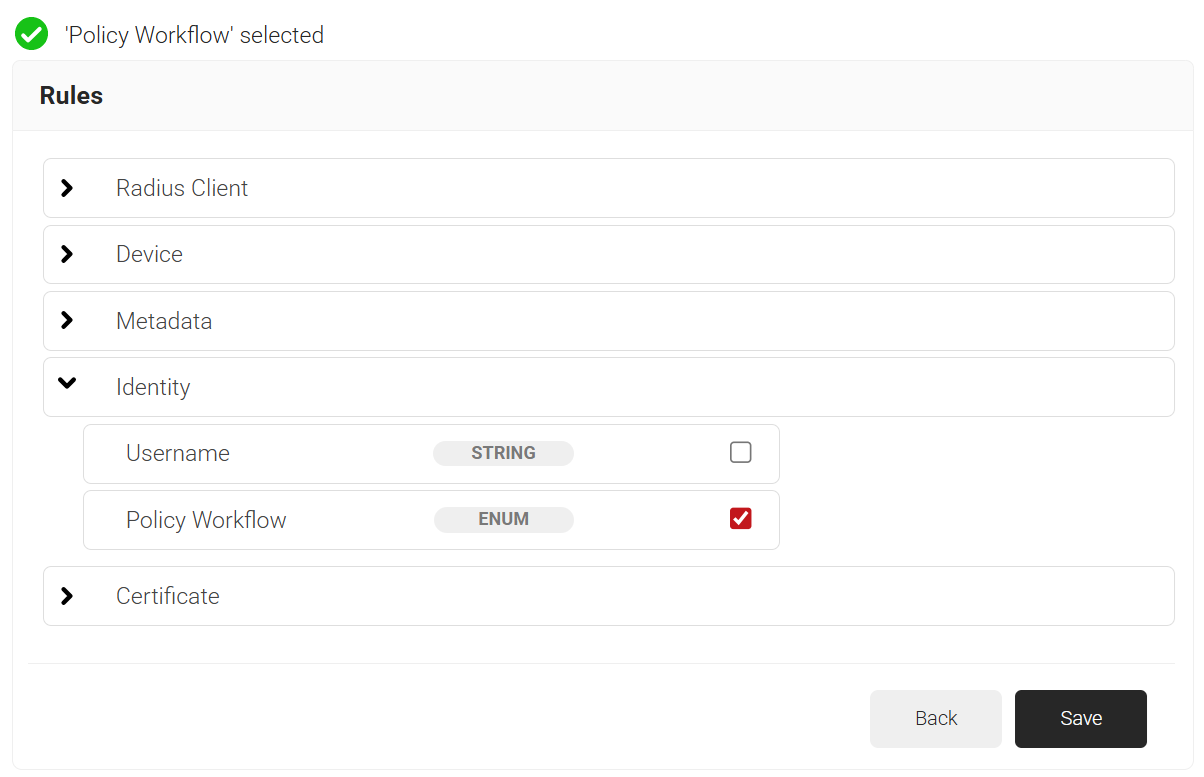
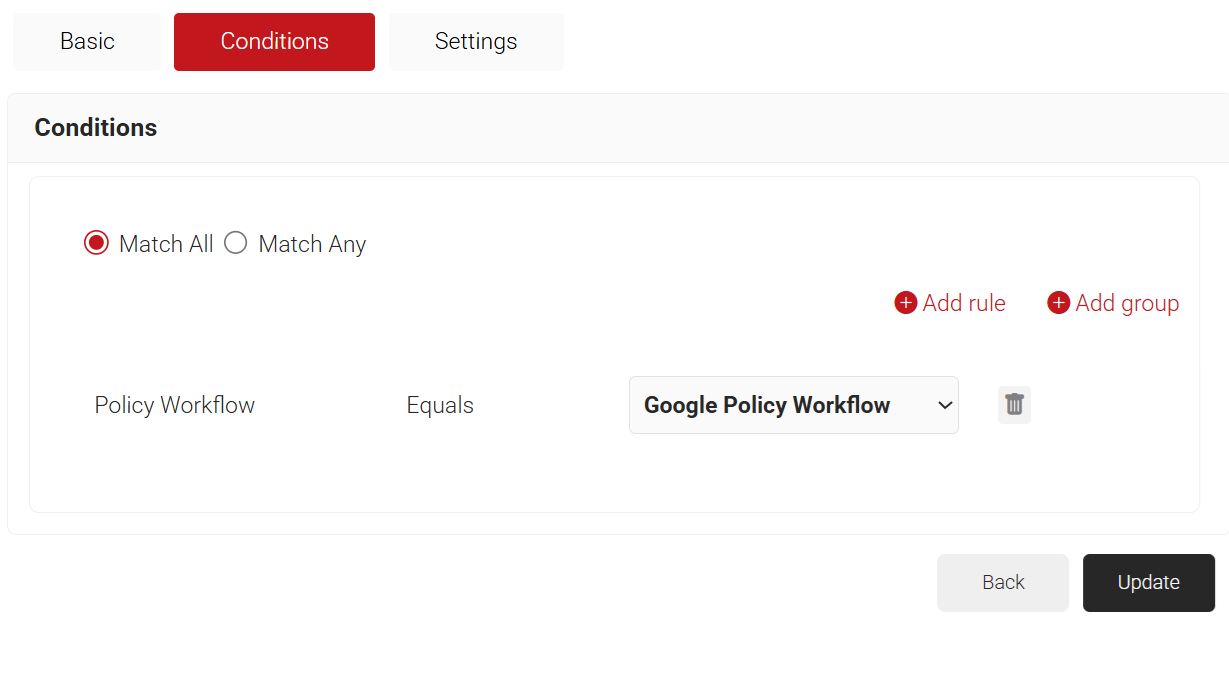
- Click Add rule and select the policy workflow to assign to this network policy. This mapping directs SecureW2 RADIUS to validate device certificates through the Certificate Provisioning flow during Wi-Fi authentication.


NOTE: You can assign a network policy to multiple user roles.
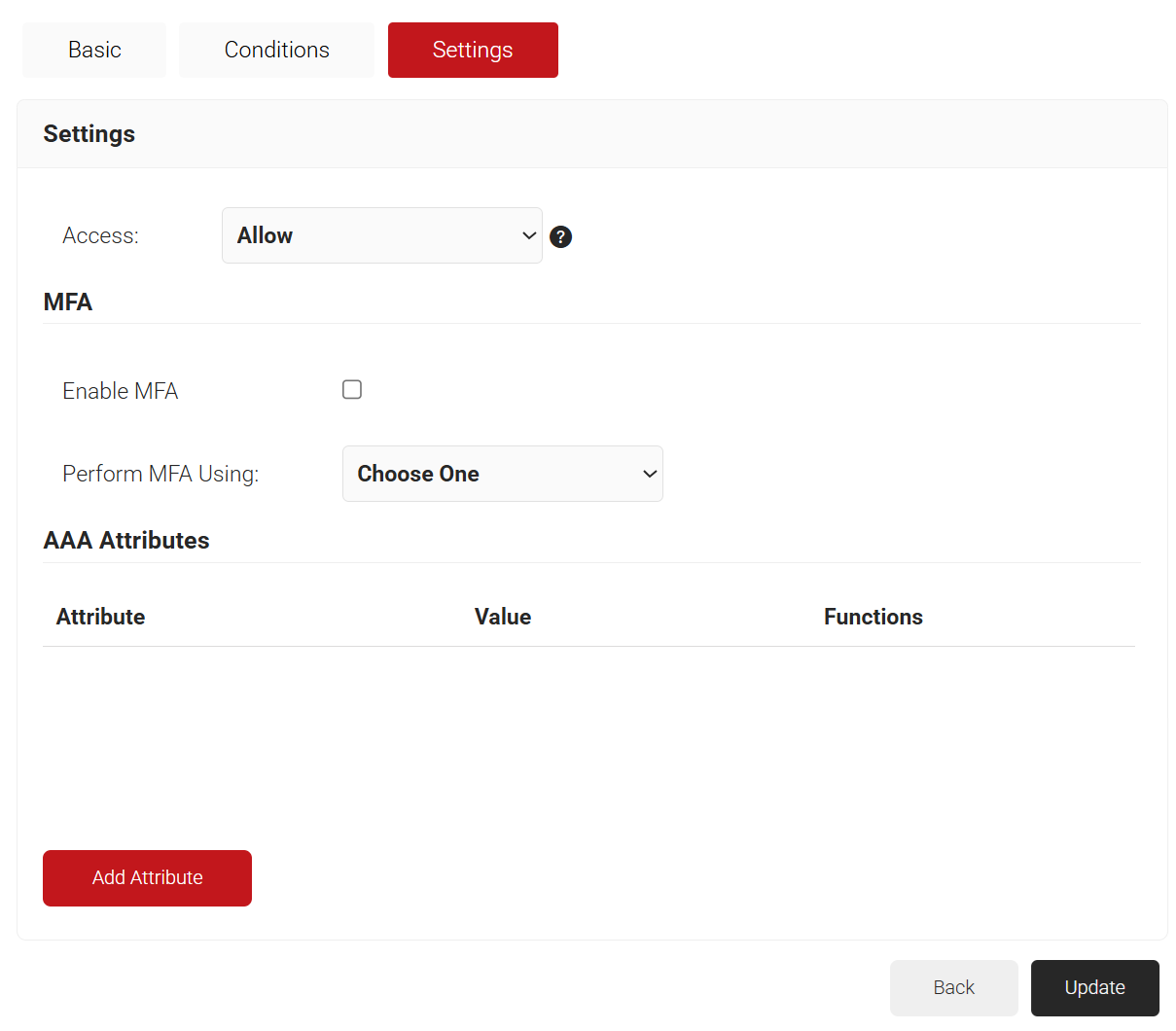
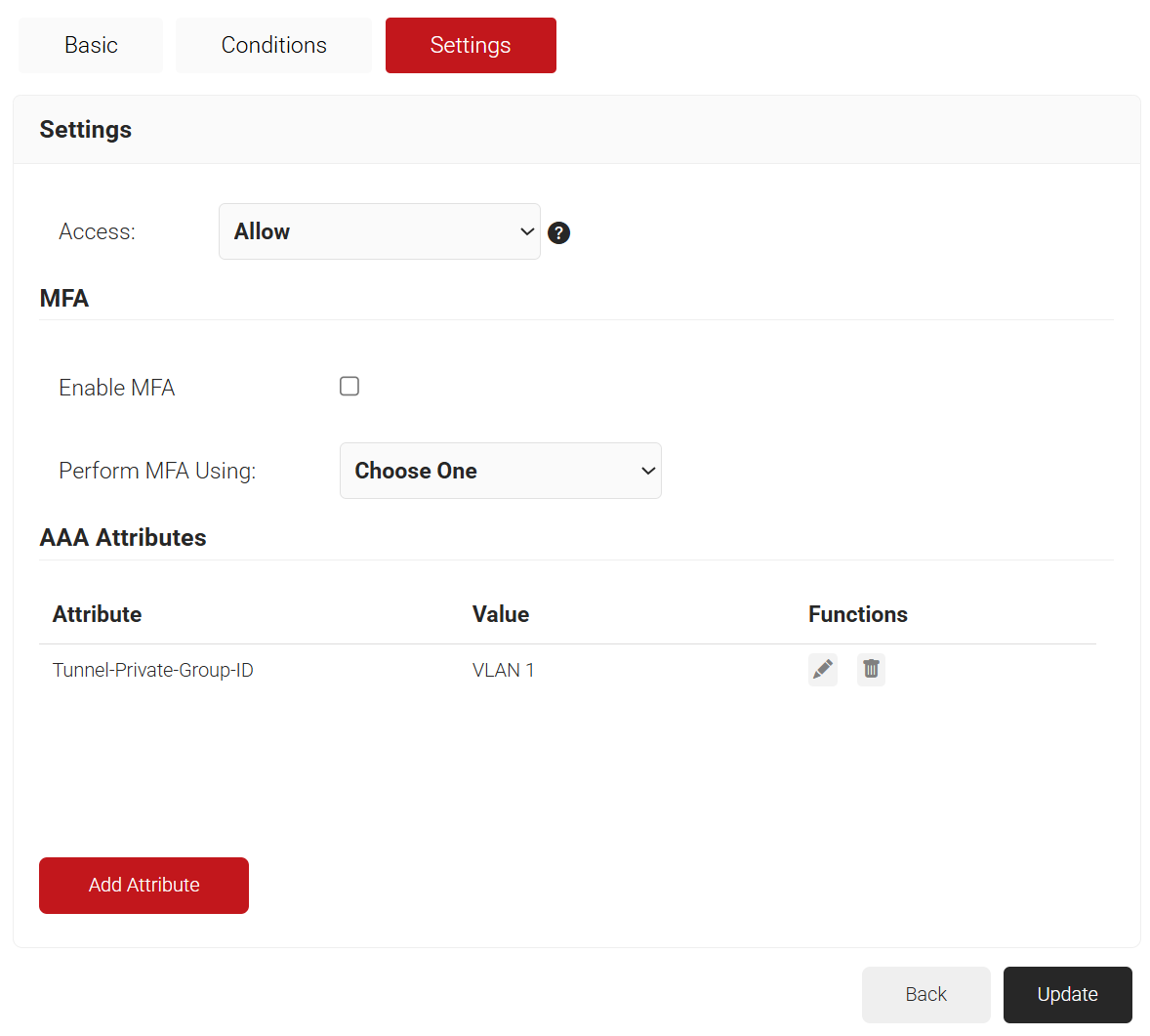
- Select the Settings tab.
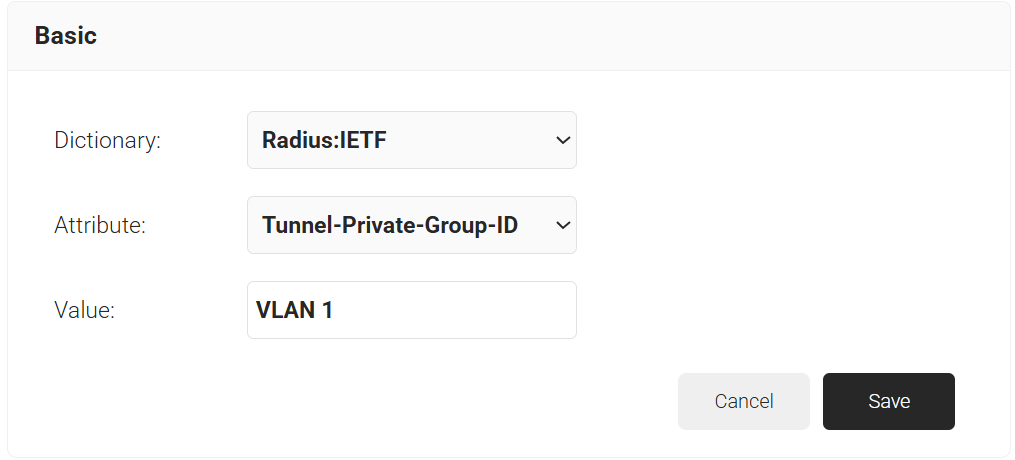
- Click Add Attribute.

- From the Dictionary drop-down list, select an option:
- Radius: IETF: This is what we will use for the following attributes, as we are using standard RADIUS attributes for VLAN assignment.
- Custom: Used for any VSAs (Vendor-Specific Attributes).
- From the Attribute drop-down list, select an option.
- In the Value field, enter the appropriate value for the attribute.

- Click Save.

- Repeat for any other RADIUS attribute you would like to send. For reference, here is what is commonly required for VLAN Assignment:
- Tunnel-Medium-Type: IEE-802
- Tunnel-Private-Group-ID: {VLAN Name}
- Server Tunnel-Type: VLAN
- Click Add Attribute.
- Click Update.
Every RADIUS Authentication request will run through the policies configured here. Now, when a device attempts to authenticate to the network, we will validate its attributes before deciding whether to grant it access and which VLAN to assign it to.
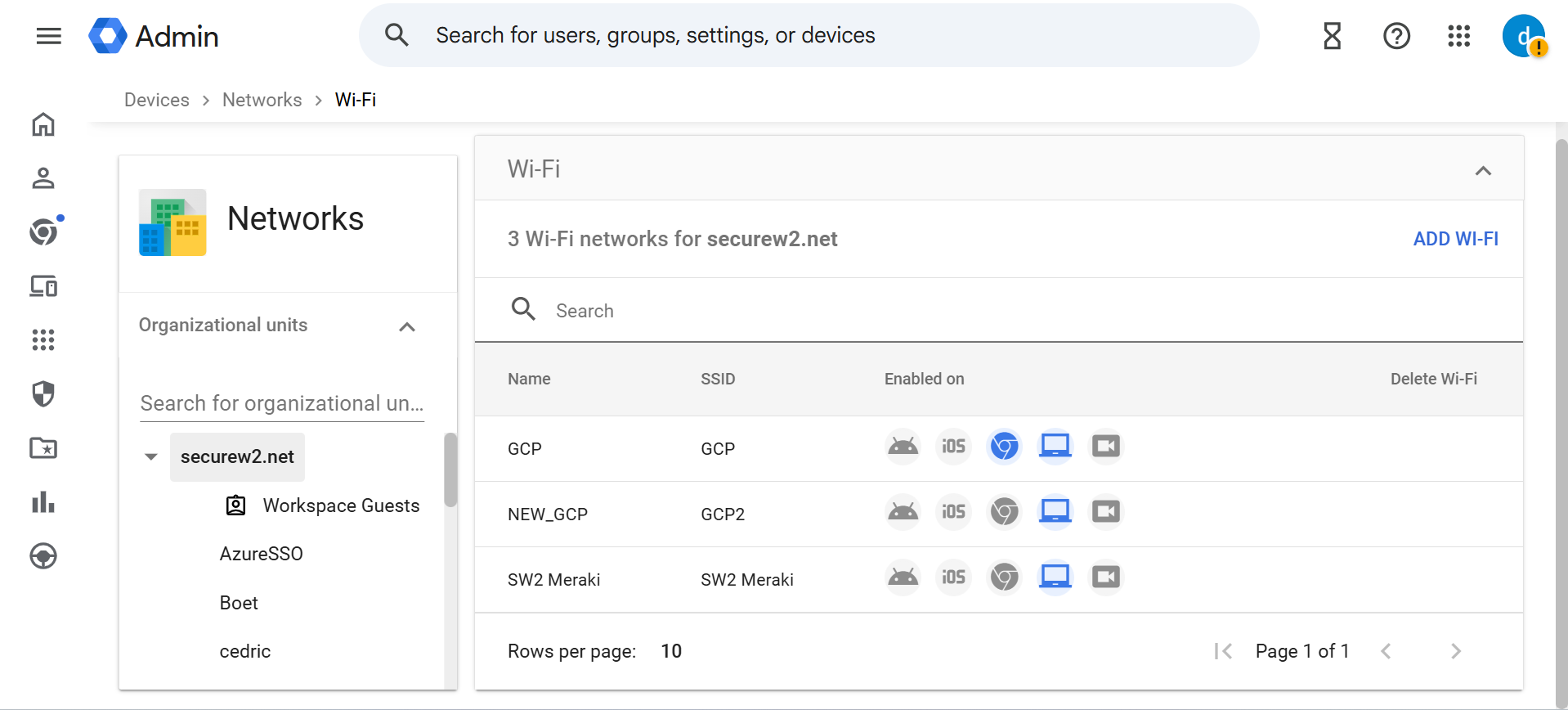
To modify the existing Wi-Fi profile currently configured for SCEP, perform the following steps:
- Log in to the Google Admin Console.
- Navigate to Devices > Networks > Wi-Fi.

- Select the existing Wi-Fi profile configured for SCEP.
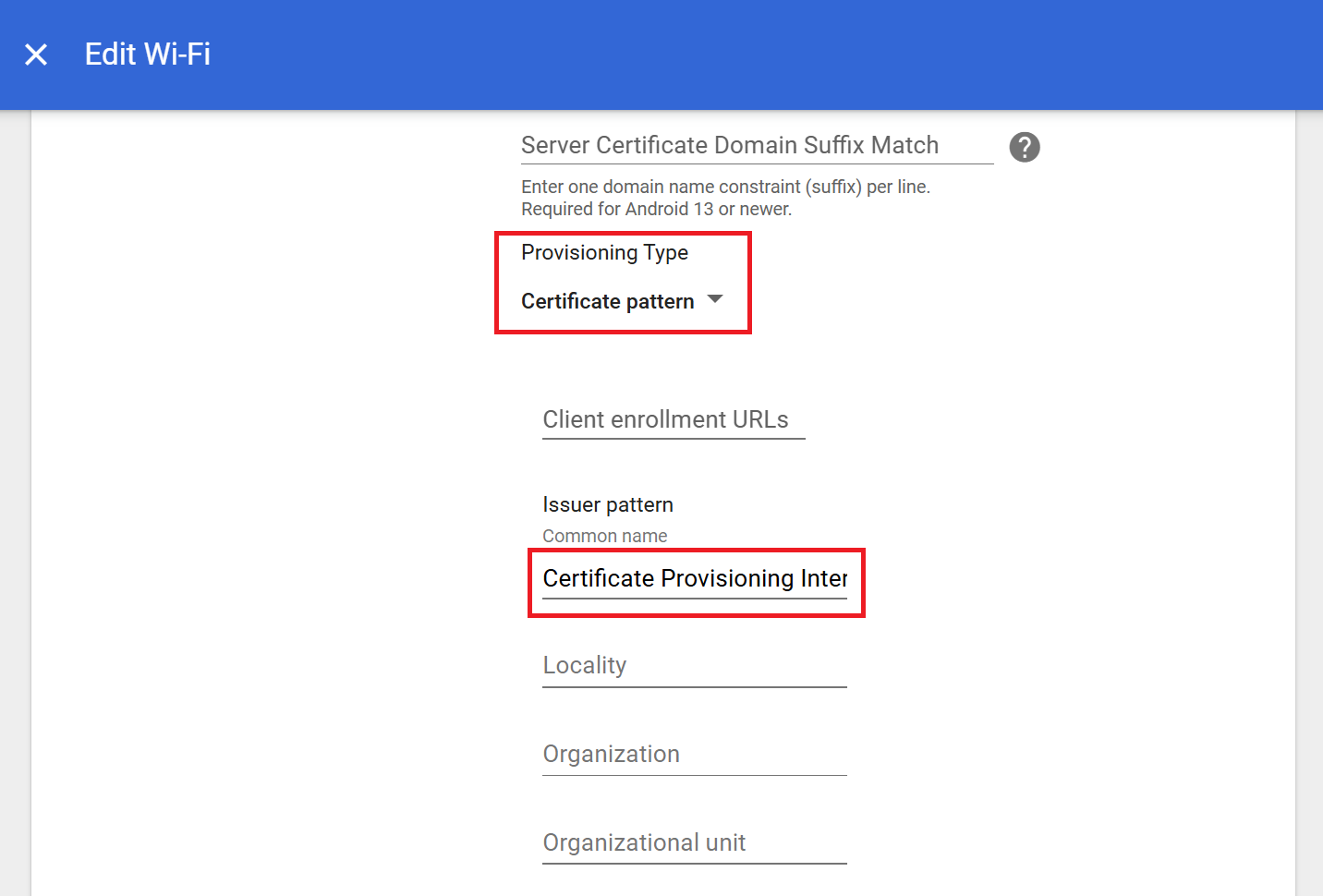
- Scroll to Security settings.
- From the Provisioning Type drop-down list, select Certificate pattern.
- In the Common name field, enter the new Certificate Provisioning CA name.

- Click SAVE. Devices automatically disconnect and reconnect to Wi-Fi using the new Certificate Provisioning certificate. No user action is required.
SecureW2 administrators can verify successful certificate enrollment by navigating to Data and Monitoring > Enhanced Events in the JoinNow Management Portal.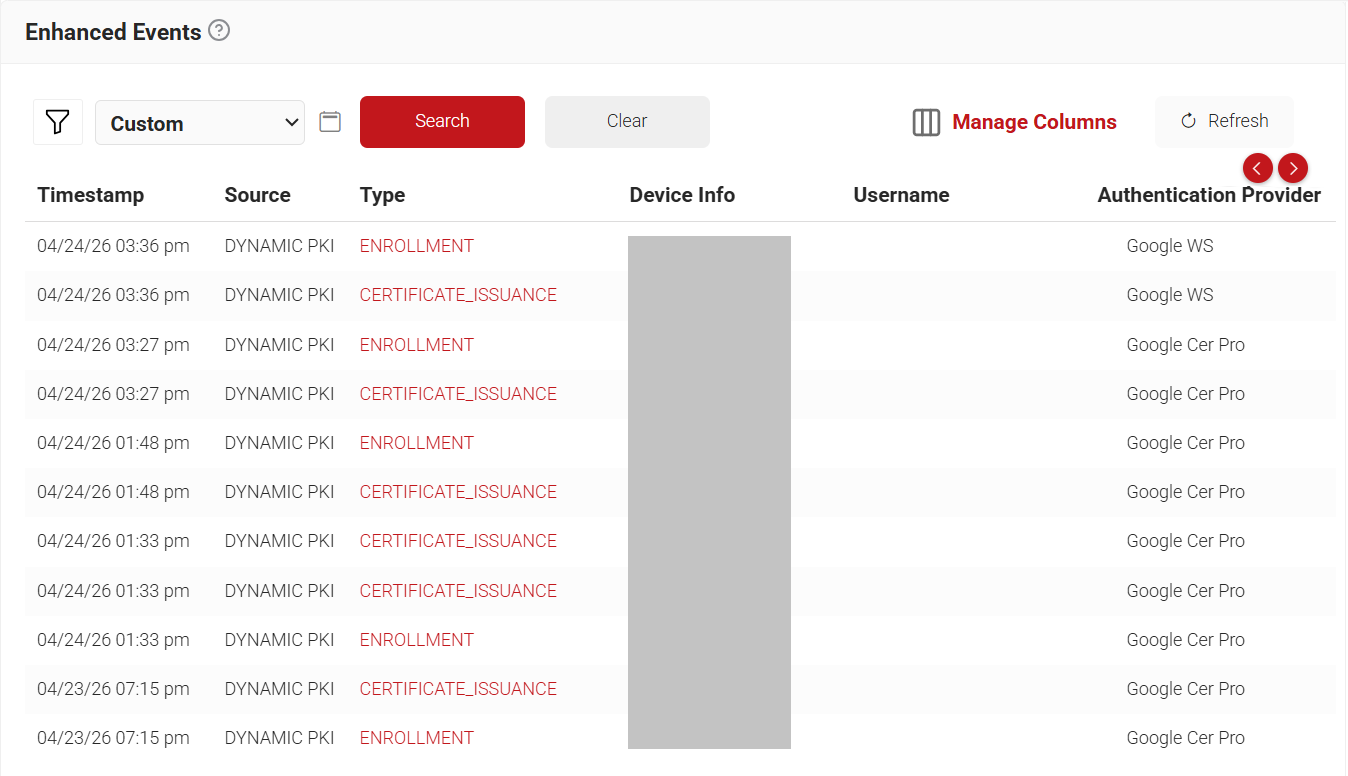
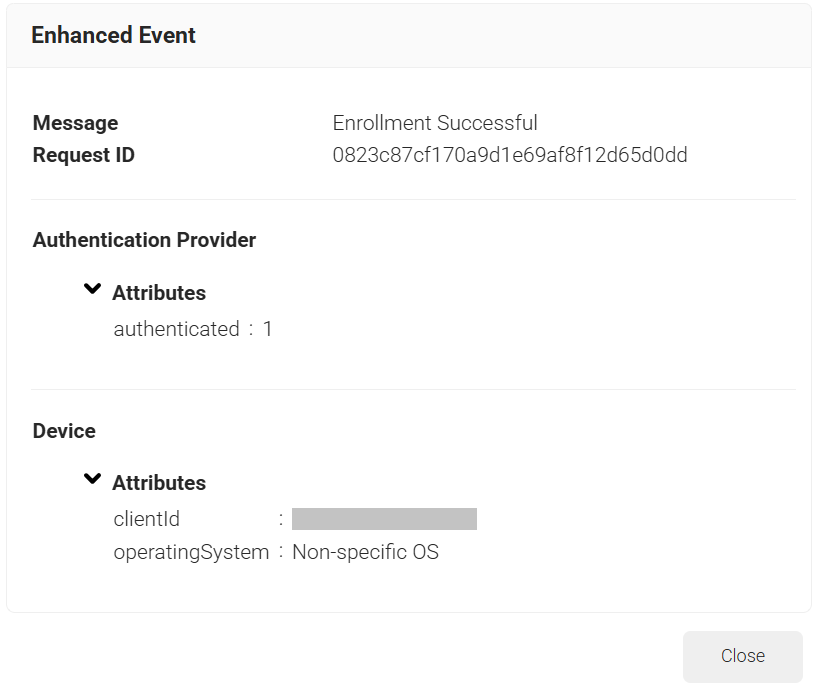
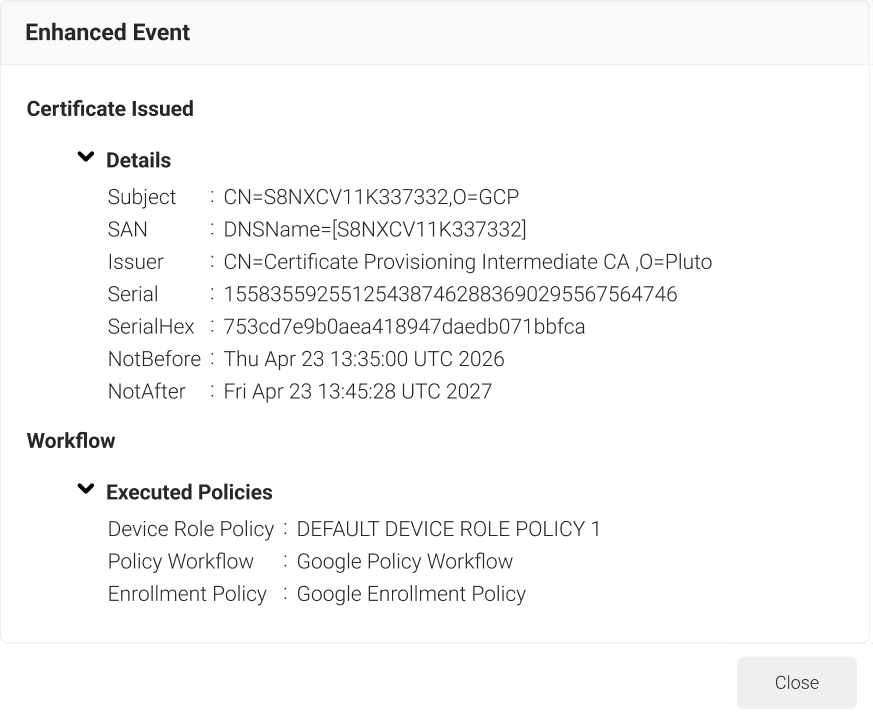
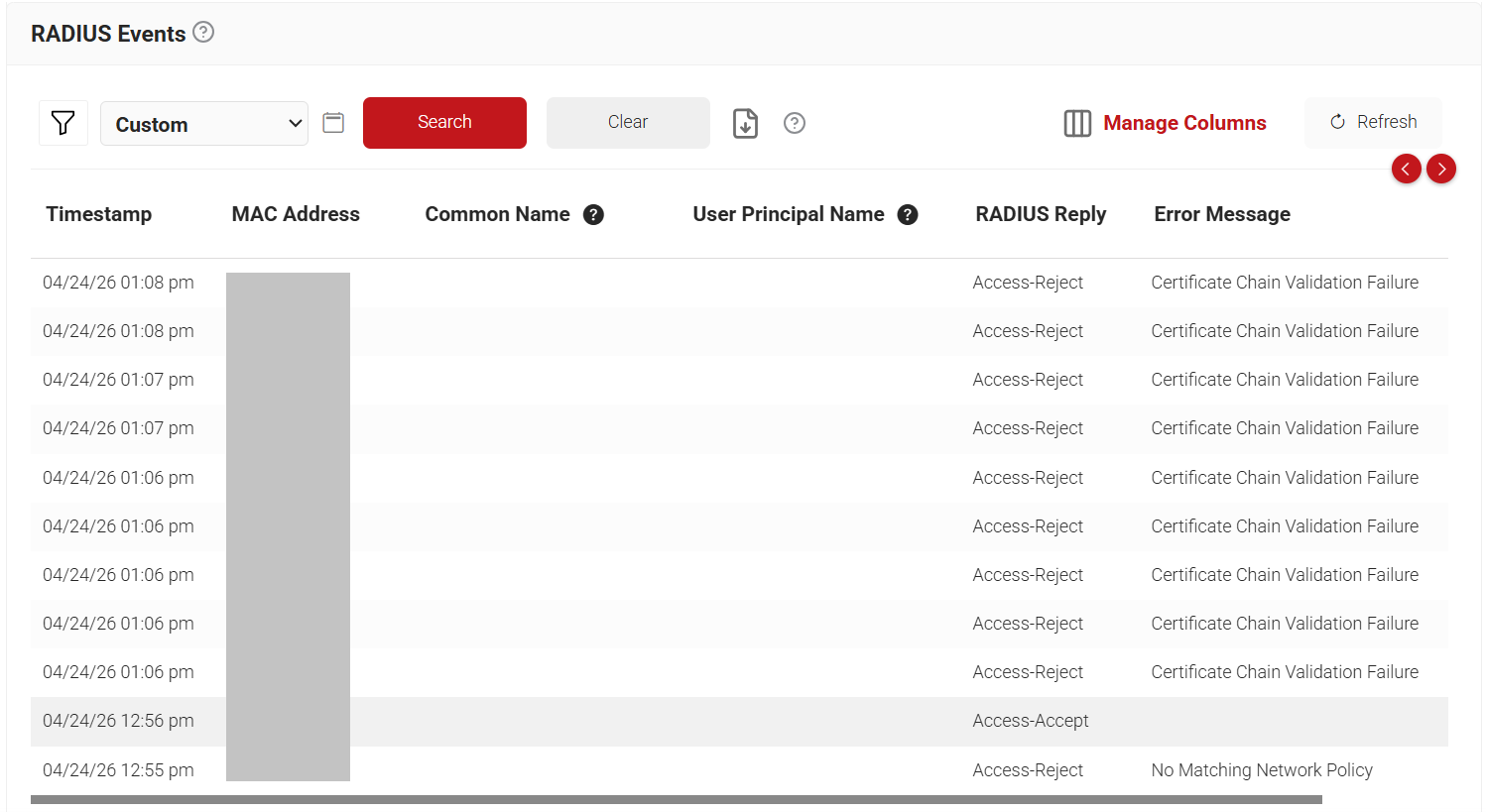
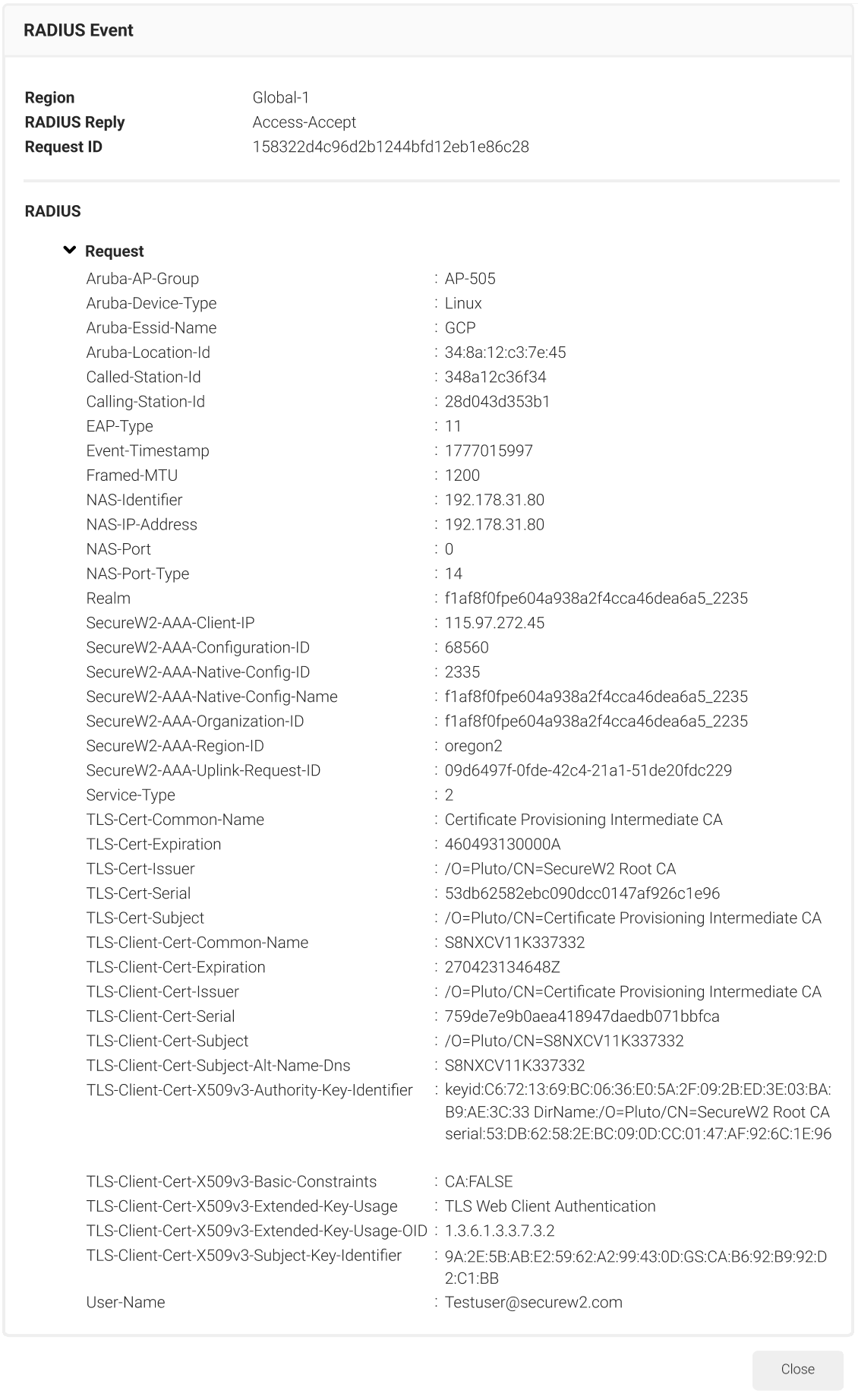
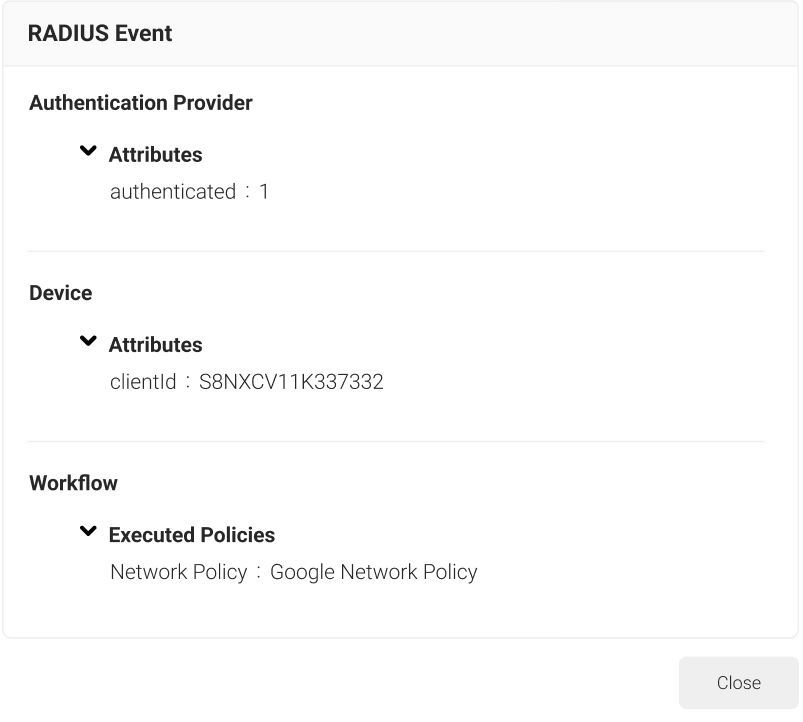
The RADIUS Events page details the device lookup attributes. To access the RADIUS Events page, log in to the JoinNow Management Portal and navigate to Data and Monitoring > RADIUS Events.