Introduction
Limited browsers and CNAs are browsers that launch on devices when they detect limited network access, often on public-use SSIDs (coffee shops, Airports) or to configure devices for a different secure SSID (corporations, universities). These are helpful for public Wi-Fi, but problematic when an organization requires secure network access. Organizations that handle personal or sensitive information often rely on software to configure devices for secure network access, preventing hackers from stealing information over Wi-Fi. They do this by providing software on open SSIDs, but are hampered by limited browser support, which prevents devices from downloading software for security reasons. Fortunately, SecureW2 has designed an Advanced Onboarding Service that allows devices to use limited browsers while still accessing onboarding/network configuration software.

The Limited Browser / CNA
The limited browser is a network connectivity feature that exists on macOS, iOS, and Android devices. Its name is self-explanatory: the limited browser is used when the device detects a network with limited access. The device does this by trying to connect to specific URLs:
- macOS and iOS: captive.apple.com.
- Androids: connectivitycheck.gstatic.com or clients3.google.com.
If these URLs are allowed to access the walled garden or firewall, the limited browser will not deploy. For security reasons, limited browsers (referred to as Captive Network Assistants by Apple) prevent the device from downloading any files from the pages it browses. This is an important security feature. Joining an unknown network is already a risk, let alone downloading something from it. However, this is an issue when using onboarding software (such as SecureW2) to set up devices for WPA2-Enterprise secure network access.
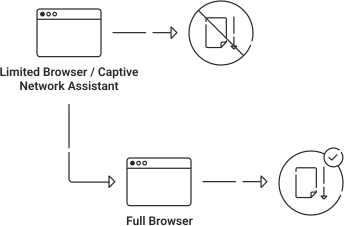
Onboarding software is typically distributed to end users through an “Onboarding SSID”. An onboarding SSID is an open SSID that redirects to a landing page where end users can download the onboarding software and have their devices configured for network access.
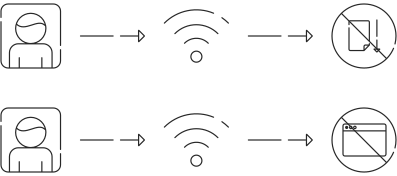
The dilemma many organizations face is that having limited browsers/CNAs on the onboarding SSID is critical to the onboarding user experience. We’ve had customers experiment with disabling it, but it left many users confused and unable to configure their devices. Using the limited browser is equally confusing, as users cannot download the configuration files/software necessary for secure network access. When we saw customers faced with this dilemma, our engineers set to work and came up with a brilliant solution we call the Advanced Onboarding Service.
The Advanced Onboarding Service
The Advanced Onboarding Service is quite simple. The end user joins the onboarding SSID, and the limited browser / CNA pops up. The SecureW2 landing page prompts the user to click to continue onboarding, which opens a full browser window where they can configure their device for secure network access.

To end users, there’s only one additional step added in the onboarding process. But the Advanced Onboarding Service works in the background to ensure users can seamlessly self-serve for secure network access. It leverages a RADIUS server to grant users limited network access for a brief period to prevent them from abusing the SSID. After this, the user can continue the onboarding process as normal in a full browser.
In theory, you could accomplish the above solution on your own. In practice, it’s impossible due to the constant changes and updates to operating systems and the varying ways they interact with network infrastructure. We are only able to provide such a service because of our experience rigorously QAing our software to support nearly every type of device and infrastructure. The data, machine learning, and engineering know-how we’ve accumulated over the years are the reason our Advanced Onboarding Service works so seamlessly.
How Onboarding is Traditionally Set up
Onboarding is typically configured with an open SSID that directs users to onboarding software, allowing them to self-service their devices for secure WPA2-Enterprise network connectivity. Conceptually, it’s not a difficult thing to set up. However, in our experience with customers, configuring and troubleshooting the Walled Garden can be particularly time-consuming. It needs to support all required resources (SecureW2, Android Play Store, Identity Provider, etc.) for onboarding. The general setup goes as follows:
- Set up an open SSID on your wireless AP/controller.
- Configure a redirect to the SecureW2 landing page.
- Set up a Walled Garden:
- Android resources.
- macOS resources.
- iOS resources.
- Windows resources.
- SecureW2 resources.
- Updating over time.
Setting up and troubleshooting the Walled Garden resources is difficult because many of them are location-based. Google, Apple, and other vendors can also change these resource locations over time, causing future maintenance. This is the biggest difference in setting up the onboarding SSIDs, as our Advanced Onboarding Service requires a much less complex Walled Garden/firewall setup.
How Advanced Onboarding Works / Set up
Our Advanced Onboarding Service is incredibly easy to set up, as most of the heavy lifting is done by our engineers. Key differences are that the onboarding SSID must authenticate against a RADIUS server, and the Walled Garden setup is much less complex. Below are the general steps for setting it up.
- Set up an open SSID on your wireless AP/controller.
- Configure a redirect to the SecureW2 Advanced Onboarding Service landing page.
- Configure RADIUS authentication.
- Set up a Walled Garden.
- SecureW2 resources.
Organizations must specify a redirect URL for their captive portal and configure it to point to a RADIUS server. Setting up and configuring a RADIUS server can be more complex with the Advanced Onboarding configuration. However, SecureW2 products come with a RADIUS server already set up, simplifying the process.
While users begin to authenticate against the RADIUS server, the process is completely hidden from them, and they continue with their usual authentication flow. Once authenticated, the limited browser is automatically closed, and the user is redirected to the SecureW2 landing page on a normal browser where mobileconfig (iOS), Cloudconfig (Android), or DMG (macOS) can be downloaded.
The authentication process is simple. First, SecureW2 allows the end user to perform Layer 3 authentication within a limited browser, and only for a limited time. Based on trials and data, we’ve found that 300 seconds is sufficient time to complete the authentication process while limiting the end user’s ability to abuse the SSID.