How to Setup EAP-TLS WPA2-Enterprise with Extreme Networks
Introduction
Using SecureW2 WPA2-Enterprise Onboarding Software and PKI Services with your Extreme Networks Access Points can vastly improve network security and user experience, and significantly reduce the number of Wi-Fi-related support tickets. It enables organizations to adopt certificate-based network authentication and easily replace Wi-Fi passwords.
Credential-based authentication is vulnerable to over-the-air credential theft and results in a poor end-user experience due to mandatory password-change policies.
SecureW2 streamlines 802.1x authentication management, making it easier for admins to monitor devices. End users can enroll for a certificate and self-configure their devices in minutes. Plus, it’s authenticated for as long as the certificate is valid, so end users don’t have to reconfigure their devices every couple of months, unlike passwords.
This guide covers integrating SecureW2 with the Extreme Networks ECA to enable organizations to support EAP-TLS certificate-based 802.1x authentication easily.
Tech Overview
Configuring SecureW2 PKI services:
Deploying and maintaining a PKI isn’t easy; that’s why SecureW2 offers turnkey cloud-based PKI services to make it incredibly easy to support certificate-based authentication.
Configuring SecureW2 RADIUS to ECA:
SecureW2 cloud-based RADIUS server integrates with any software, doesn’t require a major overhaul, and is great for clients who don’t want additional infrastructure.
SecureW2 PKI Services also integrate with any RADIUS server if you have existing infrastructure.
Configuring Secure SSID as WPA2-Enterprise EAP-TLS:
Many have thought that EAP-TLS was too difficult to deploy. SecureW2 shows that not only does EAP-TLS credential-based authentication provide better network security, but it can also be set up in a matter of hours rather than days.
Configure ECA’s Onboarding SSID:
Once you’ve configured the settings, SecureW2 allows you to customize a landing page and SSID to onboard and authenticate devices properly.
An Extreme Access Point compatible with ECA (this guide uses an AP3915i).
Integrating the SecureW2 Cloud RADIUS
From the left-hand side panel, navigate to ONBOARD> AAA.
On the Default AAA Configuration page, click the Add button under RADIUS Servers.
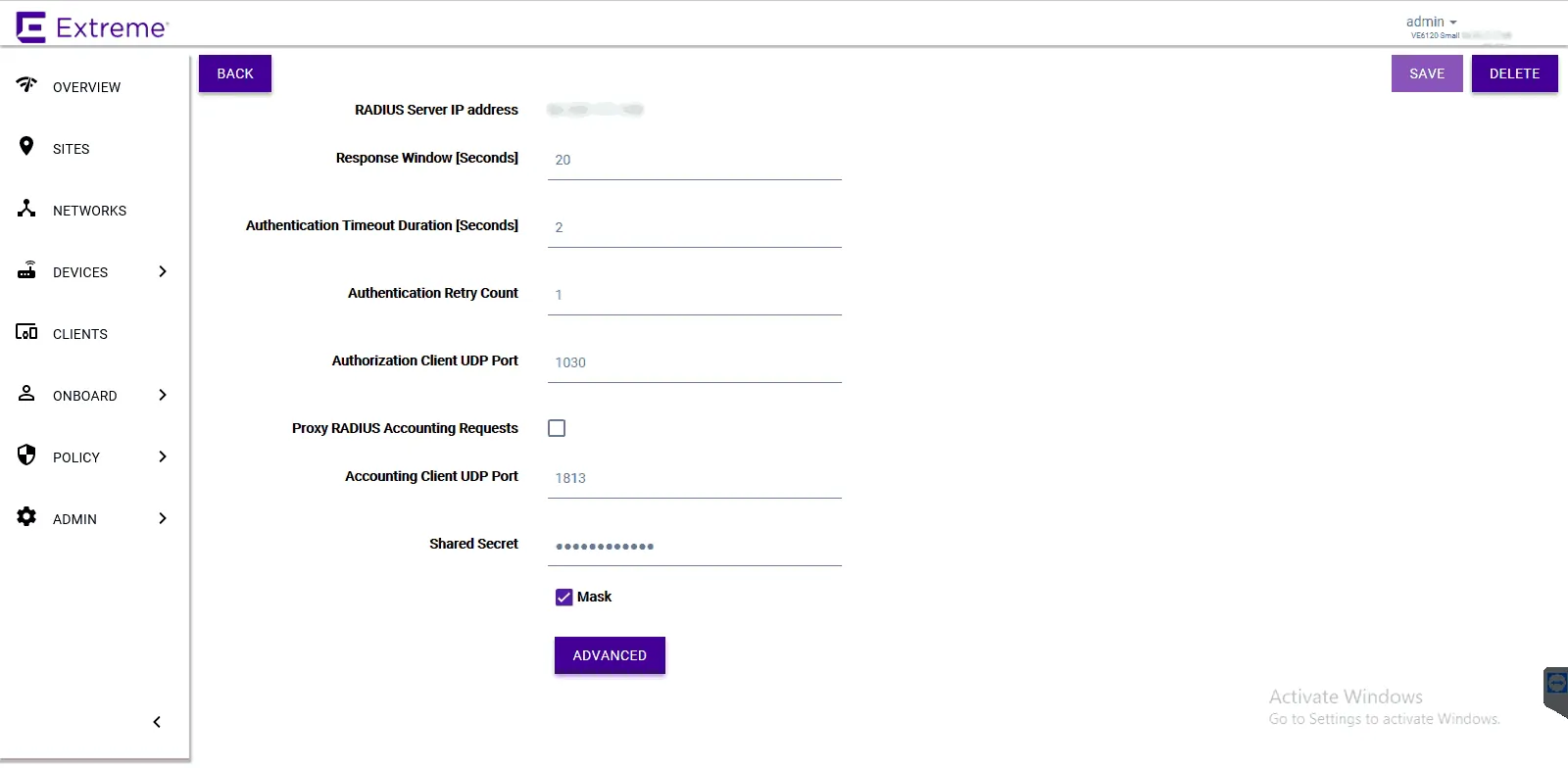
Configure the following parameters for the SecureW2 RADIUS server:
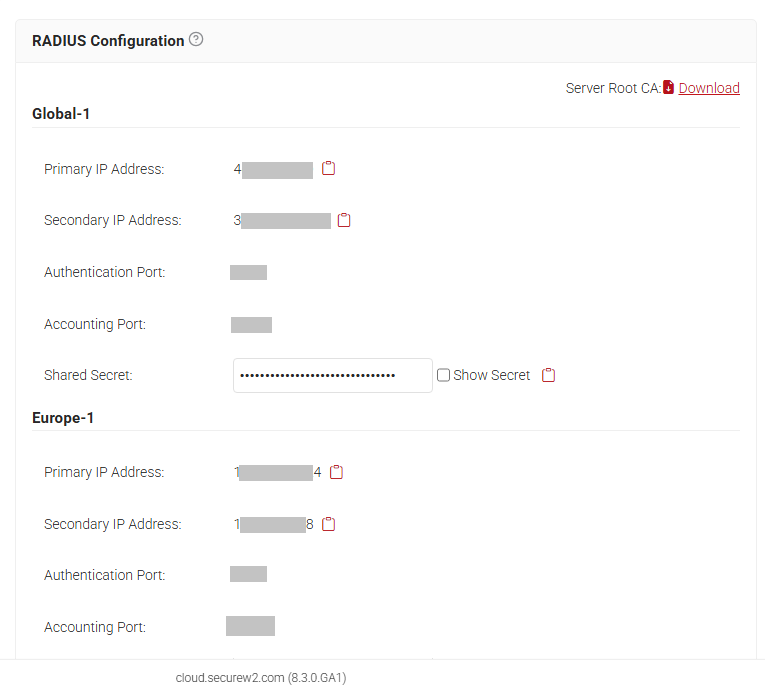
NOTE: In the JoinNow Management portal, navigate to RADIUS > RADIUS Configuration. Copy the required IP address and Port numbers.
For RADIUS Server IP address <SecureW2 RADIUS IP Address>.
For Authorization Client UDP Port <SecureW2 RADIUS Port>.
For Shared Secret <SecureW2 RADIUS Shared Secret>.
Click the Save button on the top right-hand side.
This process needs to be repeated to add both the Primary and Secondary IP Addresses.
Creating a WPA2-Enterprise Onboarding SSID
Navigate to Networks > Add.
Configure the following parameters:
Network Name – Example: Onboard.
SSID – Enter a character string to identify the wireless network.
Status – Enable the network service.
Auth Type – Open.
Enable Captive Portal – Check this option to enable captive portal support.
Captive Portal Type – Select External.
ECP URL – URL address of the SecureW2 network profile.
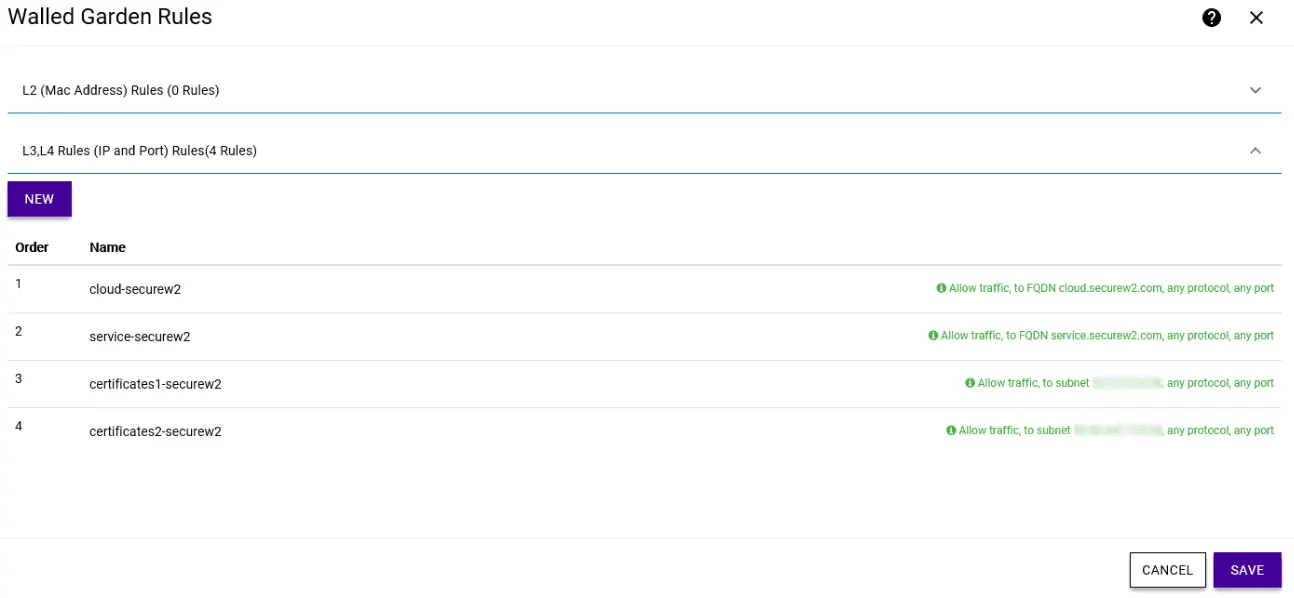
Walled Garden Rules – Click Walled Garden Rules to configure policy rules for the external captive portal.
Click on L3, L4 Rules (IP and Port) Rules(0 Rules) > New.
Create entries to allow end-user devices to reach SecureW2 servers, Google Play Store, and to disable CNA browsers:
For a full list of resources that can be allowed in the Walled Garden, please refer to the SecureW2 JoinNow Configuration Guide in the Management Portal.
Click Save.
Configure the WPA2-Enterprise Secure SSID
Navigate to Networks > Add.
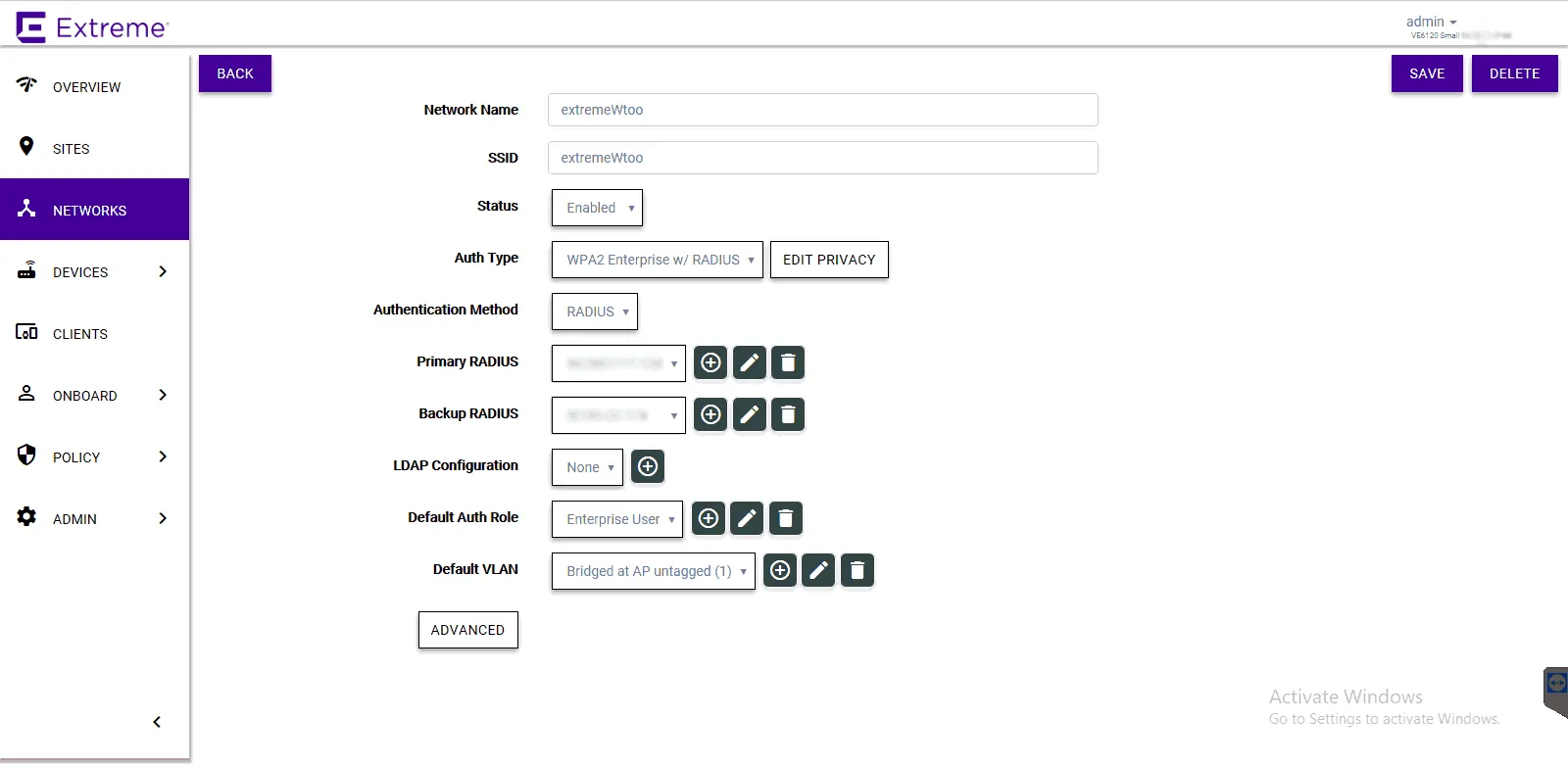
Configure the following parameters:
Network Name – Example: SecureSSID.
SSID – Enter a character string to identify the wireless network.
Status – Enable the network service.
Auth Type – WPA2 Enterprise w/ RADIUS.
Authentication Method – RADIUS.
Primary RADIUS – SecureW2 RADIUS IP Address added earlier.
Backup RADIUS – Other SecureW2 RADIUS IP Address added earlier.
Default Auth Role – Select Enterprise User.
Default VLAN – Select a VLAN.
Click Save.
Assigning the Configured Networks to a Site
Go to the Sites tab and select the preferred site that is already configured.
Click Configure Site.
Click the Device Groups tab and select a device group.
Click on the Profile field to edit the device group profile.
Go to the Networks tab and select the configured network.
Go to the Roles tab and select the previously configured roles.
Click OK > Save.
Once that’s finished, you’re all set!
Ready to get started configuring your ECA for EAP-TLS? SecureW2 offers affordable options for organizations of all shapes and sizes. Click here to check out our pricing form.
Extreme is either a registered trademark or trademarks of Extreme Networks in the United States and/or other countries. Other trademarks, logos, and service marks used in this site are the property of SecureW2 or other third parties.