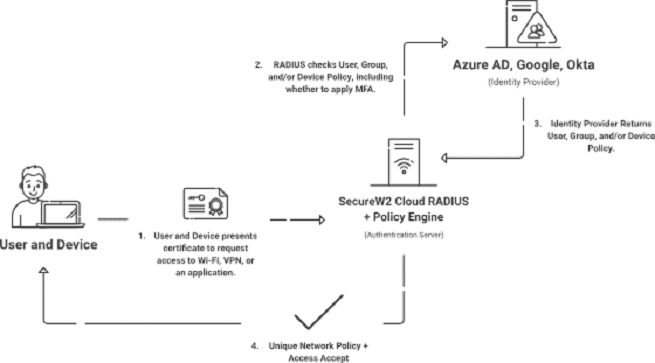
EAP-TLS is a certificate-based mutual authentication method, meaning certificates are required by both the client and the server for effective authentication. Once those certificates are found, EAP-TLS will generate session-based keys on each side to complete the login.
The steps are as follows:
- A user seeks network access control via a wireless access point (AP) or authenticator app.
- The AP inquires about the user’s identification. When the AP receives user information, it sends it to an authentication server.
- The RADIUS authentication server requests identification verification from the AP.
- The AP obtains validation and transmits it to the RADIUS authentication server.
- The user connects directly to the network.
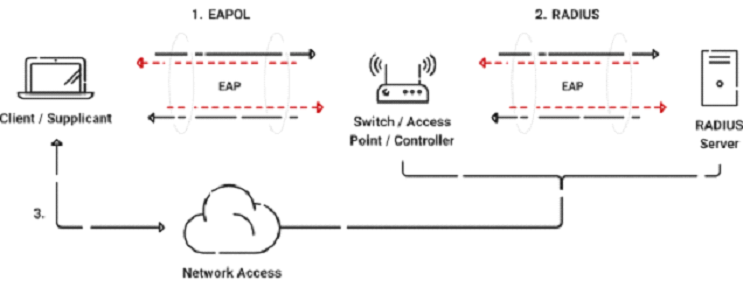
To configure a secure network for 802.1X certificates, a solid basis for user authentication, authorization, and accounting (AAA) must be established. This process guarantees a secure and efficient network environment by leveraging the complexities of certificate-based authentication.
In this section, we’ll explain how you can start configuring EAP-TLS on your Microsoft NPS operating systems. We’ll also walk through how to ensure you no longer use insecure authentication methods on NPS to ensure greater network access protection.
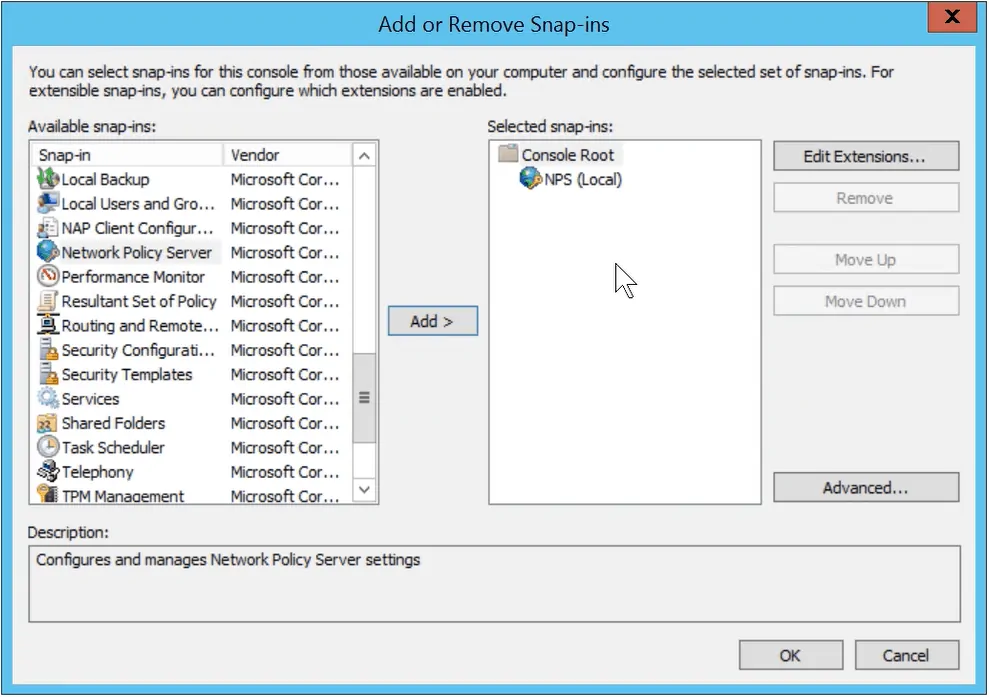
- Go to Windows > Run > MMC > OK.
- In the Console, navigate to File > Add/Remove Snap-in.
- In the Add/Remove Snap-ins window, select Network Policy Server from the Available snap-ins, and click Add.
- In the Select Computer window, select Local Computer, and click OK.
- In the Add/Remove Snap-ins window, click OK.

- In the Console, navigate to NPS (Local) > Policies > Network Policies.
- In the Actions pane on the right, click New under Network Policies, and the New Network Policy wizard will appear.
- In the Specify Network Policy Name and Connection Type page, enter the Policy Name and click Next.
- In the Specify Conditions page, click Add, and the Select condition page appears.
- Select NAS Port Type, and click Add, and the NAS Port Type window appears.
- From the Common 802.1X connection tunnel types section, select Wireless – IEEE 802.1, and click OK:
- The condition gets added to the Specify Conditions page.
- Click Next, and the Configure Authentication Methods window appears.
- Under EAP Types, click Add, and the Add EAP window appears.
- Select Microsoft Smart Card or other certificate, and click OK.
- De-select all other check boxes under Less secure authentication methods, then click Next.
- In the Configure Constraints window, click Next.
- In the Configure Settings window, click Next.
- In the Completing New Network Policy window, click Finish.

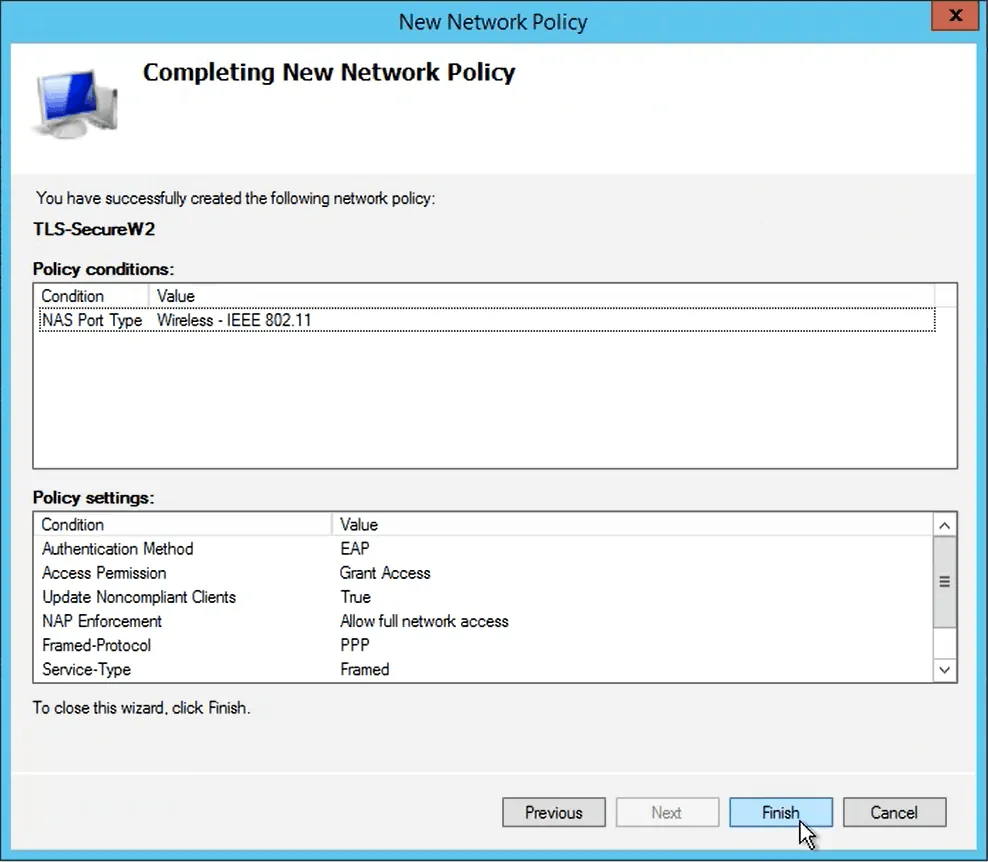
The link between the Microsoft NPS RADIUS client and the larger network environment is important for maintaining strong authentication and network access control.
In this section, we’ll walk you through connecting RADIUS clients to your Microsoft NPS operating systems.
- Go to Windows > Run > MMC > OK.
- In the Console, navigate to NPS (Local) > RADIUS Clients and Servers > RADIUS Clients.
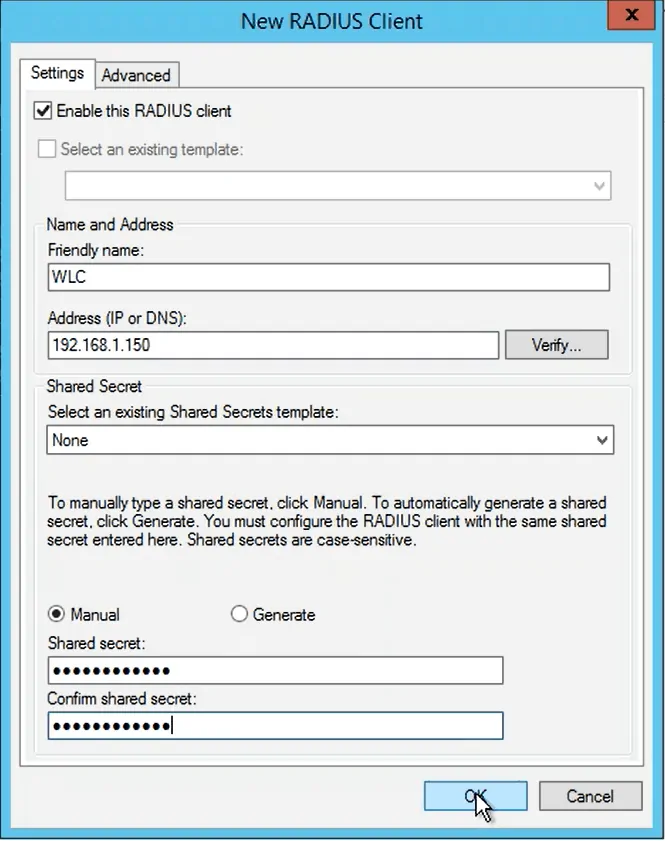
- In the Actions pane on the right, click New RADIUS Clients, and the New RADIUS Client window appears.
- Enter a Name and the IP address in the Friendly name and Address (IP or DNS) fields, respectively.
- Enter the shared secret in the Shared secret and Confirm shared secret fields, and click OK.
- Log in to the JoinNow Management Portal.
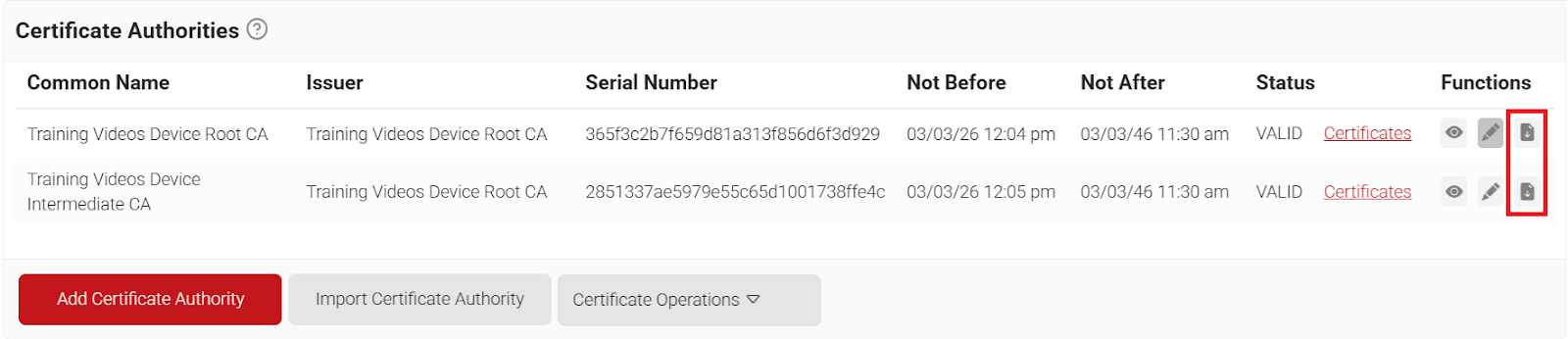
- Navigate to Dynamic PKI > Certificate Authorities.
- Download both the Root and Intermediate CAs for the organization.


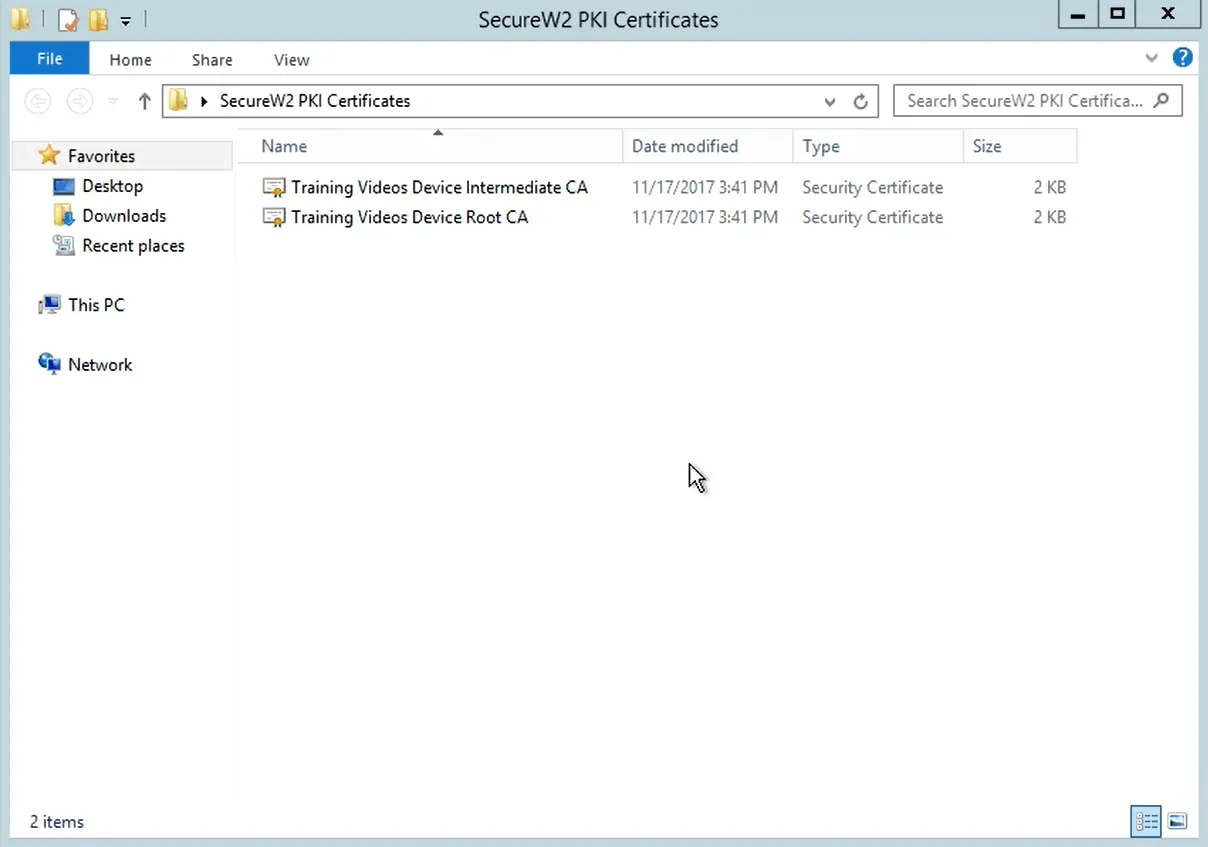
- Go to your server where you want to install the certificates.
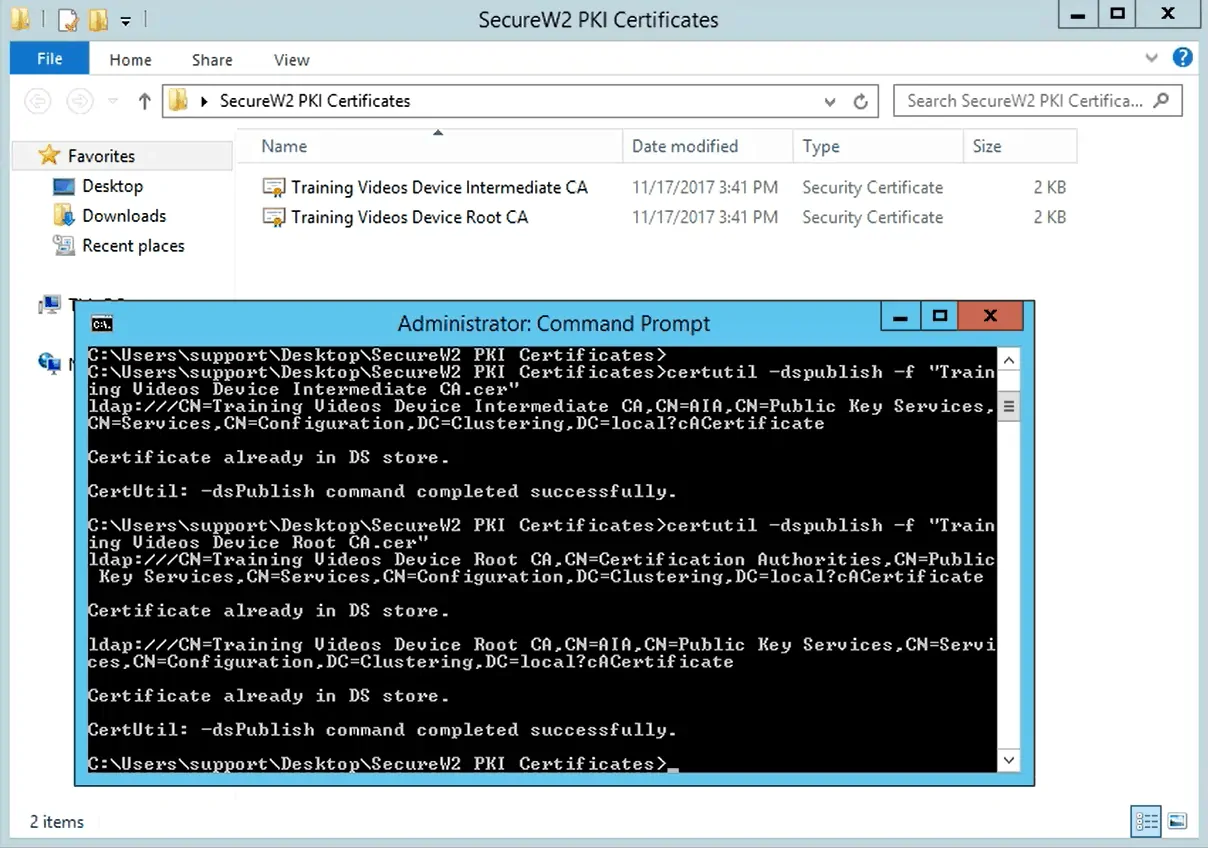
- Open Windows > Run > CMD > OK, then go to the folder where yousaved your certificates.
- To install the certificates, run the following command consecutively for both certificates:
Certutil -dspublish -f "C:Training Videos Device Intermediate CA.cer"
NPS can be used for passwordless authentication, but its on-prem architecture requires duplication at each location, which adds to the cost of organization-wide adoption. Organizations striving for cost-effectiveness and scalability must overcome the bind to on-premises technology. This is where JoinNow Cloud RADIUS from SecureW2 offers a strong solution.
The security plan that scales with you.
Our solutions can scale from mid-market to global enterprises. Compare options and see how our solutions protect you from costly breaches and ensure peace of mind.
In addition to enabling certificate-based RADIUS authentication, Cloud RADIUS eliminates the need to duplicate on-premises network infrastructure. Organizations can achieve the required passwordless security by avoiding the high costs associated with extensive on-premises duplication.
Cloud RADIUS ensures seamless integration with existing infrastructure, offering a simple transition for enterprises seeking improved authentication capabilities. However, we also provide an alternative with our vendor-neutral managed PKI for users not ready to go straight to Cloud RADIUS. It easily integrates with NPS, offering businesses an adaptable option to improve existing authentication procedures and prepare for a future move to a passwordless, cloud-based platform.
Contact us to learn how SecureW2 might help your organization’s security system improve the security of its network infrastructure with certificate-driven security.